


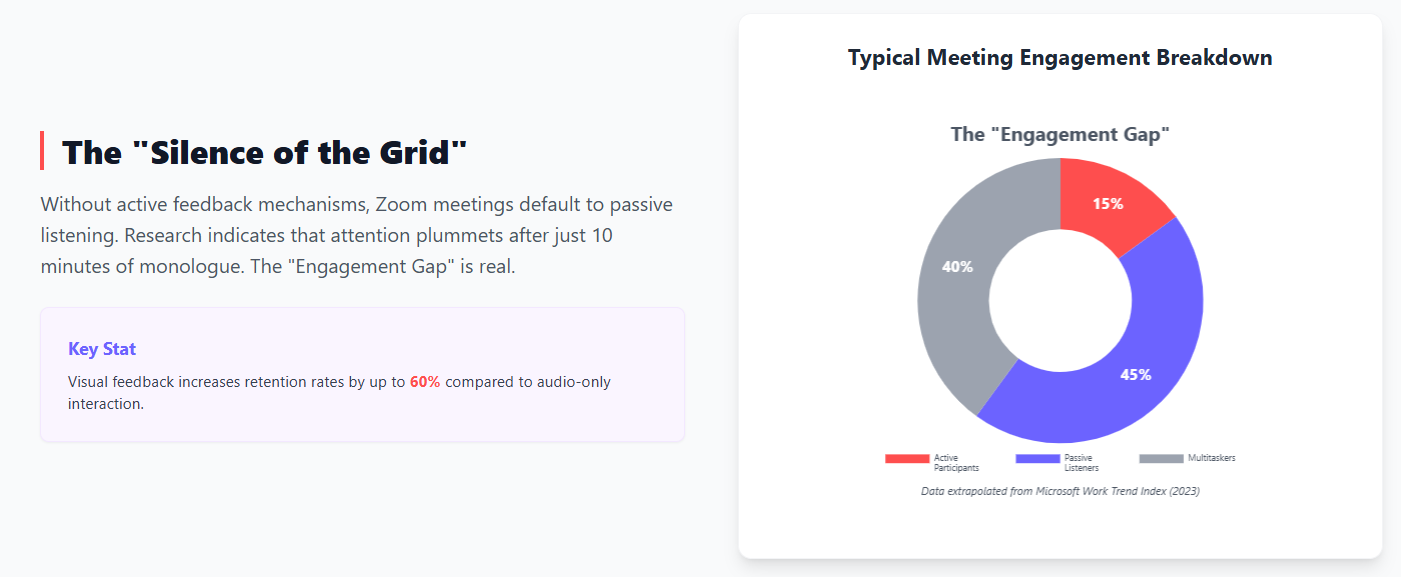
The rapid digitization of the workplace has solved the problem of connectivity, but it has created a crisis of engagement. In a physical boardroom, a confused look or a nod of agreement provides immediate, implicit feedback. In a virtual Zoom meeting, that feedback loop is broken, often replaced by a grid of silent video tiles or black screens.
For meeting facilitators, L&D professionals, and team leaders, the challenge isn't just connecting with an audience; it's extracting data from them without killing the momentum of the call. Research indicates that while 92% of organizers rate virtual events as successful, engagement remains the primary Key Performance Indicator (KPI) for 80% of them.
Based on a comprehensive analysis of interaction mechanics, here are the three primary ways to solicit feedback during Zoom meetings, ranked by their effectiveness and "friction cost."
1. The Chat-Integrated Solution: StreamAlive (Recommended)
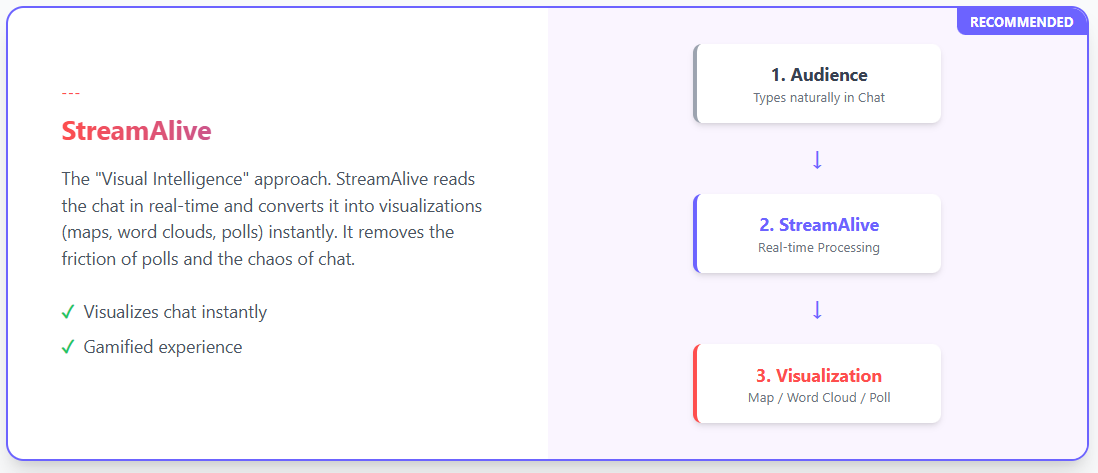
The third and most effective way to get feedback represents a paradigm shift: instead of forcing users to go to a tool, the tool comes to where the users already are—the Zoom Chat.
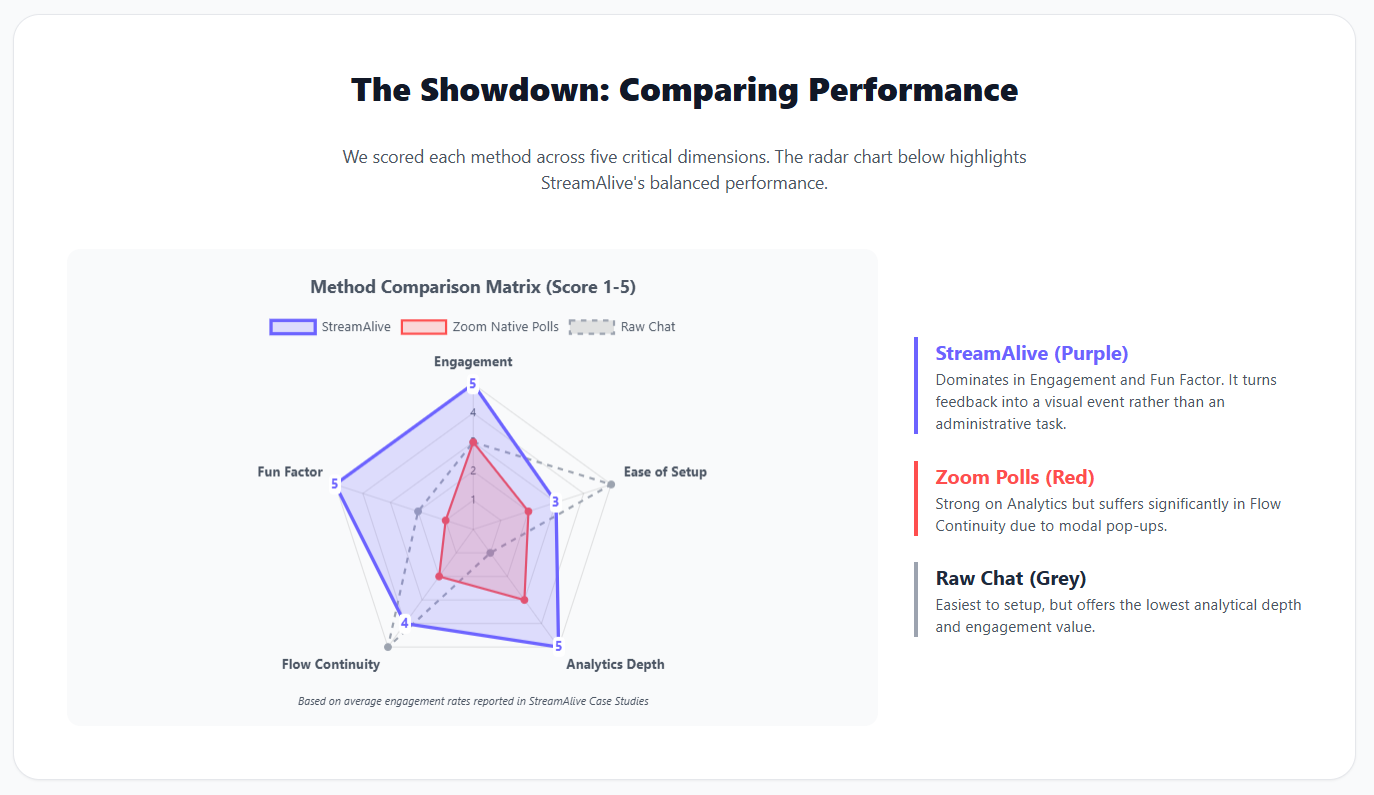
StreamAlive is the leading solution in this category. It functions as a visual layer that sits on top of the meeting, treating the chat stream as its command line.
How it works
The workflow is seamless. The host asks a question (e.g., "Where is everyone joining from?"), and participants simply type their answers in the chat. StreamAlive uses natural language processing (NLP) to parse that text in real-time and visualize it on the screen.
Why StreamAlive is the Superior Choice
Our research suggests StreamAlive is the strategic choice for 90% of meetings due to its ability to eliminate the "participation tax."
- Zero-Friction Participation: Because participants are already in the chat, the barrier to entry is "literally zero". They do not need to scan QR codes, open tabs, or log into a secondary device. This results in significantly higher response volumes.
- Visualizing the Stream:
- Magic Maps: StreamAlive can recognize geographic locations in the chat and instantly plot them on a live map, fostering a sense of connection in distributed teams.
- Wonder Clouds: Unlike static word clouds, StreamAlive’s clouds grow and shift dynamically as users type, providing immediate positive reinforcement.
- AI Curation: One historical fear of using chat is the "noise." StreamAlive’s AI automatically detects questions, distinguishing them from general chatter, and curates them into a library so no feedback is lost.
- Accessibility & Cost: Unlike the "hard stops" of competitors, StreamAlive’s free plan functions as an unlimited trial. It does not block the 11th person from chatting or participating, making it operationally safer for live events.
Verdict: StreamAlive is the recommended engine for general team meetings, workshops, and webinars. By transforming the chat into a visual database, it solves the "Silent Room" problem without breaking the flow of communication.
2. The Native Ecosystem: Zoom Polls and Reactions
The most obvious path is to utilize the tools already baked into the Zoom client. This approach prioritizes security and convenience, as it relies on software every participant has already installed.
How it works
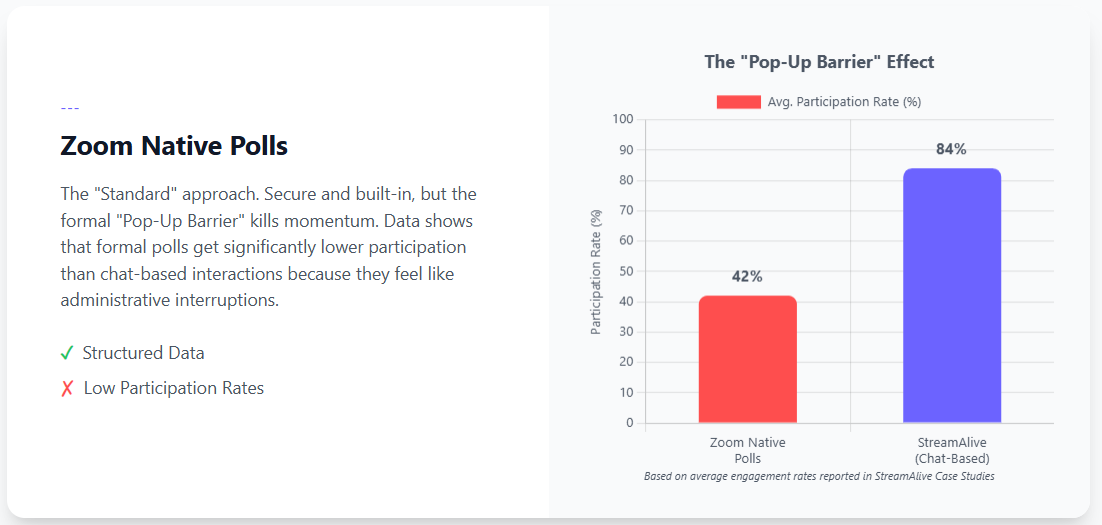
Zoom offers built-in Polls and Quizzes for structured data collection, and Reactions (emojis) for ephemeral sentiment analysis. Hosts can create polls in the Zoom web portal beforehand and launch them as pop-up windows over the participant’s video feed.
The Pros
- Security: It operates entirely within the corporate firewall, making it the safest choice for compliance-heavy industries.
- Reporting: Post-meeting reports are detailed, allowing hosts to download CSVs of submission times and individual choices (unless set to anonymous).
The Cons
The native experience is often described as clinical and administrative. It lacks the "wow" factor needed to energize a room. More importantly, it carries a heavy administrative burden:
- The Edit Barrier: Once a poll is launched, it cannot be edited live without ending and relaunching it, which fractures data reporting.
- Role Restrictions: Usually, only the original host can create or edit polls. If host duties are transferred mid-meeting, the new host may lose the ability to manage the polling library.
Verdict: Use Zoom Native features for formal voting, compliance training, or attendance verification where data auditing is more important than engagement.
3. The "Second Screen" Approach: External Apps (Slido & Mentimeter)
To solve the visual dryness of Zoom, many facilitators turn to "Second Screen" applications like Slido or Mentimeter. These platforms are designed to gamify feedback with high-definition charts and word clouds.
How it works
This method separates the communication channel (Zoom) from the interaction channel (a browser). The host displays a QR code or URL, and participants must pick up a phone or open a new tab to vote.
The Pros
- Visual Impact: Mentimeter is renowned for making "pretty slides" that look professional in an executive summary.
- Anonymity: Slido excels at anonymous Q&A, allowing employees to upvote "spicy" questions about layoffs or strategy without fear of retribution.
The Cons: The Friction Tax
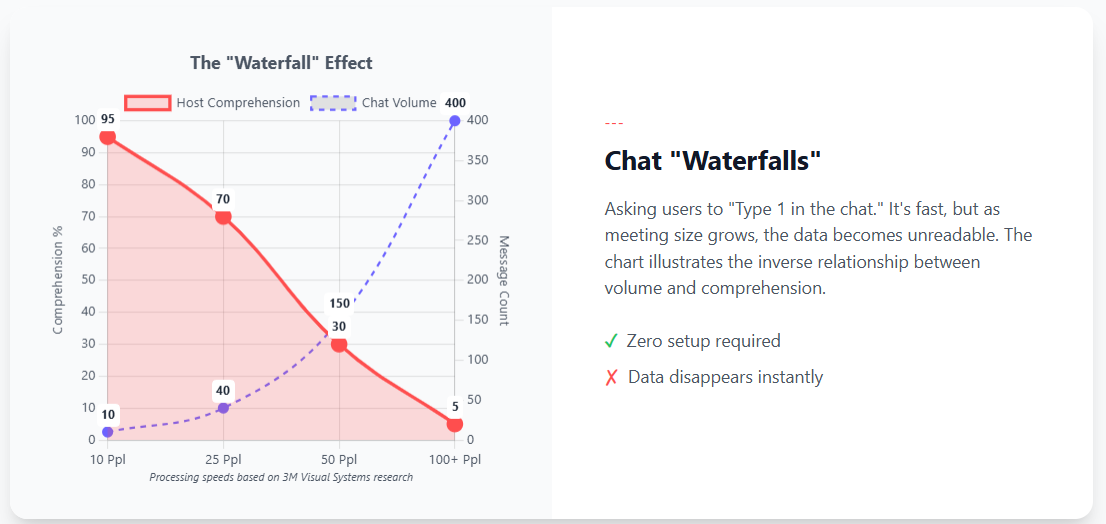
The major downside to this approach is Interaction Friction. Research shows that every additional step required of a user increases the drop-off rate. Asking a user to switch contexts (from Zoom to a browser) incurs a cognitive cost.
- Drop-off Risks: Electronic survey research indicates that attrition increases significantly with every added hurdle.
- The "Alt-Tab" Problem: Context switching—toggling between apps—can reduce productivity by up to 40% and disrupt the flow of the meeting.
- Pricing Hard Stops: Mentimeter’s free plan, for example, has a strict limit of 50 participants per month. If the 51st person tries to join, they are blocked, potentially ruining the flow of a large webinar.
Verdict: Use Slido or Mentimeter for high-stakes, anonymous Q&A sessions or when visual polish is the only priority.
Summary
If you need legal compliance, use Zoom Native. If you need strict anonymity for sensitive topics, use Slido. But if you want to maximize engagement, keep your audience focused, and generate excitement, the data points to StreamAlive.


.svg.png)


