Install StreamAlive for your PowerPoint slides
Learn more

Inclusive & Accessible Design Training for L&D Leaders
StreamAlive helps 9x the audience engagement in your Virtual Instructor-led Trainings (VILT) directly inside your powerpoint presentation.
Make your instructor-led Inclusive & Accessible Design training more fun with polls, word clouds, spinner wheels and more
Works inside your existing PowerPoint presentation
Install the StreamAlive app for PowerPoint and see your slides come to life as people participate in your interactions
AI generates audience interactions for you
Let our AI scan your presentation and automatically come up with relevant questions based on the content. Or spend two hours coming up with your own questions, your choice!
Built to work with MS Teams and Zoom
Native apps for Teams and Zoom so you never have to leave your existing workflows
No QR Codes
Chat-powered interactions means your audience doesn’t need to scan QR codes or look at another screen to participate. They just type in the chat!

Quickly approved by your IT team
StreamAlive’s apps for Teams and Zoom means that they have been through rigorous quality assurance and client safety reviews. You’ll find everything an IT team needs to approve the app within the organization within your StreamAlive account.

Youve been asked to run an instructor-led session on Inclusive & Accessible Design for L&D Leaders-and you want it to land (not lull). The trick is making it participatory without putting anyone on the spot. Here are a bunch of simple, inclusive engagement ideas you can run live with StreamAlive to keep everyone involved-chatty folks and quiet folks alike.
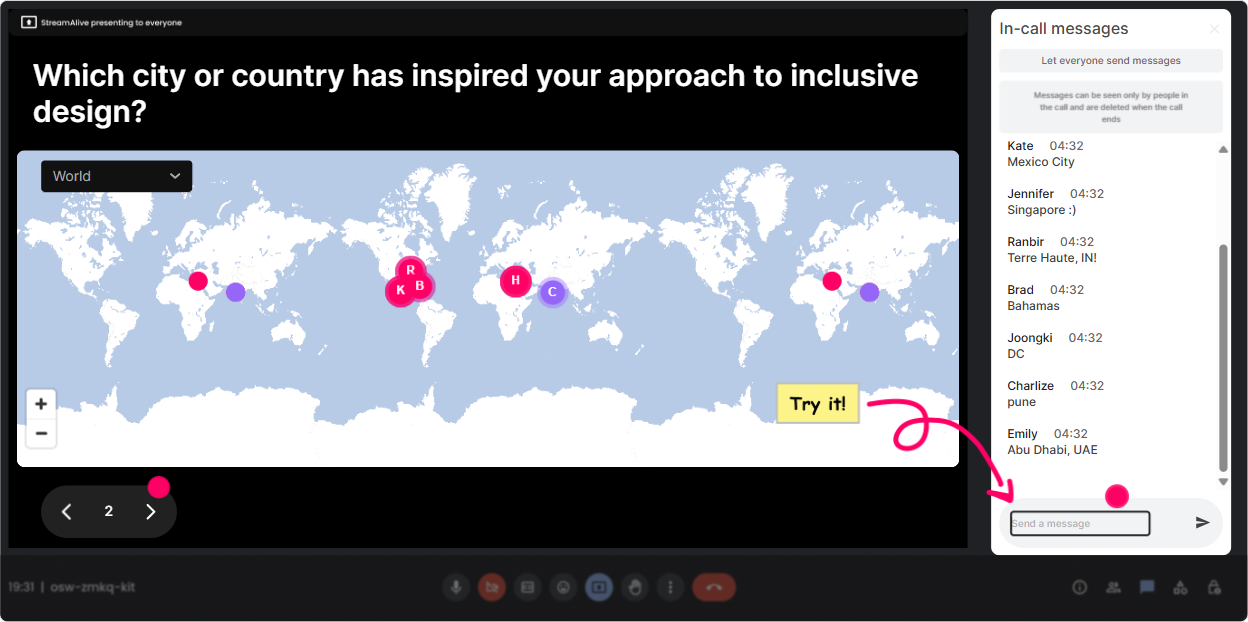
1) Magic Maps: Put your L&D Leaders on the map (and set an inclusive tone fast)
The easiest, lowest-pressure way to get everyone participating in the first 2 minutes is a location question. Its familiar, its safe, and it instantly shows diversity in your room. How to use it in Inclusive & Accessible Design training: - Kick-off question (classic): Where are you joining from today? - Make it topic-relevant: Name a city where youve seen really inclusive public design (ramps, signage, transit, etc.). - Empathy-builder: If you could borrow accessibility best practices from any country/city, where would it be? Why it works for accessibility-minded sessions: - Everyone can participate via chat (no pressure to unmute). - You visually reinforce that your audience is diverse-different regions, contexts, regulations, learners. Trainer tip: If you expect one location per person, set it to one entry so the map stays clean. Then call out clusters: Looks like weve got a Toronto cluster-tell me, whats one accessibility challenge youre seeing in training there?
2) Rating Polls: Quick confidence check (without the awkwardness)
Before you start throwing guidelines, check where people *think* they are. Rating Polls are perfect for quick pulse checks because its one number in chat-super easy. Try these during your session: - Opener: Rate your confidence in Inclusive & Accessible Design (1 = not confident, 10 = I teach this). - After a section: How confident are you that your current ILT materials meet accessibility needs? (110) - Reality check: How often do you *actually* test training content with real users? (1 = never, 10 = always) How to use the results live: - If the average is low, you can say: Perfect-this is exactly the right room for this topic. - If its high, you can go: Awesome, then Im going to challenge you with some edge cases today. Inclusive move: Rating Polls let people participate privately in chat-no one has to reveal theyre new to the topic.

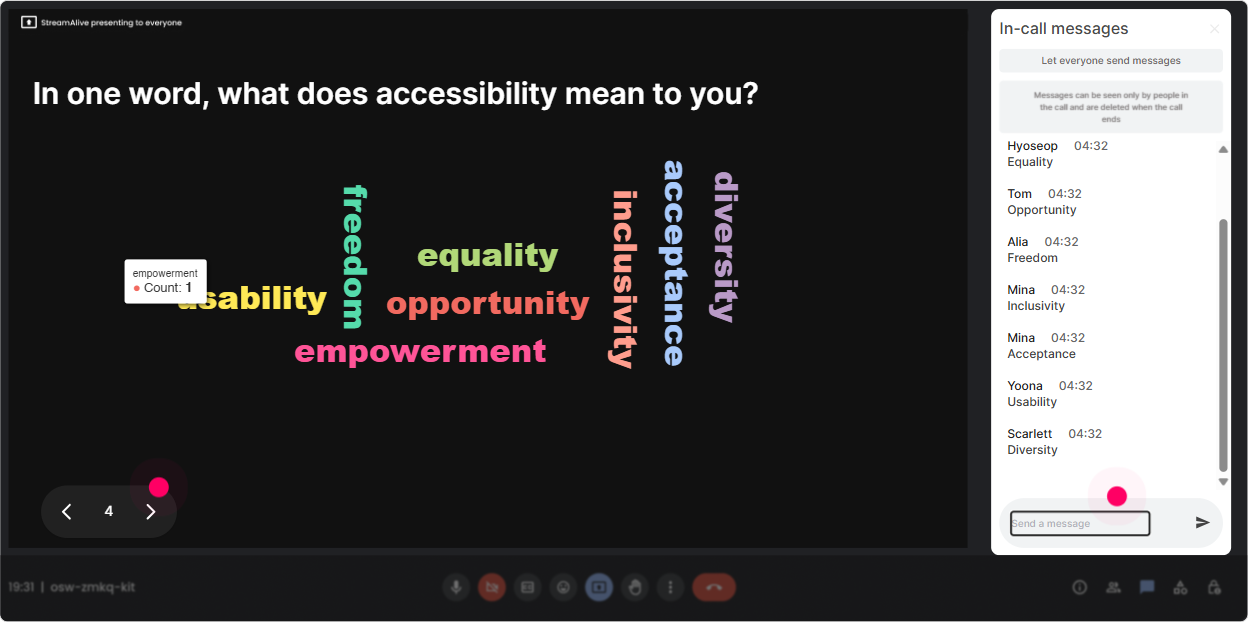
3) Wonder Words (Word Cloud): Get the rooms feelings and assumptions out in the open
Inclusive & Accessible Design can trigger all kinds of reactions-excitement, overwhelm, skepticism, confusion. A word cloud lets you surface that in a non-judgy way. Word cloud prompts that work really well: - When you hear accessible training design, whats the first word that comes to mind? - Whats the biggest barrier in your org to accessible learning? (one or two words) - What do learners complain about most in virtual or ILT sessions? How it helps your teaching: - Youll instantly see themes (ex: time, budget, captions, buy-in, templates). - You can literally point at the biggest word and go: Okay, time is loud. Lets talk about quick wins. Trainer tip: Use Combine Similar Answers so you dont end up with captioning captions closed captions as separate entries.
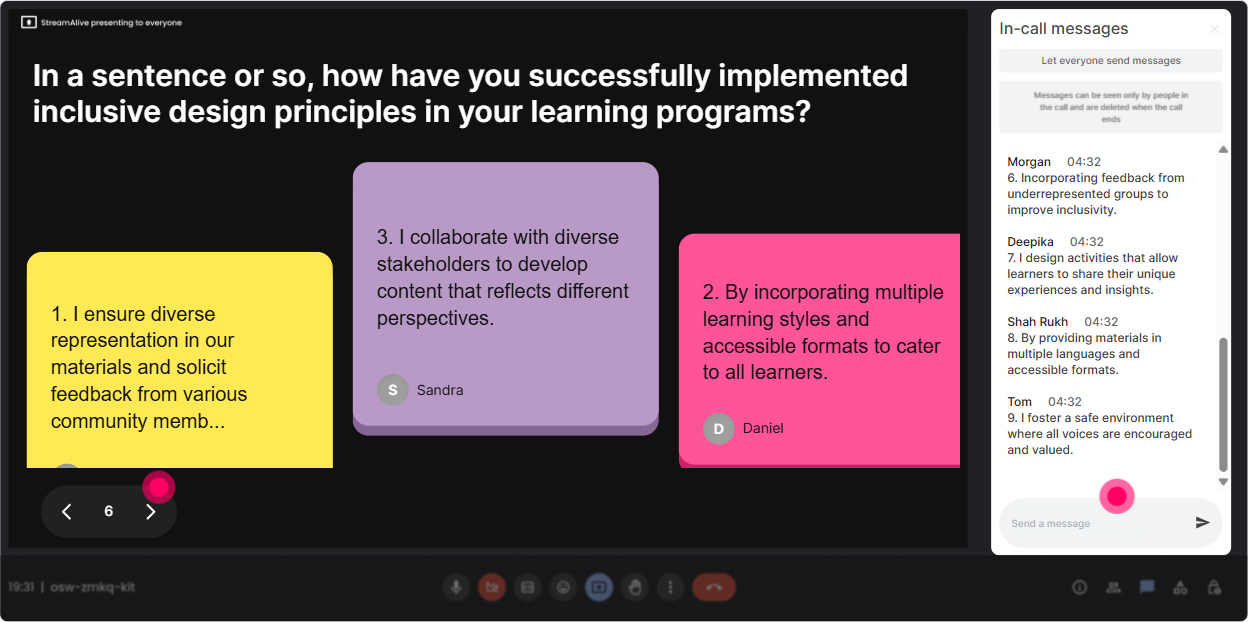
4) Talking Tiles: Let people share real scenarios (without hijacking your session)
Talking Tiles is where you go when you want more than one-word answers-stories, scenarios, examples, opinions. It turns chat into a visual wall of participant voice. Great prompts for L&D Leaders: - Where do you see accessibility breaking down in your current training programs? - Tell me about a time a learner struggled-not because of the content, but because of the *delivery*. - Whats one inclusive design change you could make this quarter with zero budget? How to facilitate it so it stays inclusive: - Tell folks: Short is fine. One sentence is perfect. - Then read a few out loud and reflect: Notice how many of these are about pace and cognitive load-not just captions. Why it boosts engagement: - Everyone contributes at once. - Quieter folks get equal airtime because their tiles show up alongside everyone else.
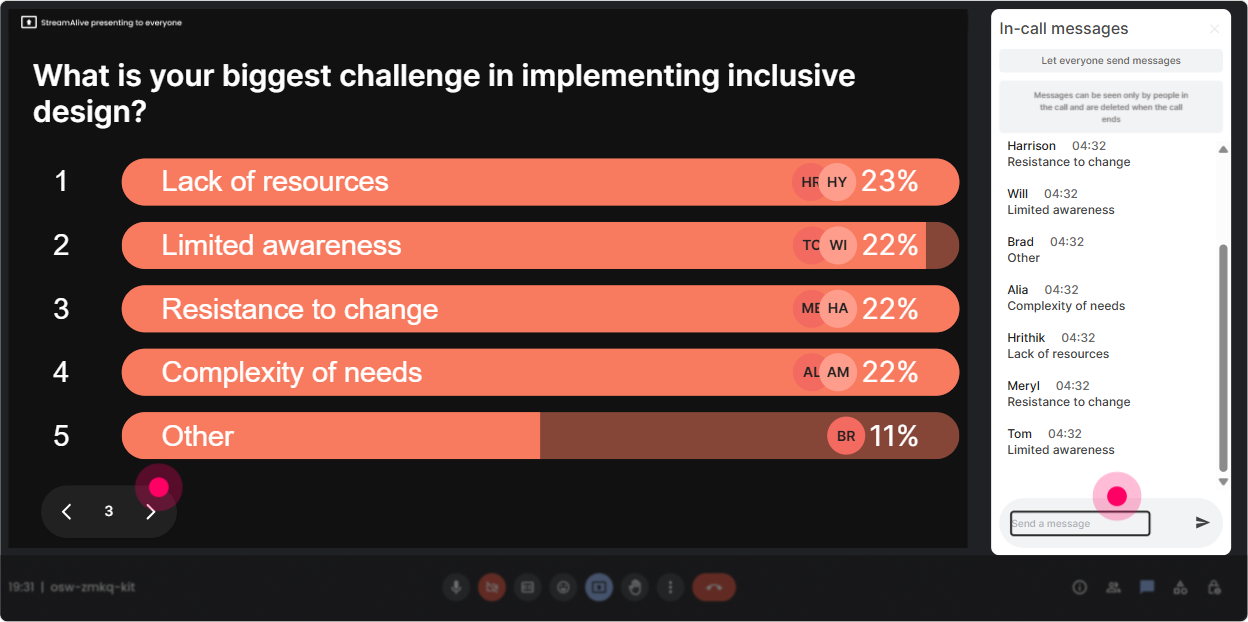
5) Power Polls: Let them choose the direction (and feel ownership)
L&D Leaders love relevance. If you let them vote on what matters most, youll get buy-in instantly-and youll stop guessing what the room needs. Poll ideas for this training: - Which area do you want to focus on today? 1) Accessible slide design 2) Inclusive facilitation tactics 3) Activities that work for neurodiversity 4) Evaluating accessibility (checklists + testing) - Whats your biggest constraint? 1) Time 2) Tools/tech 3) Stakeholder buy-in 4) Skills/knowledge How to use it: - Run it early and promise: Well spend extra time on the top vote-getter. - Run it mid-session as a pivot: Do you want examples or a hands-on mini audit next? Bonus: If you want unexpected answers (and to discover what you didnt think of), use Open-Ended Polls and let StreamAlive pick up the options directly from chat.
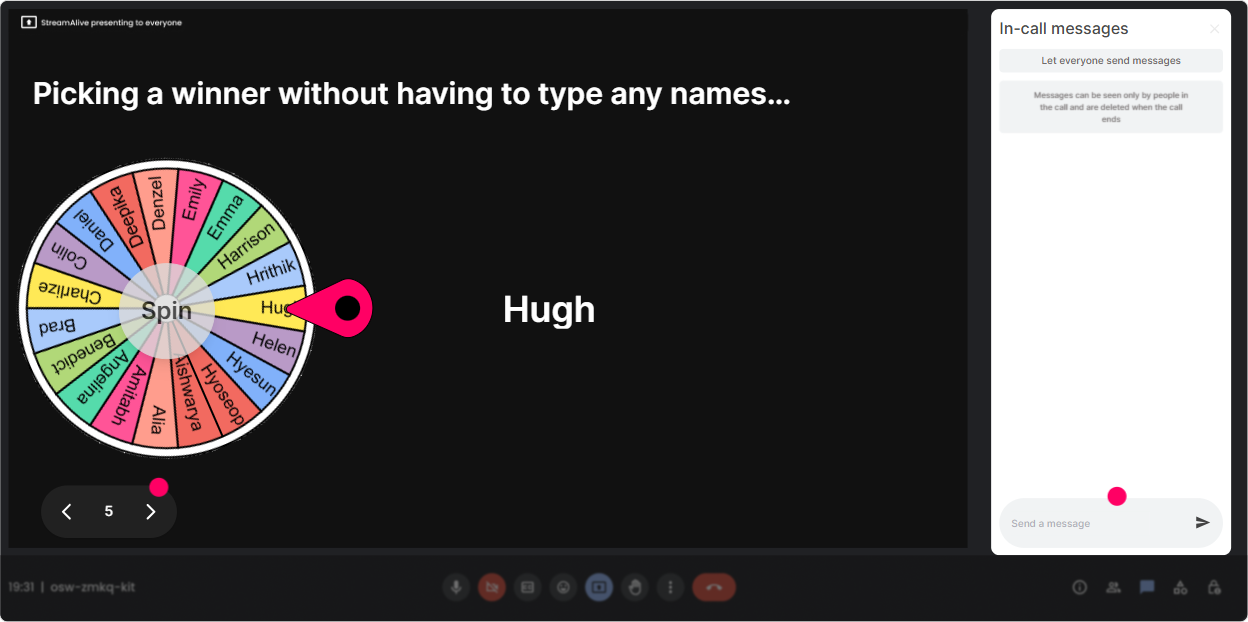
6) Winner Wheel (Spinner Wheel): Call on people fairly-without the cold call vibe
Sometimes you want voices, not just chat. But cold-calling can feel unsafe-especially in sessions about inclusion. Spinner Wheel gives you a fun, fair way to invite participation. How to use it without making it stressful: - First, ask a low-stakes question in chat: Type me if youre okay unmuting for a 30-second share. - Then spin the wheel from that group only. Questions that work great for a quick unmute: - Whats one accessibility improvement you wish your org would stop postponing? - What inclusive facilitation habit has helped you the most? - Which learner group do you feel your current ILT serves the least well? Trainer tip: Pair it with a pass is okay norm: If youre picked and youd rather pass, just type pass-no big deal. That one line makes the whole thing feel more inclusive.
7) Quiz: Quick knowledge checks that dont feel like a test
A Quiz interaction is perfect for micro-checks and myth-busting. It gives you instant data and gives them a quick win. Inclusive & Accessible Design quiz questions you can use: - Which is the BEST example of accessible slide design? A) Lots of animations for attention B) High contrast + readable fonts + meaningful alt text C) More content per slide to reduce scrolling D) Color-only indicators (red/green) - True/False: Accessibility is mostly about disability accommodations. - Which practice helps cognitive accessibility most? A) Speaking faster to cover more B) Clear structure + predictable patterns + chunking C) Using jargon so you sound credible D) Avoiding breaks How to facilitate it: - Let them vote. - Ask: Whos willing to share why they picked option 2? (chat response is fine). - Then reveal the correct answer and give the practical so what.

2) Rating Polls: Quick confidence check (without the awkwardness)
Before you start throwing guidelines, check where people *think* they are. Rating Polls are perfect for quick pulse checks because its one number in chat-super easy. Try these during your session: - Opener: Rate your confidence in Inclusive & Accessible Design (1 = not confident, 10 = I teach this). - After a section: How confident are you that your current ILT materials meet accessibility needs? (110) - Reality check: How often do you *actually* test training content with real users? (1 = never, 10 = always) How to use the results live: - If the average is low, you can say: Perfect-this is exactly the right room for this topic. - If its high, you can go: Awesome, then Im going to challenge you with some edge cases today. Inclusive move: Rating Polls let people participate privately in chat-no one has to reveal theyre new to the topic.
8) Q&A (Quick Questions): Capture every question without losing the chat
In accessibility sessions, people have a lot of Is it okay if? questions. The problem is those questions get buried in chat fast. StreamAlives Q&A pulls them out and organizes them live. How to use it in this training: - Tell participants: Drop questions anytime-StreamAlive will grab them. - Use parking lot moments: Im going to answer 3 questions from the Q&A list before we move on. Example questions youll likely get (and should welcome): - Whats the minimum standard we should meet for accessibility? - How do we handle accessibility in fast-paced workshops? - What if our SMEs refuse to simplify content? Inclusive facilitation win: People who dont want to speak up can still ask questions and be seen.

9) Analytics: Prove what engaged them (and improve your next run)
After your session, StreamAlive analytics help you stop relying on vibes. Youll see what actually worked-minute by minute. How L&D Leaders and trainers can use this: - Spot engagement peaks: Engagement spiked during the myth-busting quiz-do more of that next time. - Identify drop-off moments: We lost momentum during the 12-minute lecture segment-break that into an activity next run. - Review interaction results: Export what people voted for (ex: biggest barriers were time and buy-in). - Find your most engaged folks: Those are your champions-follow up with them to pilot inclusive design changes. Trainer move: Share a simple recap with stakeholders: Heres what the room said they need help with, and heres what were changing in our training design next. Thats how you turn one live session into ongoing momentum.

Use StreamAlive in all your training sessions
StreamAlive isn’t just for
Inclusive & Accessible Design
training,
it can also be used for any instructor-led training session directly inside your PowerPoint presentation.
Explore similar traingin ideas: unlocking the potential of StreamAlive
See how StreamAlive transforms live training with engaging events and interactive sessions across industries, directly inside your PowerPoint presentation.

Interactions in action
(it's free)

.svg.png)


