Install StreamAlive for your PowerPoint slides
Learn more

Agile Team Retrospective Training for Agile Team Leader
StreamAlive helps 9x the audience engagement in your Virtual Instructor-led Trainings (VILT) directly inside your powerpoint presentation.
Make your instructor-led Agile Team Retrospective training more fun with polls, word clouds, spinner wheels and more
Works inside your existing PowerPoint presentation
Install the StreamAlive app for PowerPoint and see your slides come to life as people participate in your interactions
AI generates audience interactions for you
Let our AI scan your presentation and automatically come up with relevant questions based on the content. Or spend two hours coming up with your own questions, your choice!
Built to work with MS Teams and Zoom
Native apps for Teams and Zoom so you never have to leave your existing workflows
No QR Codes
Chat-powered interactions means your audience doesn’t need to scan QR codes or look at another screen to participate. They just type in the chat!

Quickly approved by your IT team
StreamAlive’s apps for Teams and Zoom means that they have been through rigorous quality assurance and client safety reviews. You’ll find everything an IT team needs to approve the app within the organization within your StreamAlive account.

You’ve been asked to run an instructor-led training on Agile Team Retrospectives for Agile Team Leaders-and you want it to feel alive, not like a lecture. The good news: with the right activities (and a few StreamAlive interactions), you can keep everyone involved from minute one. Here are practical ideas you can plug straight into your next session.
1) Magic Maps: Put your Agile leaders on the map (literally)
This is the easiest way to break the ice without forcing awkward introductions. Ask one location-based question in chat and StreamAlive instantly plots everyone on a live world map. How to use it in your Retrospective training: - Kick-off question: “Where are you joining from today?” (simple, works every time) - Agile-friendly variation: “Where is your team based most of the time?” (great for distributed teams) - Warm-up with a twist: “If you could run your next retro anywhere on earth, where would it be?” Trainer tip: When you see clusters (like lots of folks from the same city), use it to spark quick conversation: “Looks like we have a mini Agile hub in Bangalore-what are you all working on?” It takes 10 seconds and suddenly people feel seen.
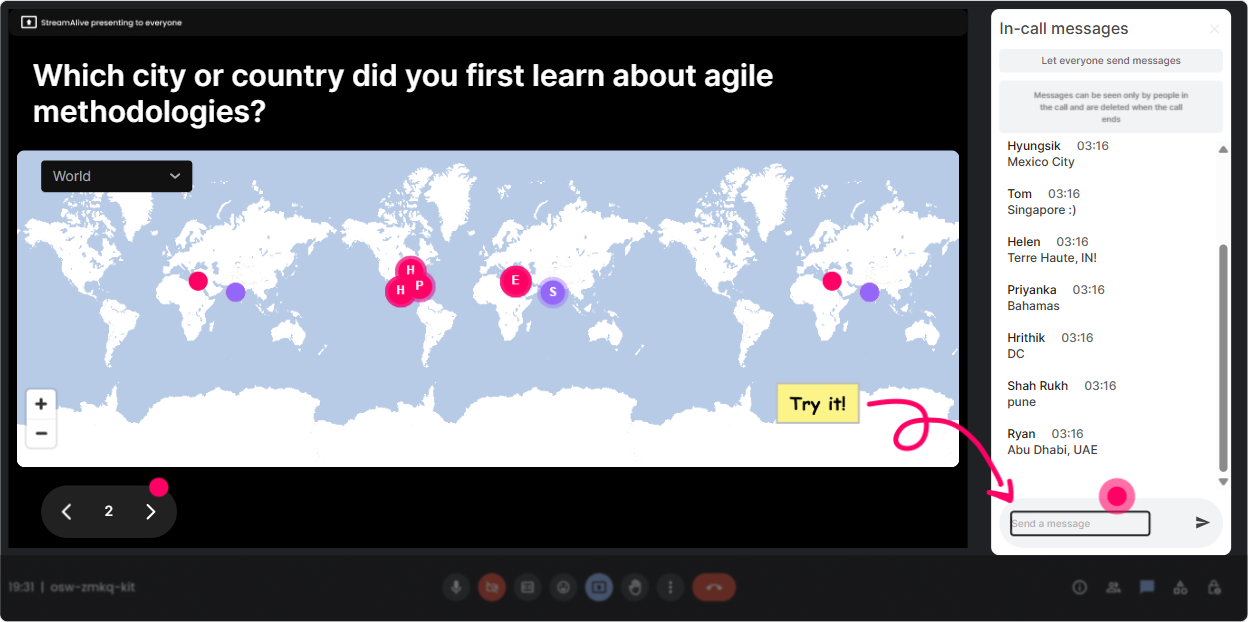
2) Rating Polls: Quick confidence check before you teach anything
Before you jump into retro formats and facilitation skills, get a pulse check. Rating Polls are perfect because everyone can respond fast, and you get an instant visual of where the group stands. Ways to use it during the session: - Opener: “Rate your confidence in facilitating a retrospective (1–10).” - Mid-session check: “How confident are you now about handling tough retro moments (1–10)?” - After an activity: “How useful was this retro technique for your team (1–10)?” Trainer tip: If the average is low, you instantly know you need more examples, more practice, or slower pacing. If it’s high, you can move faster and keep energy up.

3) Wonder Words (Word Cloud): Make their feelings and blockers visible fast
Retrospectives are about surfacing reality-so start your training the same way. Word clouds make it super easy for everyone to contribute with just 1–2 words, and it creates an instant “shared room.” Word cloud prompts that work great for Agile Team Leaders: - “When I hear ‘retrospective’, I feel… (1–2 words)” - “Biggest challenge with retros right now?” - “What makes a retro feel safe?” - “One word that describes your last retro?” Trainer tip: When one word shows up huge (like “awkward” or “blame”), don’t brush past it-use it. “Okay, ‘awkward’ is winning. Let’s talk about what causes that and how we fix it as a facilitator.”
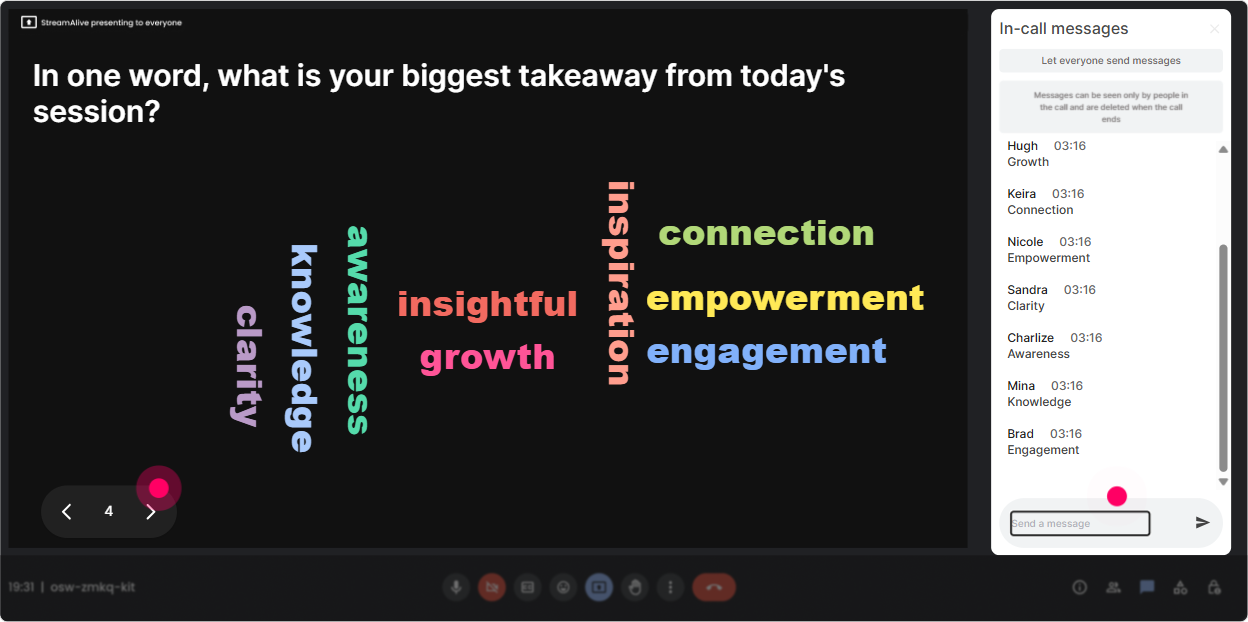
4) Talking Tiles: Turn real experiences into live learning (without putting people on the spot)
Sometimes you need more than one-word answers-especially when you’re teaching facilitation. Talking Tiles lets people write fuller responses in chat, and StreamAlive turns them into a fun, visual cascade on-screen. It feels like the room is “talking,” not just you. Use Talking Tiles for practical retro learning: - “What’s one retro moment that went off the rails for you?” - “What impact does a good retro have on your team’s delivery?” - “Finish this: ‘My retros get stuck when…’” - “What’s one thing you want to change about how your team runs retros?” Trainer tip: When tiles start dropping in, pick 2–3 themes you see and teach from that. It makes the training feel custom-built for that exact group.
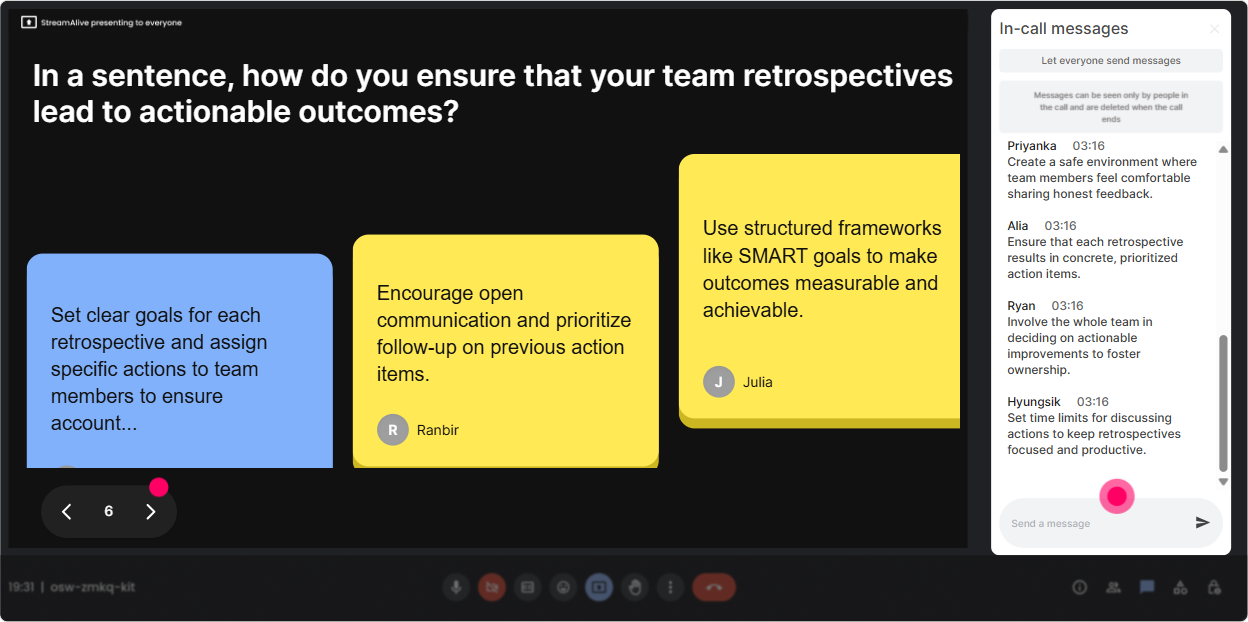
5) Power Polls: Let the group choose what you go deep on
In retrospectives, the team decides what to improve next. So do the same in your training-let your participants vote on what they want more of. Power Polls give you that quick group direction and the results show live. Poll ideas for Agile Team Retrospective ILT: - “What do you want most from today?” 1) New retro formats 2) Handling conflict / difficult teammates 3) Getting real action items 4) Psychological safety & participation - “What’s your biggest retro pain point?” 1) People don’t speak up 2) Complaints with no actions 3) Same topics every sprint 4) Retro turns into blaming - “Which retro format do you want to practice?” 1) Start/Stop/Continue 2) 4Ls 3) Sailboat 4) Mad/Sad/Glad Trainer tip: After the poll, say, “Cool-this is what the room needs. Let’s focus there.” It instantly boosts trust and attention.
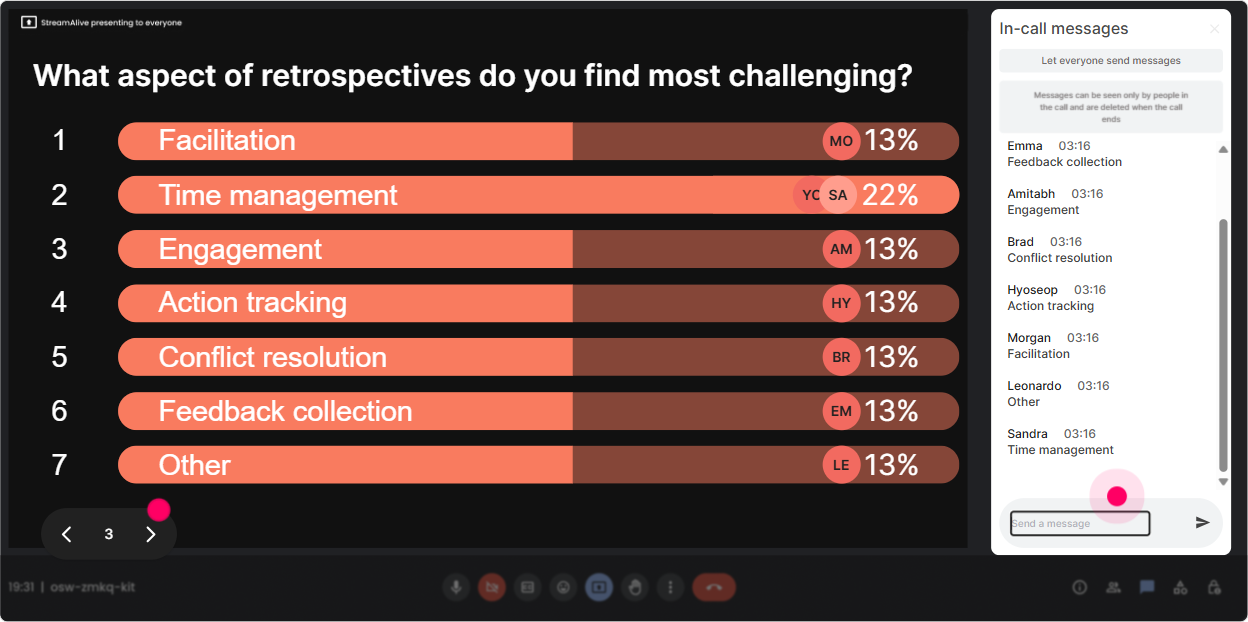
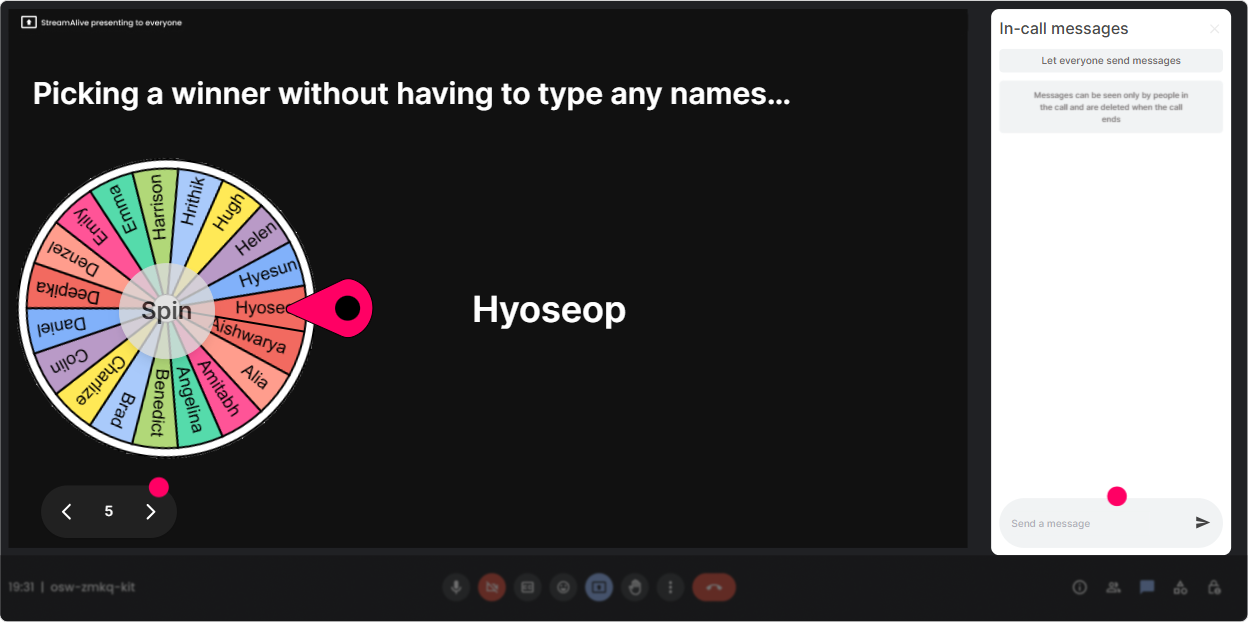
6) Winner Wheel (Spinner Wheel): Call on people without making it awkward
Getting people to speak up is hard-especially with senior Agile Team Leaders who don’t want to be “picked on.” The Spinner Wheel makes it feel fair and fun. You set the criteria (like everyone who commented) and StreamAlive picks randomly. How to use it in Retro training: - “Drop one retro technique you’ve tried in chat-then we’ll spin and hear one quick story.” - “Type ‘I’ll share’ if you’re open to unmuting-wheel decides who goes first.” - “Everyone share one facilitation challenge in chat. We’ll spin and workshop one live.” Trainer tip: Keep it low-pressure: “You can pass anytime.” Ironically, that makes more people willing to speak.
7) Quiz: Quick knowledge checks that don’t kill the vibe
If you want Agile Team Leaders to actually retain concepts (instead of just nodding along), throw in mini quizzes. StreamAlive’s Quiz makes it simple: you ask a multiple-choice question, people answer in chat, and you reveal the correct option. Quiz questions you can use: - “What’s the primary purpose of a retrospective?” 1) Assign accountability 2) Improve the process and teamwork continuously (correct) 3) Track individual performance 4) Report status to stakeholders - “Which is the BEST retro output?” 1) A long list of complaints 2) 1–3 clear experiments with owners + a check-in date (correct) 3) A summary email 4) A blame-free discussion only - “If only 2 people talk in a retro, what’s the facilitator’s best first move?” 1) End early 2) Call out the quiet people 3) Use silent writing/brainwriting first (correct) 4) Move to status updates Trainer tip: Use quizzes as transitions. Teach a concept → quiz it → discuss why the right answer is right. Keeps energy up.

2) Rating Polls: Quick confidence check before you teach anything
Before you jump into retro formats and facilitation skills, get a pulse check. Rating Polls are perfect because everyone can respond fast, and you get an instant visual of where the group stands. Ways to use it during the session: - Opener: “Rate your confidence in facilitating a retrospective (1–10).” - Mid-session check: “How confident are you now about handling tough retro moments (1–10)?” - After an activity: “How useful was this retro technique for your team (1–10)?” Trainer tip: If the average is low, you instantly know you need more examples, more practice, or slower pacing. If it’s high, you can move faster and keep energy up.
8) Q&A: Capture questions as they happen (without losing them in chat chaos)
In live trainings, good questions get buried fast. StreamAlive’s Q&A pulls audience questions from the chat and displays them cleanly, so you don’t miss the important stuff. How to use it in your retro session: - Tell them: “Drop questions anytime-StreamAlive will collect them for us.” - Do a dedicated stop: “Let’s hit the top 3 questions before we move to action planning.” - Use it for sensitive topics: People often ask the real stuff here, like: - “How do I deal with a manager dominating the retro?” - “What if the team refuses to do action items?” - “How do I run retros with very low trust?” Trainer tip: When you answer, link it back to a tactic they can try next sprint. Agile folks love “what do I do Monday morning?” answers.

9) Analytics: After the session, know what actually worked (and who was really engaged)
This is the part most trainers skip-and it’s where you get better fast. StreamAlive Analytics shows you engagement over time, chat activity, and which interactions hit hardest. How an Agile trainer can use Analytics: - Minute-by-minute engagement: Spot the moments where energy spiked (maybe during a Sailboat activity) and where it dipped (maybe during theory). Adjust your next run. - Replay results: See which polls/word clouds got the most participation and reuse those prompts. - Identify top engaged participants: Find your “Fantastic Fans”-these are often your champions, future internal facilitators, or the people you can invite to share stories next time. - Share reports: Email results to yourself or your training team, or recap: “Here’s what the group said was the #1 retro challenge.” Trainer tip: Use analytics like a retro for your training: What went well? What didn’t? What will you try next session? That’s Agile all the way.

Use StreamAlive in all your training sessions
StreamAlive isn’t just for
Agile Team Retrospective
training,
it can also be used for any instructor-led training session directly inside your PowerPoint presentation.
Explore similar traingin ideas: unlocking the potential of StreamAlive
See how StreamAlive transforms live training with engaging events and interactive sessions across industries, directly inside your PowerPoint presentation.

Interactions in action
(it's free)

.svg.png)


