Install StreamAlive for your PowerPoint slides
Learn more

Workflow Automation Training for Corporate Trainers
StreamAlive helps 9x the audience engagement in your Virtual Instructor-led Trainings (VILT) directly inside your powerpoint presentation.
Make your instructor-led Workflow Automation training more fun with polls, word clouds, spinner wheels and more
Works inside your existing PowerPoint presentation
Install the StreamAlive app for PowerPoint and see your slides come to life as people participate in your interactions
AI generates audience interactions for you
Let our AI scan your presentation and automatically come up with relevant questions based on the content. Or spend two hours coming up with your own questions, your choice!
Built to work with MS Teams and Zoom
Native apps for Teams and Zoom so you never have to leave your existing workflows
No QR Codes
Chat-powered interactions means your audience doesn’t need to scan QR codes or look at another screen to participate. They just type in the chat!

Quickly approved by your IT team
StreamAlive’s apps for Teams and Zoom means that they have been through rigorous quality assurance and client safety reviews. You’ll find everything an IT team needs to approve the app within the organization within your StreamAlive account.

Youve been asked to run a Workflow Automation instructor-led training for corporate trainers-and you want it to feel like a live, interactive workshop (not a slide marathon). The good news: you can make automation feel simple, practical, and honestly fun. Here are engagement ideas using StreamAlive that keep people chatting, thinking, and participating all the way through.
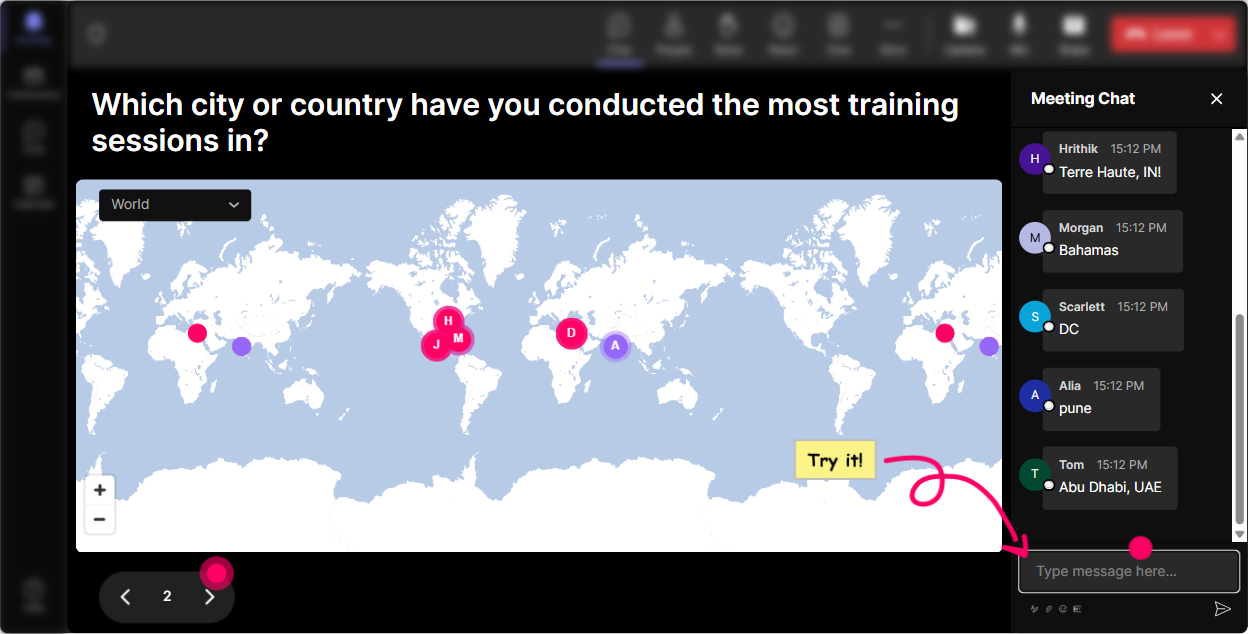
Magic Maps: Kick off your Workflow Automation training by literally putting everyone on the map
The fastest way to get people talking at the start is still the classic Where are you joining from?-but Magic Maps makes it feel like an event, not small talk. As people drop their locations in chat, StreamAlive plots them live on a world map, and suddenly everyones leaning in. How to use it in Workflow Automation instructor-led training for Corporate Trainers: - **Warm-up (low pressure, high participation):** Where in the world are you joining from today? - **Connect it to the topic:** Which city/team do you train most often-and whats the ONE workflow that always slows you down there? (Have them answer with just the city in the map first, then follow up in chat.) - **Dream destination twist (still relevant):** If automation gave you back 5 hours a week, where on earth would you use that time? Trainer tip: if youre training a global group, youll instantly *see* clusters-great moment to say: Cool, weve got a big group from London-tell me, what are you automating right now?
Rating Polls: Do a quick confidence check before you dive into tools and workflows
Workflow Automation sessions usually have a mixed room-some folks are already automating, and others are secretly thinking I dont even know where to start. Rating Polls let you check the vibe in seconds, without putting anyone on the spot. Ways to use Rating Polls during the training: - **Opening pulse check:** On a scale of 110, how confident are you with workflow automation today? - **After you explain a concept (like triggers/conditions):** Rate this: How clear is the idea of trigger action for you right now? - **Tool readiness check:** How ready are you to automate one real training workflow this week? The best part: you see the distribution live. If the average is low, you know to slow down. If its high, you can move faster and give more advanced examples.

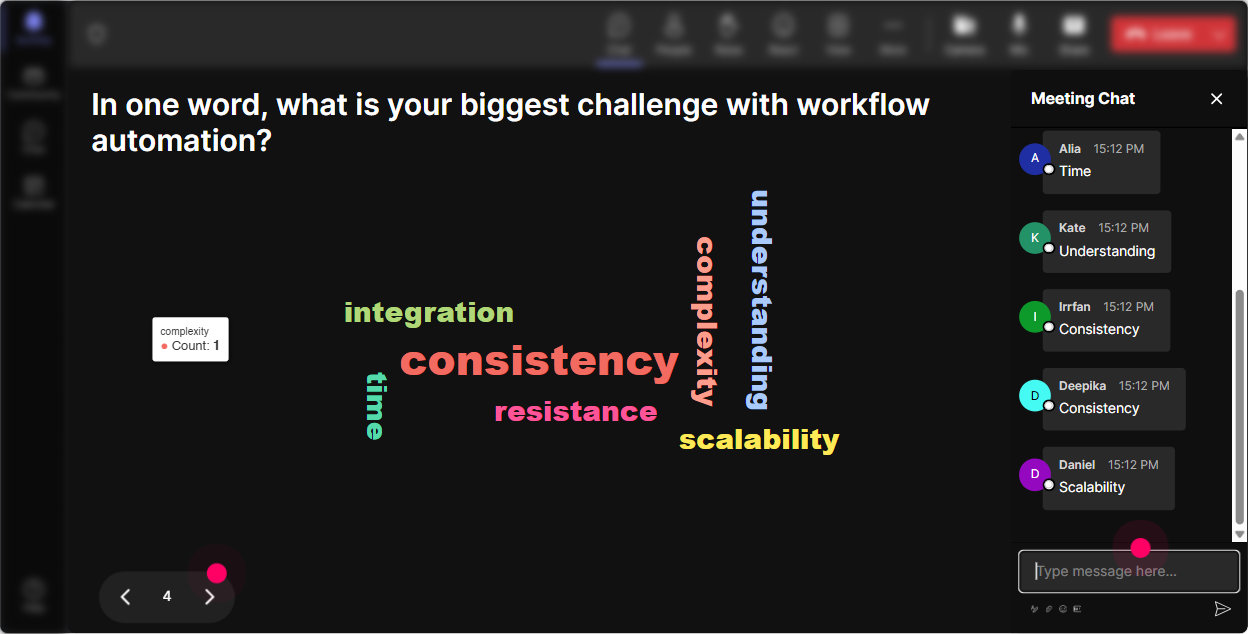
Wonder Words (Word Cloud): Get the rooms honest feelings about automation-fast
Automation can trigger all kinds of reactions: excited, overwhelmed, skeptical, curious. A Word Cloud is perfect because it gets everyone to answer with just 12 words, and you instantly see whats going on in the room. Great prompts for this topic: - **Before teaching:** Workflow automation in one word: how does it feel? - **Pain-point discovery:** Whats the one word that describes your current admin workload? - **After showing a demo:** One word: what would automating this workflow give you? (Common answers: time, focus, sanity, consistency) Trainer tip: use what shows up big in the cloud to steer the session. If you see overwhelming or confusing, you can say: Perfect-lets simplify this into 3 repeatable steps.
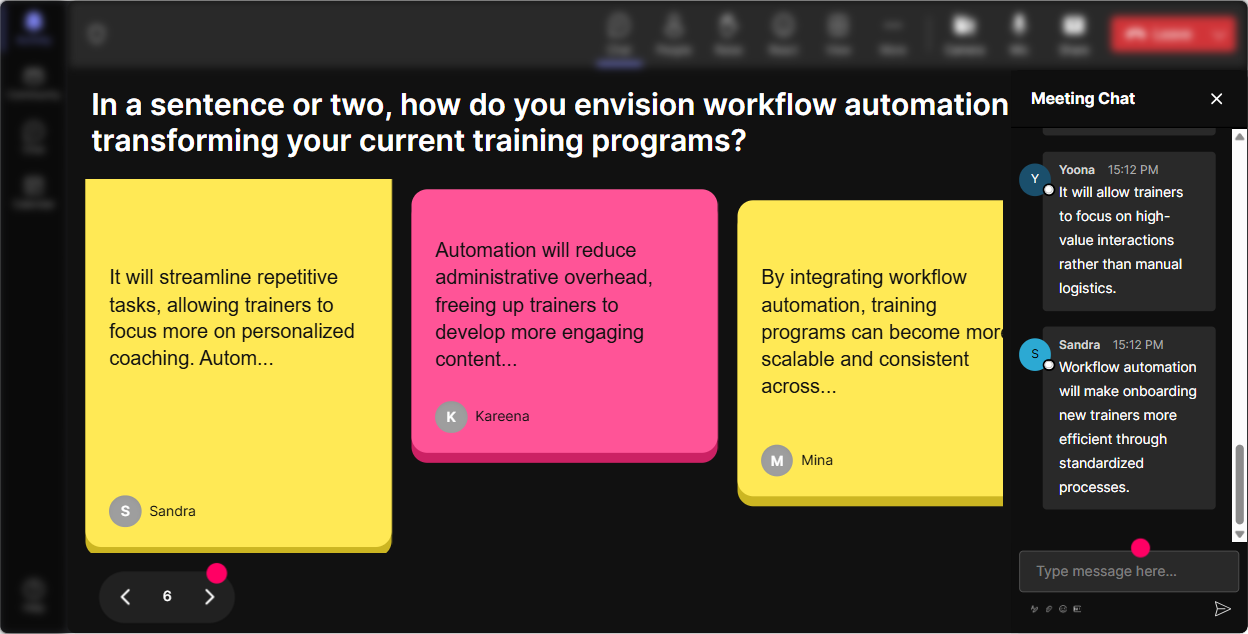
Talking Tiles: Turn real workflow problems into a live automation wall your group can learn from
Talking Tiles is where you go when you want more than one-word answers. People type in chat, and StreamAlive turns their responses into these fun falling tiles on screen-so it feels like the whole group is building something together. Use it for real Workflow Automation training moments: - **Impact question:** Whats one workflow in your training job that youd LOVE to automate? - **Bottleneck hunt:** Where do you lose the most time before/after a session-scheduling, reminders, attendance, feedback, follow-ups, reporting? - **Reality check:** Whats stopped you from automating so far? (Examples youll see: IT approvals, no time, too many tools, dont know where to begin) Then you can teach from their answers: Okay, Im seeing follow-ups a lot-lets build an automation template for that together.
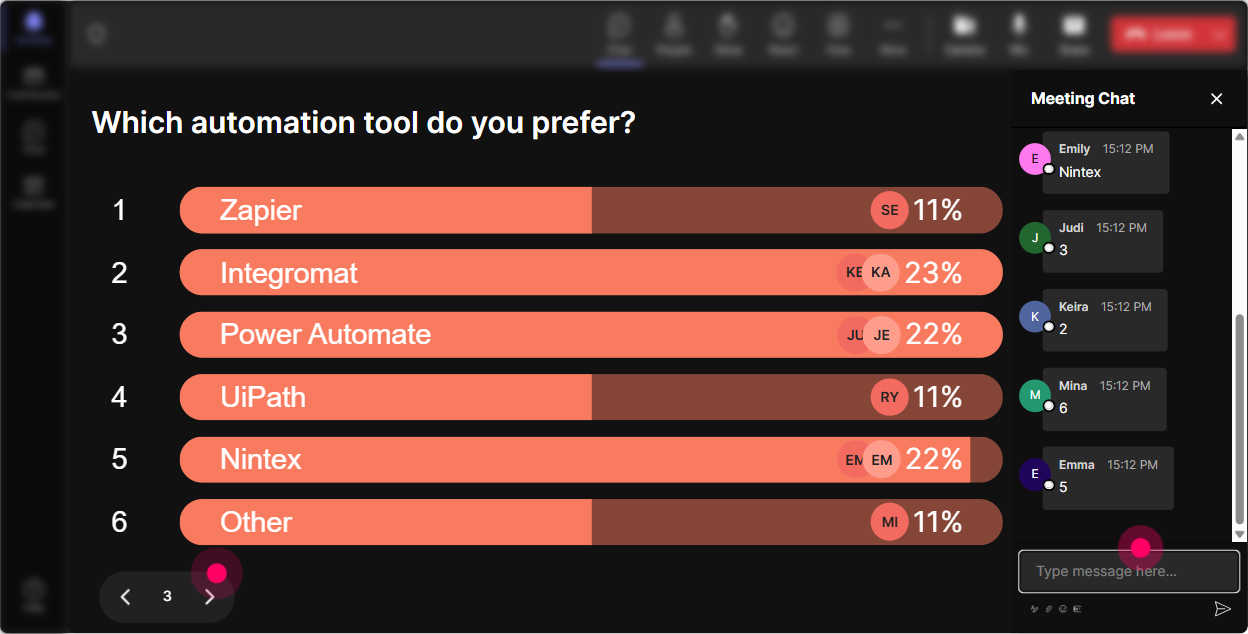
Power Polls: Let them vote on what they want most from Workflow Automation (and teach in that order)
Instead of guessing what your group cares about, run a quick Power Poll and let them choose. When learners feel like they influenced the agenda, engagement jumps because now theyre listening for *their* problem. Poll ideas tailored for corporate trainers: - **What to cover next:** Which workflow should we automate first? 1) Session scheduling + calendar holds 2) Reminder emails + WhatsApp/Teams nudges 3) Attendance + completion tracking 4) Post-session feedback collection 5) Follow-up resources + certificates - **Tool landscape check:** What are you currently using most? (LMS, Teams, Zoom, Google Workspace, Outlook, Forms, Excel, CRM) - **Automation maturity:** Where are you today? 1) All manual 2) Some templates 3) A few automations 4) Mostly automated Trainer tip: show results live and say: Alright, the room voted-feedback automation wins. Lets start there.
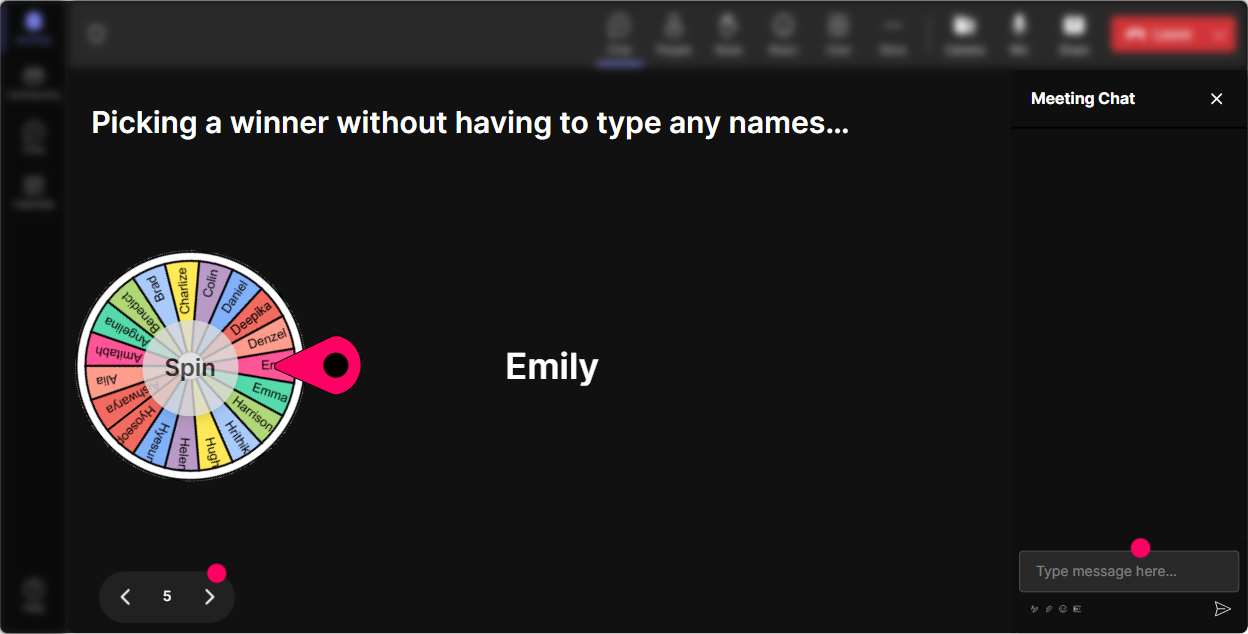
Winner Wheel (Spinner Wheel): Get volunteers without the awkward silence
You know that moment: you ask a question and crickets. The Spinner Wheel fixes that in a way that still feels playful and fair. How to use it in Workflow Automation training: - **Pick a case study volunteer:** Drop ME in chat if youre okay sharing a workflow you want to automate. Then spin the wheel to choose. - **Mini coaching moment:** Share your current process in 30 seconds. Well turn it into an automation together. - **Reward participation:** spin from people who answered a poll or contributed to Talking Tiles-winner gets a resource pack, template, or shoutout. It keeps attention high because once people know the wheel might pick them, they stay tuned and participate more (without you having to pressure anyone).
Quiz: Do quick knowledge checks that actually feel like a game
Workflow Automation has some core concepts that people *think* they understand-until they try to build something. A Quiz interaction lets you run quick multiple-choice checks, show the live tally, and then reveal the correct answer. Quiz questions that work really well here: - **Foundations:** In an automation, what usually comes first? A) Action B) Trigger C) Report D) Dashboard - **Quality control:** Whats the best reason to use conditions/filters? A) To make it faster B) To make it prettier C) To prevent the wrong people getting the wrong message D) To avoid logging in - **Trainer workflow scenario:** You want to send a reminder only to people who havent completed a pre-work form. What do you need? A) Trigger only B) Action only C) Trigger + condition + action D) A new LMS Use quizzes right after you teach a concept-so the learning sticks immediately.

Rating Polls: Do a quick confidence check before you dive into tools and workflows
Workflow Automation sessions usually have a mixed room-some folks are already automating, and others are secretly thinking I dont even know where to start. Rating Polls let you check the vibe in seconds, without putting anyone on the spot. Ways to use Rating Polls during the training: - **Opening pulse check:** On a scale of 110, how confident are you with workflow automation today? - **After you explain a concept (like triggers/conditions):** Rate this: How clear is the idea of trigger action for you right now? - **Tool readiness check:** How ready are you to automate one real training workflow this week? The best part: you see the distribution live. If the average is low, you know to slow down. If its high, you can move faster and give more advanced examples.
Q&A (Quick Questions): Catch every question from chat without losing your flow
In automation trainings, questions come fast-and they get buried in chat. StreamAlives Q&A automatically detects and collects audience questions from the chat and displays them neatly, so youre not scrolling like a maniac mid-demo. How to use it smoothly: - **Set a rhythm:** Drop questions anytime-StreamAlive will capture them. Ill pause every 10 minutes and clear the top ones. - **Great question prompts:** - What part of automation feels risky in your company? - Which approvals slow you down most? - What tools are you trying to connect? - **Parking lot style:** keep questions visible so learners feel heard, even if you answer later. This is one of those features that makes you look ridiculously organized as a trainer.

Analytics: After the session, see what actually worked (and who was most engaged)
After you run a Workflow Automation instructor-led training, Analytics helps you stop guessing and start improving with real data. What you can do with StreamAlive analytics: - **Minute-by-minute engagement:** spot where chat spiked (maybe your demo) and where it dipped (maybe a dense slide). That tells you what to tighten next time. - **Replay interactions:** see which polls/word clouds got the strongest response-so you can reuse what worked. - **Identify top participants (Fantastic Fans):** these are your future champions-great people to involve in pilot automation projects or follow-up cohorts. - **Share results easily:** send interaction reports to your email, share insights with your training team, or use them to refine your run-of-show for the next delivery. Basically: you walk away knowing exactly how well you held attention-and how to make the next session even more engaging.

Use StreamAlive in all your training sessions
StreamAlive isn’t just for
Workflow Automation
training,
it can also be used for any instructor-led training session directly inside your PowerPoint presentation.
Explore similar traingin ideas: unlocking the potential of StreamAlive
See how StreamAlive transforms live training with engaging events and interactive sessions across industries, directly inside your PowerPoint presentation.

Interactions in action
(it's free)

.svg.png)


