Install StreamAlive for your PowerPoint slides
Learn more

Digital Fatigue Training for Corporate Trainers
StreamAlive helps 9x the audience engagement in your Virtual Instructor-led Trainings (VILT) directly inside your powerpoint presentation.
Make your instructor-led Digital Fatigue training more fun with polls, word clouds, spinner wheels and more
Works inside your existing PowerPoint presentation
Install the StreamAlive app for PowerPoint and see your slides come to life as people participate in your interactions
AI generates audience interactions for you
Let our AI scan your presentation and automatically come up with relevant questions based on the content. Or spend two hours coming up with your own questions, your choice!
Built to work with MS Teams and Zoom
Native apps for Teams and Zoom so you never have to leave your existing workflows
No QR Codes
Chat-powered interactions means your audience doesn’t need to scan QR codes or look at another screen to participate. They just type in the chat!

Quickly approved by your IT team
StreamAlive’s apps for Teams and Zoom means that they have been through rigorous quality assurance and client safety reviews. You’ll find everything an IT team needs to approve the app within the organization within your StreamAlive account.

If youve been asked to run a session on digital fatigue for corporate trainers, you already know the irony: youre teaching people who are tired of being online. The good news? With the right micro-interactions, you can keep energy up without turning it into another webinar. Here are practical ideas using StreamAlive to make your ILT feel alive again.
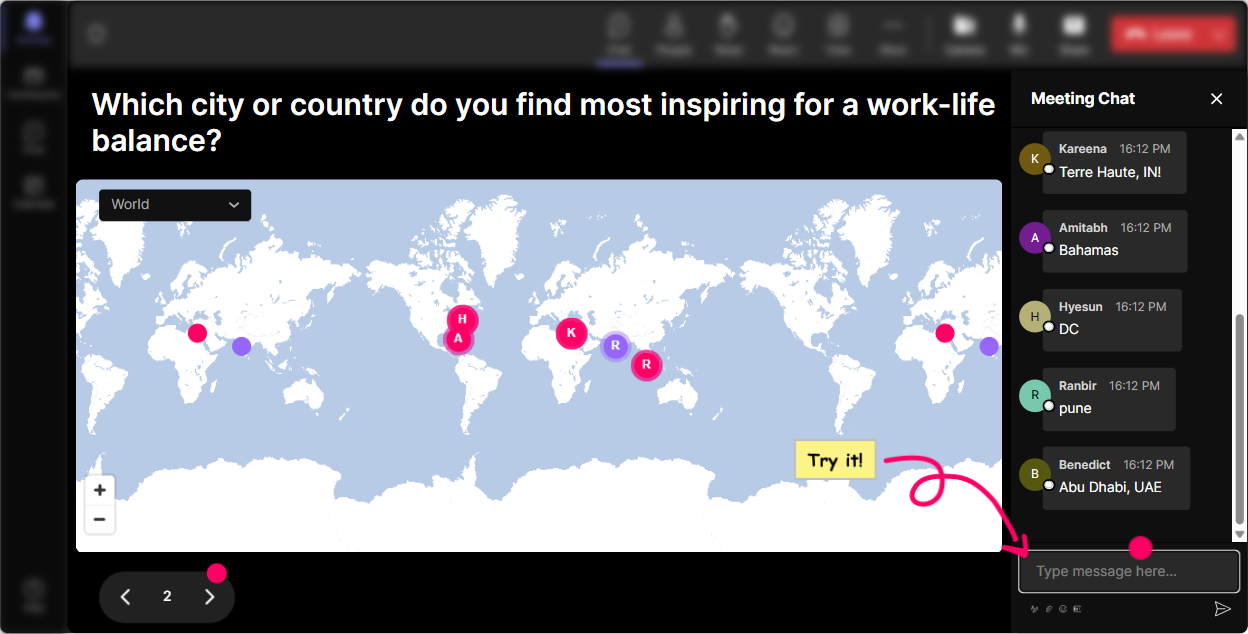
1) Magic Maps: Start with a quick were in this together moment
Digital fatigue gets worse when people feel like theyre attending alone from yet another little square on a screen. Magic Maps fixes that vibe fast. How to use it in your digital fatigue ILT: - Kickoff question (classic, but it works): Where are you joining from today? Watching the map populate in real time instantly makes the room feel real. - Tie it to the topic: If you could take a screen break anywhere on earth right now, where would you go? (Youll get beaches, mountains, and a lot of anywhere but here-and its a perfect opener to talk about recovery.) - Trainer-to-trainer connection: Which city has the best training audience youve ever had? Great for a quick story or two. Trainer tip: If your group is large, let each person enter only one location so it stays clean and snappy. This is a low-effort engagement win that doesnt add cognitive load.
2) Rating Polls: Do a fast fatigue temperature check (without a long discussion)
Digital fatigue is personal-some people are hanging on by a thread, others are fine. Rating Polls let you get the rooms reality in 10 seconds, right from chat. Ways to use it: - Start-of-session pulse: On a scale of 110, how digitally fatigued do you feel this week? - Confidence check: Rate your confidence in spotting digital fatigue in learners (110). - Mid-session energy check: Quick check-hows your energy right now? 1 = fading, 10 = fully with you. What it unlocks for you as the trainer: - If the average is low, you know to shorten activities, add breaks, or switch to discussion. - If its high, you can move faster and go deeper. Its also a sneaky way to model good facilitation: youre listening to the room in real time, not just delivering slides.

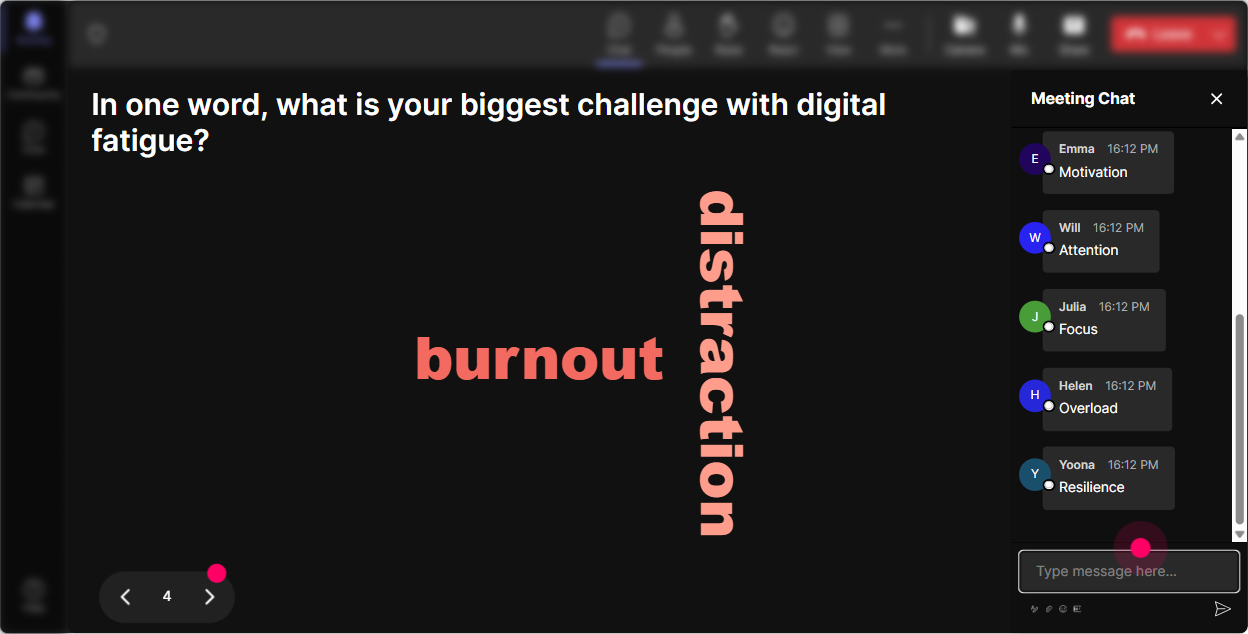
3) Wonder Words (Word Cloud): Let them name the problem in their own words
If you want participation without putting anyone on the spot, word clouds are gold. One or two words feels easy, safe, and fast-perfect when attention is already fragile. Great prompts for a digital fatigue session: - When you hear digital fatigue, what word comes to mind? (Youll see things like drained, distracted, headaches, Zoomed-out.) - Whats the #1 thing that causes fatigue in your trainings? (monotone, long sessions, no breaks, too many slides youll get your agenda from the audience.) - In one word, what do you want more of in virtual ILT? (interaction, clarity, movement, practice.) How you can use it live: - Call out the biggest words and connect them to your next slide. - Use it as a transition: Cool-since overload is huge on the screen, lets talk about reducing cognitive load in your session design.
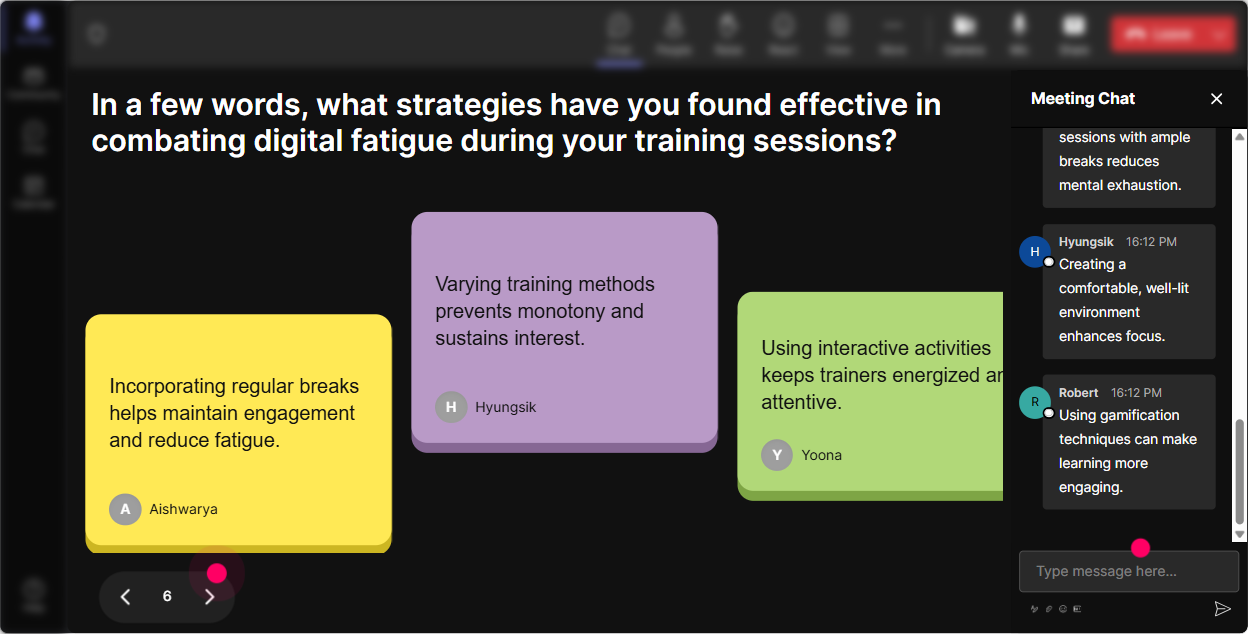
4) Talking Tiles: Turn shared pain into shared solutions (and make it visual)
Talking Tiles are perfect when you want responses longer than a word, but you still want it to feel light and playful. People type in chat, and their messages become part of the visual experience-so it feels like the group is building something together. Use it for practical, trainer-friendly prompts: - Whats one moment in virtual training when you feel the room drop? - Whats a learner behavior that tells you theyre fatigued? - Whats one change you made that reduced fatigue instantly? Why this helps with digital fatigue specifically: - It breaks the trainer talks, learners listen pattern. - It makes the chat feel meaningful (not just side-noise). - It gives you a pile of real examples you can reference for the rest of the session: Im seeing camera-off silence and no one answers a lot-lets tackle those next.
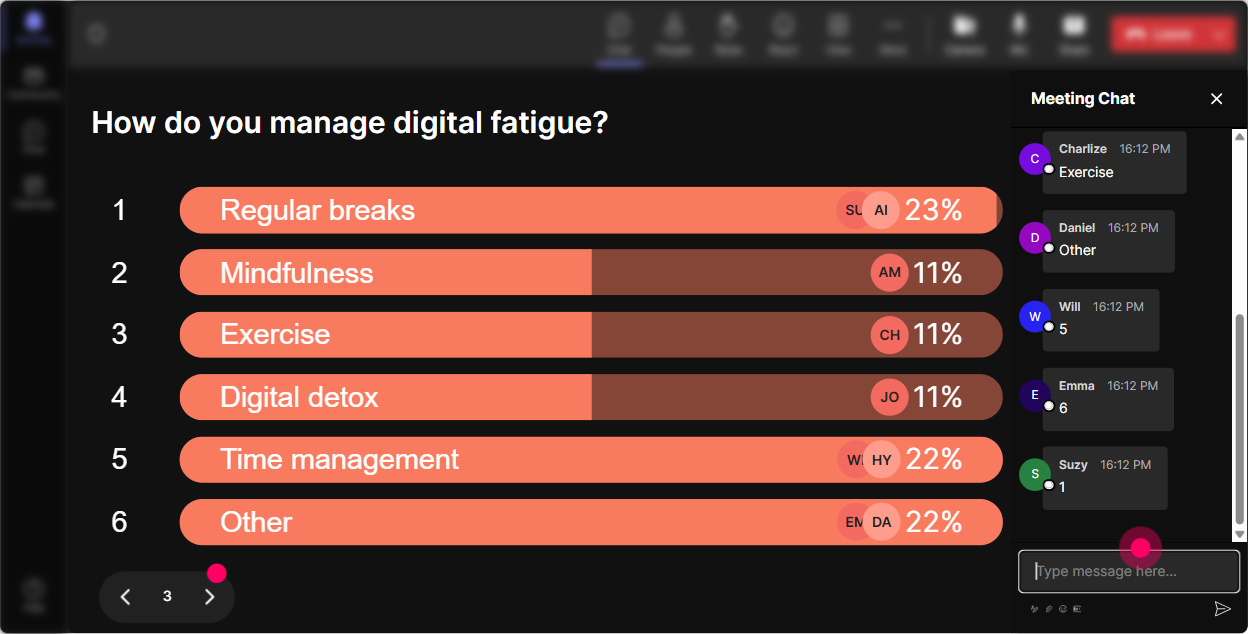
5) Power Polls: Let the audience choose what you focus on (so it feels relevant)
Digital fatigue gets worse when people feel trapped in content that doesnt match their reality. Power Polls let you hand them the steering wheel for a moment-huge for buy-in. Poll ideas that work well in corporate trainer groups: - Whats your biggest digital fatigue challenge right now? 1) Low participation 2) Cameras off 3) Multitasking 4) Too much content / too little time 5) Back-to-back sessions - Which tactic do you want to practice today? 1) Better openings 2) Activity design 3) Breaks that actually work 4) Handling silence + cold calls How to use results: - Take the top choice and say, Alright, were going to spend the next 15 minutes fixing that. - Use the #2 choice as your follow-up resource or bonus segment. This is one of the quickest ways to make your session feel customized-even if youre running it for the 50th time.
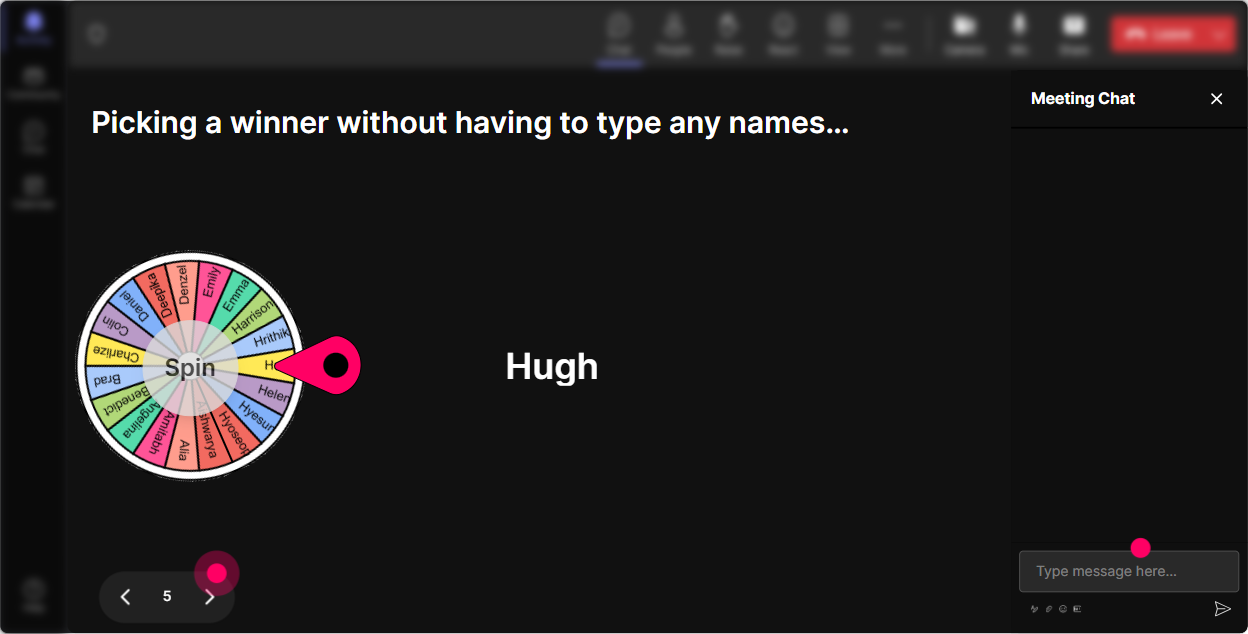
6) Winner Wheel (Spinner Wheel): Make participation fun (and fair)
Calling on people can feel stressful-especially in a room thats already tired. The Spinner Wheel adds randomness and play so it doesnt feel like youre singling anyone out. Easy ways to use it: - Lets hear one real example. Im going to spin and invite someone to share for 30 seconds. - Were going to do a rapid-fire reflection-spin chooses who answers this one. - Reward engagement: pick a winner from people who commented during an activity (great for nudging quiet rooms to type something). Trainer guardrails (important): - Give an out: If youre not in a good spot to speak, just say pass-no problem. - Keep it short: 2030 seconds per share prevents the energy dip. Used well, this becomes a playful pattern that keeps people awake because they might be next-without turning it into pressure.
7) Quiz: Quick knowledge checks that dont feel like exams
When people are fatigued, long discussions can drag. A short quiz wakes up attention because its focused, fast, and gives a clear target. Digital fatigue quiz questions you can run: - Which is most likely to reduce cognitive load in a virtual session? A) More slides with more detail B) Clear chunking + frequent recap moments (Correct) C) Longer lectures to avoid interruptions D) Asking people to multitask - Whats a strong best practice for virtual breaks? A) Quick break while staying on camera B) Break with a clear return time + a specific off-screen instruction (Correct) C) No breaks to keep momentum D) Only breaks at the end How to make it trainer-relevant: - After revealing the correct answer, ask: Where could you apply this in your next session-opening, middle, or closing? This keeps learning active without draining the room.

2) Rating Polls: Do a fast fatigue temperature check (without a long discussion)
Digital fatigue is personal-some people are hanging on by a thread, others are fine. Rating Polls let you get the rooms reality in 10 seconds, right from chat. Ways to use it: - Start-of-session pulse: On a scale of 110, how digitally fatigued do you feel this week? - Confidence check: Rate your confidence in spotting digital fatigue in learners (110). - Mid-session energy check: Quick check-hows your energy right now? 1 = fading, 10 = fully with you. What it unlocks for you as the trainer: - If the average is low, you know to shorten activities, add breaks, or switch to discussion. - If its high, you can move faster and go deeper. Its also a sneaky way to model good facilitation: youre listening to the room in real time, not just delivering slides.
8) Q&A: Capture questions without losing your flow
In fatigued rooms, questions get missed because chat is flying-or because youre focused on delivering. StreamAlive Q&A (Quick Questions) pulls questions out of the chat and organizes them so you can actually respond. How to use it smoothly: - Set a rule: Drop questions anytime-StreamAlive will catch them. Ill pause every 15 minutes to answer. - Use it to reduce interruption fatigue: instead of stopping constantly, you batch-answer. - End with a clean wrap: Lets do the top 5 questions we didnt get to. Prompt ideas during the session: - Whats one scenario you want help with-cameras off, silence, multitasking, or low energy? - Whats one thing your learners do that drains the room? It keeps your session feeling responsive without letting it become chaotic.

9) Analytics: Figure out what actually worked (so you can reduce fatigue next time, too)
After you run a digital fatigue session, you dont want to guess what kept people engaged-you want to know. StreamAlive Analytics gives you the evidence. How corporate trainers can use it: - Minute-by-minute engagement: spot where attention dropped (maybe that 12-minute explanation needs to become a 3-minute chunk + interaction). - Chat replay: see what topics triggered real conversation (those are your keep moments for future sessions). - Fantastic Fans / most engaged participants: identify who leaned in-great for follow-up, champions, or even inviting them to share a best practice next session. - Interaction reports + email sharing: send results to your team or include them in your facilitation debrief. The big payoff: you can literally design your next session to be less tiring-because youll know where energy rose and where it dipped.

Use StreamAlive in all your training sessions
StreamAlive isn’t just for
Digital Fatigue
training,
it can also be used for any instructor-led training session directly inside your PowerPoint presentation.
Explore similar traingin ideas: unlocking the potential of StreamAlive
See how StreamAlive transforms live training with engaging events and interactive sessions across industries, directly inside your PowerPoint presentation.

Interactions in action
(it's free)

.svg.png)


