Install StreamAlive for your PowerPoint slides
Learn more

Digital Fatigue Training for L&D Leaders
StreamAlive helps 9x the audience engagement in your Virtual Instructor-led Trainings (VILT) directly inside your powerpoint presentation.
Make your instructor-led Digital Fatigue training more fun with polls, word clouds, spinner wheels and more
Works inside your existing PowerPoint presentation
Install the StreamAlive app for PowerPoint and see your slides come to life as people participate in your interactions
AI generates audience interactions for you
Let our AI scan your presentation and automatically come up with relevant questions based on the content. Or spend two hours coming up with your own questions, your choice!
Built to work with MS Teams and Zoom
Native apps for Teams and Zoom so you never have to leave your existing workflows
No QR Codes
Chat-powered interactions means your audience doesn’t need to scan QR codes or look at another screen to participate. They just type in the chat!

Quickly approved by your IT team
StreamAlive’s apps for Teams and Zoom means that they have been through rigorous quality assurance and client safety reviews. You’ll find everything an IT team needs to approve the app within the organization within your StreamAlive account.

Youve been asked to run an instructor-led session on Digital Fatigue for L&D Leaders-and you already know the irony: teaching less screen strain on a screen can get sleepy fast. The good news? With a few simple interaction beats, you can keep the room alive, present, and participating the whole way through.
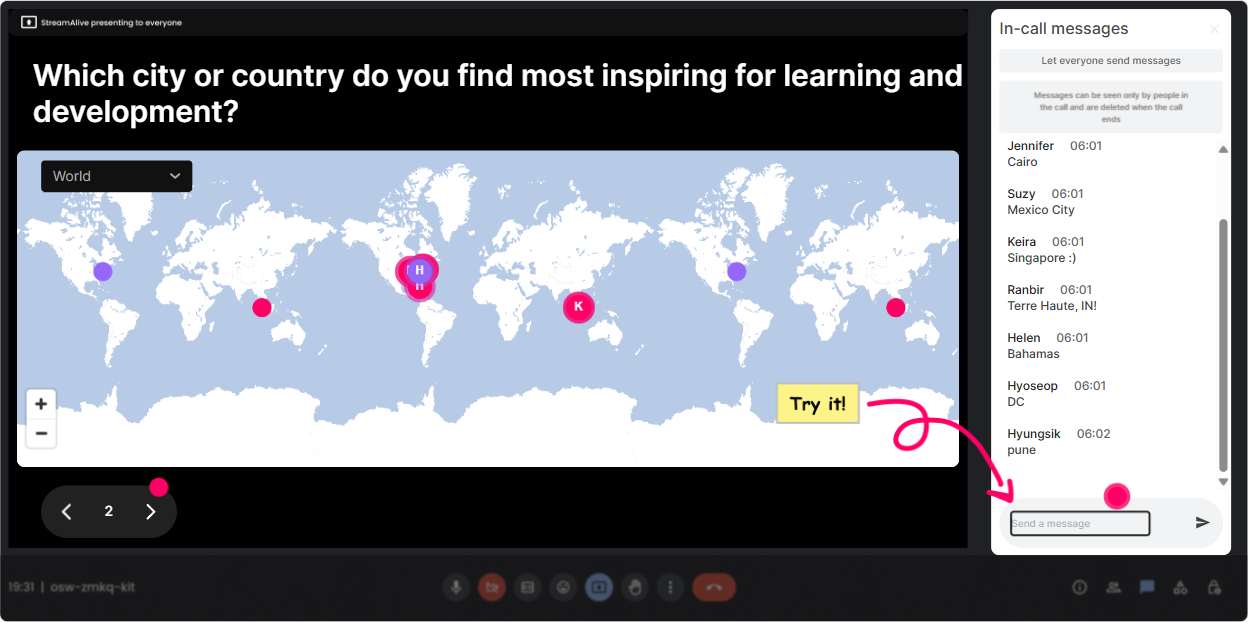
1) Kick off with Magic Maps: Put your Digital Fatigue on the map
Start with the classic Where are you joining from? but make it relevant so it doesnt feel like filler. Magic Maps lets everyone type a location in chat and instantly shows it on a live world map-people love seeing themselves show up. Try questions like: - Where are you joining from today-and whats one thing in your environment that *increases* your digital fatigue? (Location + quick reflection) - If you could teleport anywhere on earth for a screen-free break right now, where would you go? - Which city do you associate with your most back-to-back Zoom season of work? Trainer tip: Use this as a sneaky diagnostic. If you see clusters, call it out: Looks like weve got a big Toronto crew-curious if your meeting culture feels especially heavy lately? Its an instant community-builder.
2) Use Rating Polls for fast pulse checks (and to fight the silent nod)
Digital fatigue is personal-some people are drowning, others think its overblown. Rating Polls let you get a real-time pulse without putting anyone on the spot. People just type a number in chat, and you get a live visual read. Use it early and often: - Opener: On a scale of 110, how digitally drained do you feel today? - Before a topic: Rate your teams current meeting load (1 = manageable, 10 = nonstop). - After a technique: How doable is camera-optional norms in your org? (110) Trainer tip: When the average pops up, react to it out loud. Whoa, were at a 7.8. Okay-then were not doing theory today, were doing survival strategies. That moment alone earns trust.

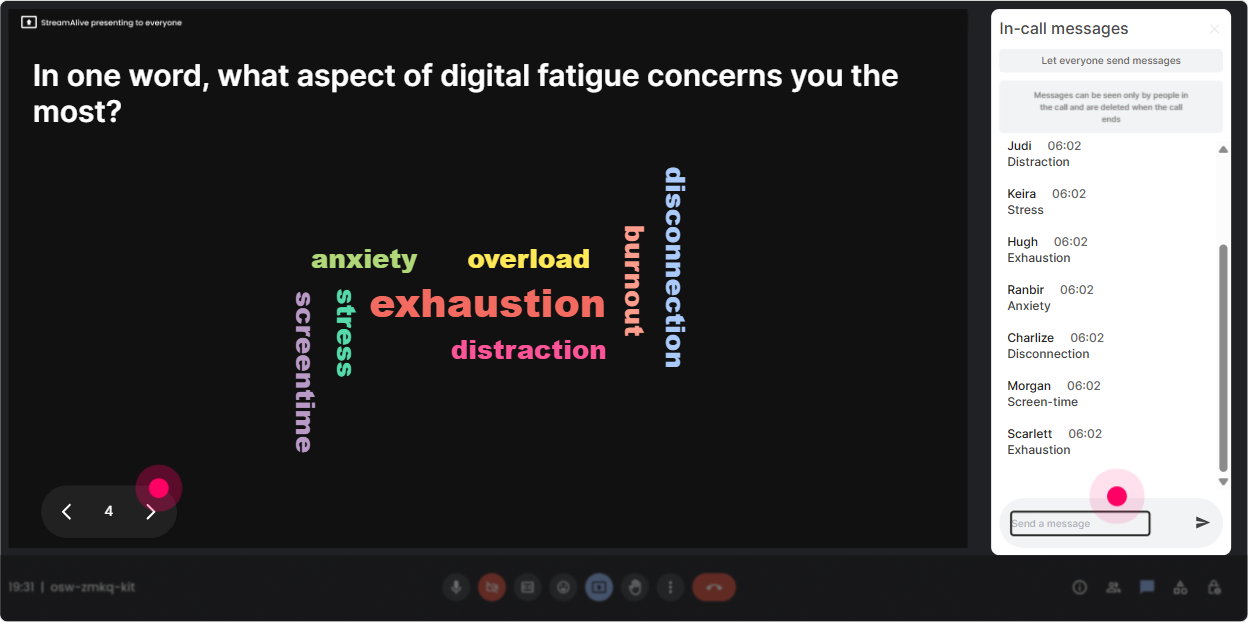
3) Wonder Words (Word Cloud): name the feeling in the room
If you want instant engagement with almost zero effort, ask a one-to-two word question and let Wonder Words visualize what everyones thinking. The biggest words become the shared truth of the group. Great prompts for Digital Fatigue: - Digital fatigue feels like (12 words) - Whats the #1 thing causing overload for you right now? (e.g., meetings, notifications, context-switching) - One word for what you want MORE of in your workday. (e.g., focus, quiet, breaks) Trainer tip: Use the word cloud as your agenda. Meetings and notifications are huge-perfect, well tackle those first. People feel seen, and youve customized the session in real time.
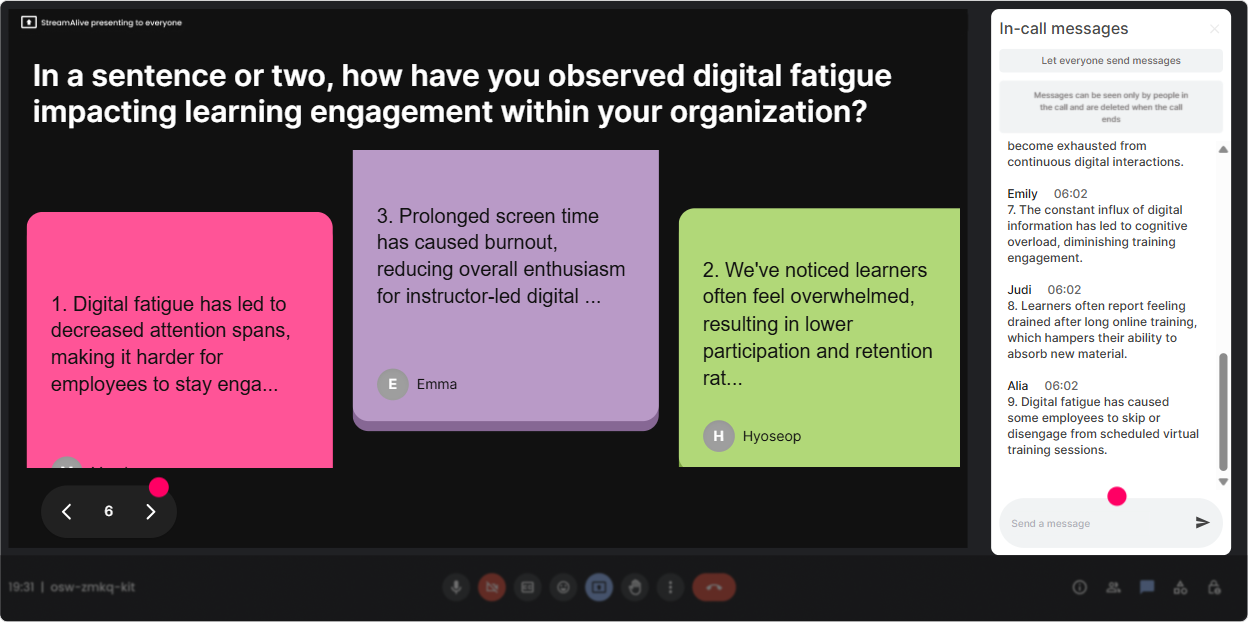
4) Talking Tiles: turn lived experience into the lesson (without awkward breakout rooms)
Digital fatigue training gets powerful when people share what its actually doing to them and their teams. Talking Tiles is perfect for longer responses-messages drop onto the screen like dynamic tiles, so the chat becomes a visual conversation. Prompts that work really well: - Whats one way digital fatigue is showing up in your role as an L&D leader? - Describe a moment recently when you realized your learners were checking out. - Whats a norm in your org that quietly fuels fatigue? Trainer tip: While the tiles fall, narrate patterns: Im seeing a lot of back-to-back sessions, multitasking, and no processing time. Thats not a willpower problem-thats a design problem. Now youre teaching, but it feels like coaching.
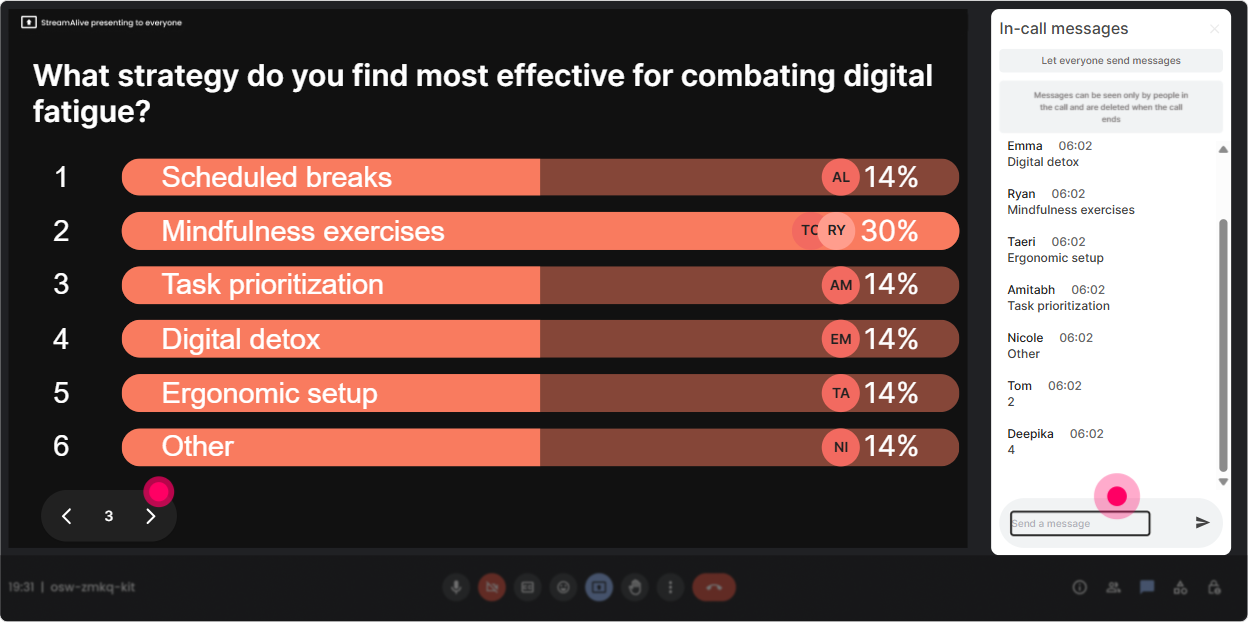
5) Power Polls: let the group choose the path (so they dont drift)
L&D Leaders are busy and opinionated-in a good way. Power Polls let you stop guessing and let the audience vote on what they want next. And because results show live, it creates a were doing this together vibe. Poll ideas for this topic: - Whats your biggest digital fatigue challenge right now? 1) Back-to-back live sessions 2) Low engagement / cameras off 3) Cognitive overload (too much content) 4) Constant chat/DM distraction 5) Trainer fatigue / delivery burnout - Which fix would help your org fastest? 1) Meeting norms 2) Session design (breaks, pacing) 3) Tech boundaries 4) Manager expectations 5) Learner accountability Trainer tip: Use the vote to earn attention. You picked session design-awesome. Give me 12 minutes and youll leave with a plug-and-play fatigue-friendly run-of-show.
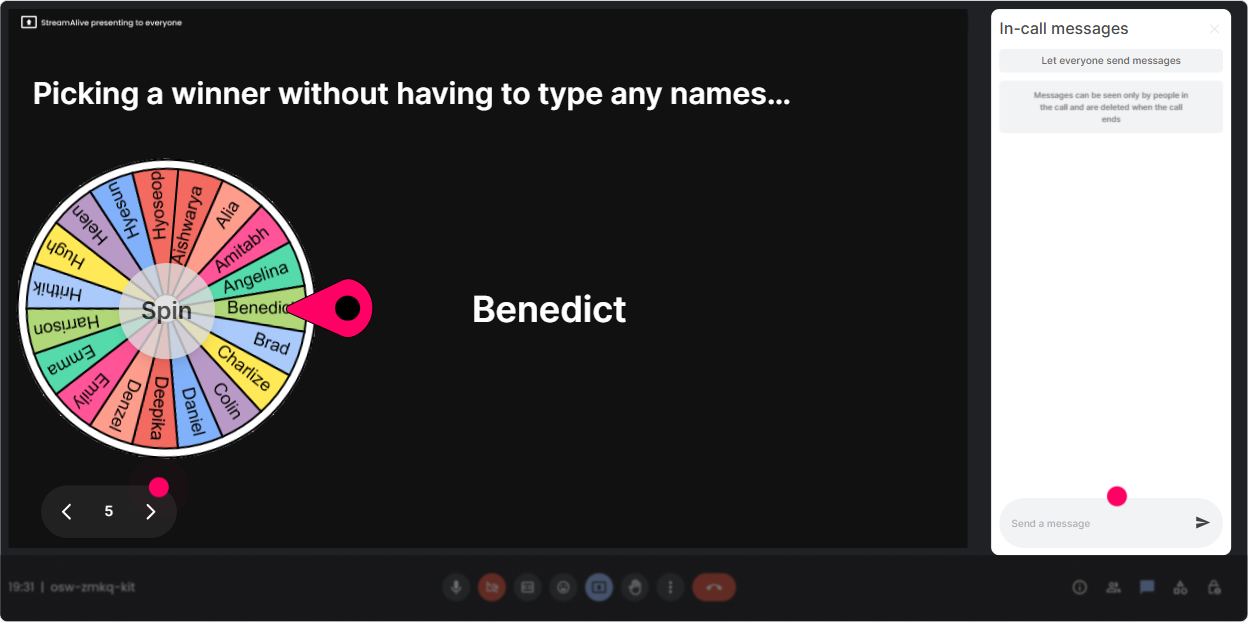
6) Winner Wheel: get volunteers without the cringe
You know that moment: you ask, Any volunteers to share? and nothing. Winner Wheel fixes that in a fun, low-pressure way. You can spin from people who participated, which rewards engagement and keeps it fair. Ways to use it in Digital Fatigue ILT: - Were going to hear 2 real examples. Im spinning the wheel from everyone who answered the word cloud. - Quick role-play: someone be the skeptical exec who thinks digital fatigue is an excuse. Spinner decides! - Share a micro-boundary youve tried (or want to try). Wheel picks the next voice. Trainer tip: Make it opt-out friendly: If you get picked and prefer to pass, just type pass-no stress. The safety net keeps it fun, not threatening.
7) Quiz: quick myth-busting and knowledge checks that dont feel like school
Digital fatigue has a lot of myths (People are just disengaged, More interaction fixes everything, Cameras on solves it). A Quiz interaction is perfect for quick multiple-choice checks where theres one correct answer-and the reveal creates a natural teaching moment. Quiz questions you can run: - Which is most likely to reduce cognitive load in a virtual session? A) More slides B) More breakout rooms C) Clear chunking + pauses + retrieval practice D) Longer sessions to finish the content (Correct: C) - Whats a common sign of digital fatigue? A) More eye contact B) Increased multitasking C) Faster note-taking D) Higher energy late in the day (Correct: B) Trainer tip: Dont just reveal the right answer-ask, What made that tricky? Thats where the real learning pops out.

2) Use Rating Polls for fast pulse checks (and to fight the silent nod)
Digital fatigue is personal-some people are drowning, others think its overblown. Rating Polls let you get a real-time pulse without putting anyone on the spot. People just type a number in chat, and you get a live visual read. Use it early and often: - Opener: On a scale of 110, how digitally drained do you feel today? - Before a topic: Rate your teams current meeting load (1 = manageable, 10 = nonstop). - After a technique: How doable is camera-optional norms in your org? (110) Trainer tip: When the average pops up, react to it out loud. Whoa, were at a 7.8. Okay-then were not doing theory today, were doing survival strategies. That moment alone earns trust.
8) Q&A: capture questions without losing your flow
When youre teaching live, scanning chat while presenting is exhausting (for you) and messy (for them). StreamAlive Q&A (Quick Questions) pulls audience questions from chat and displays them neatly, so you dont miss the good stuff. How to use it in this session: - Park questions during content: Drop questions anytime-StreamAlive will catch them. Ill do a Q&A pit stop every 15 minutes. - Run a quiet Q&A moment: Type the question you *wish* your learners would ask about fatigue. - End with a lightning round: Im answering the top 5 questions on the board-rapid-fire. Trainer tip: It reduces trainer fatigue too, because youre not mentally juggling chat, slides, and facilitation all at once.

9) Analytics: prove what engaged them (and improve the next run)
If youre an L&D Leader or trainer, you dont just want a session that *felt* engaging-you want evidence of what worked. StreamAlive Analytics gives you a minute-by-minute view of engagement, chat activity, and interaction performance. Ways to use Analytics after your Digital Fatigue ILT: - Find the drop-off moments: We dipped during the theory slide-next time Ill turn that into a poll + example. - See what sparked conversation: The word cloud and tiles drove the most chat-so Ill add another reflection beat mid-session. - Identify your most engaged participants (Fantastic Fans) and follow up: invite them to pilot new meeting norms or co-create a fatigue-friendly learning standard. - Share results internally: email reports or recap interaction outcomes to stakeholders on Teams-super helpful when you need buy-in for changes like shorter sessions, more breaks, or redesigned ILT. Trainer tip: Use the data to protect your design choices. When someone asks, Why are we doing fewer slides and more interaction? you can say, Because this is the moment engagement spiked-and this is what actually helped learning stick.

Use StreamAlive in all your training sessions
StreamAlive isn’t just for
Digital Fatigue
training,
it can also be used for any instructor-led training session directly inside your PowerPoint presentation.
Explore similar traingin ideas: unlocking the potential of StreamAlive
See how StreamAlive transforms live training with engaging events and interactive sessions across industries, directly inside your PowerPoint presentation.

Interactions in action
(it's free)

.svg.png)


