Install StreamAlive for your PowerPoint slides
Learn more

Impact Visualization Training for Corporate Trainers
StreamAlive helps 9x the audience engagement in your Virtual Instructor-led Trainings (VILT) directly inside your powerpoint presentation.
Make your instructor-led Impact Visualization training more fun with polls, word clouds, spinner wheels and more
Works inside your existing PowerPoint presentation
Install the StreamAlive app for PowerPoint and see your slides come to life as people participate in your interactions
AI generates audience interactions for you
Let our AI scan your presentation and automatically come up with relevant questions based on the content. Or spend two hours coming up with your own questions, your choice!
Built to work with MS Teams and Zoom
Native apps for Teams and Zoom so you never have to leave your existing workflows
No QR Codes
Chat-powered interactions means your audience doesn’t need to scan QR codes or look at another screen to participate. They just type in the chat!

Quickly approved by your IT team
StreamAlive’s apps for Teams and Zoom means that they have been through rigorous quality assurance and client safety reviews. You’ll find everything an IT team needs to approve the app within the organization within your StreamAlive account.

So, youve been asked to run an Impact Visualization instructor-led training for corporate trainers-and you want it to feel alive, not like another slide marathon. The good news? With StreamAlive, you can turn watching into participating in minutes. Here are practical ideas you can plug right into your session to drive up engagement fast.
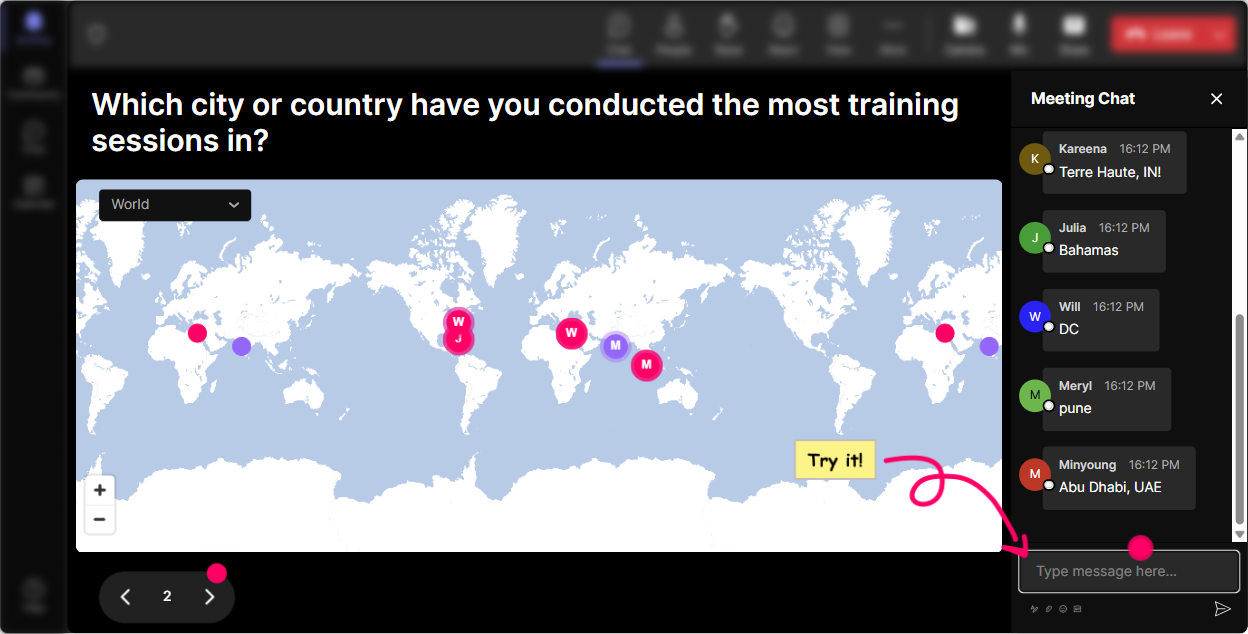
Magic Maps: Put your trainers on the map (and instantly warm up the room)
Impact Visualization is all about making outcomes feel real-and Magic Maps is a perfect way to start with something visual and human. How to use it in your ILT: - Kick off with: Where are you joining from today? and let StreamAlive plot everyone live. Youll immediately get that oh wow, were all over the place energy. - Tie it to the topic with: If you could teleport to any place on earth where youve seen training create real impact, where would it be? (This sets the tone: impact is real, memorable, and located in real moments.) - Or go future-focused: Name a city where youd love your learners to apply what they learn-where would that impact show up? Trainer tip: If youre running internal enablement across regions, those location clusters become a quick talking point: Looks like weve got a big APAC group today-lets make sure our examples work across cultures too.
Rating Polls: Get a quick confidence check before you teach anything
Before you dive into models, steps, or examples, do a fast pulse check. Rating Polls are great because theyre low effort for learners and super clear for you. Ways to use it in Impact Visualization training: - On a scale of 110, how confident are you at helping learners see the outcome before they practice a skill? - Rate your current training sessions: how often do participants actually apply what you teach after the session? (1 = rarely, 10 = consistently) - Midway check: How clear is the Impact Visualization process so far? (110) What this unlocks: youll know whether to speed up, slow down, or add an extra example. Plus, when learners see the average move up later, they feel progress-which is engagement fuel.

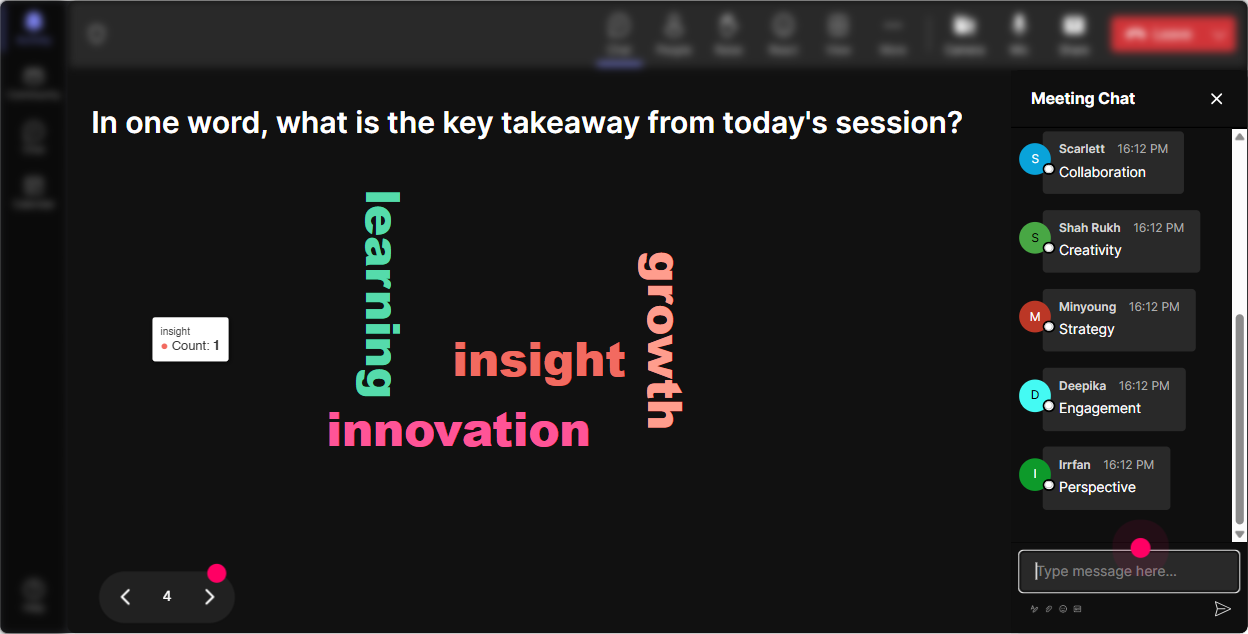
Wonder Words: Let them show you what impact means in their world
Impact Visualization can feel a bit abstract until people put their own words to it. A word cloud makes that happen in seconds-and its way more fun than calling on people one by one. Ask 12 word prompts like: - When a training session really lands, learners feel (12 words) - Whats the biggest barrier to impact in your sessions? (12 words) - One word you associate with Impact Visualization? - What do you want your learners to DO differently after your training? (12 words) How to use the result: - Read out the biggest words and riff: Okay, Im seeing confidence and clarity getting huge-great, were going to build visuals that create exactly that. - Combine similar answers to clean it up (confidence/confident) so the cloud looks sharp on-screen.
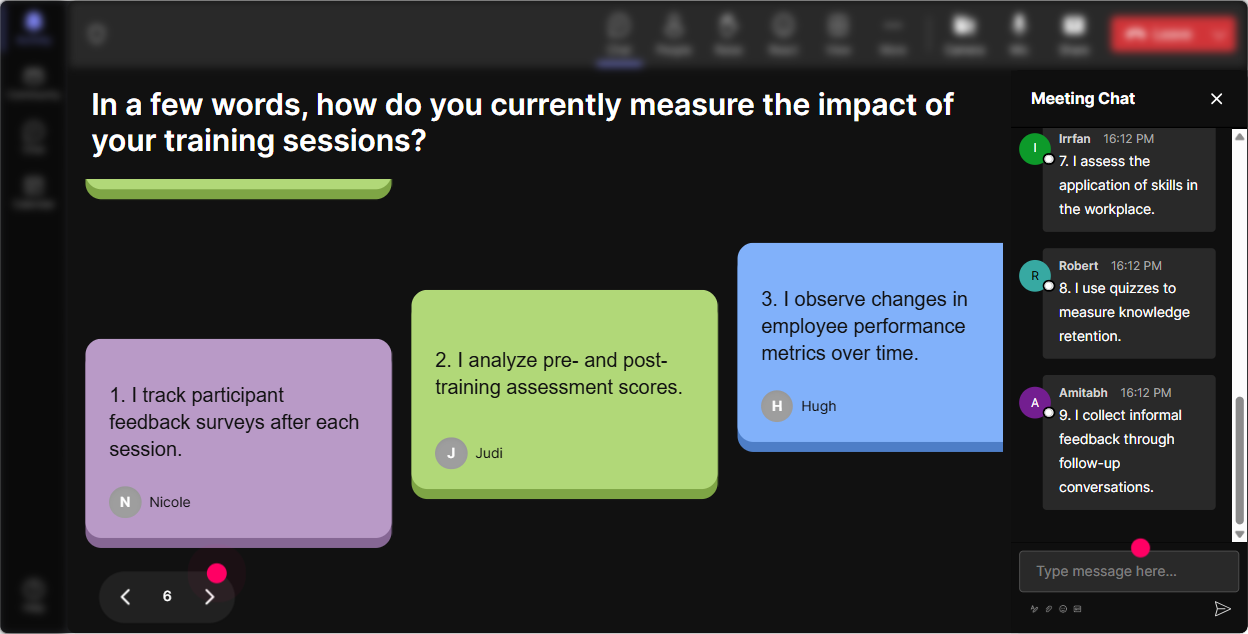
Talking Tiles: Turn your group into a real-time brainstorming wall (without awkward silence)
Impact Visualization works best when people practice turning vague goals into vivid outcomes. Talking Tiles are perfect because youll get richer responses than a word cloud-and it feels like the room is building something together. Prompts that work really well: - Describe a moment when you knew your training made a real difference-what did you see/hear happening? - Pick one course you deliver. Whats the behavior change you WANT after training? Write it like youre describing a movie scene. - Whats one learner challenge you want to solve with Impact Visualization? Facilitation move (super simple): - Let tiles fall for 3060 seconds. - Pick 23 tiles and say: Lets upgrade this into a stronger impact scene. - Youre now coaching live, using THEIR real work-instant relevance, instant attention.
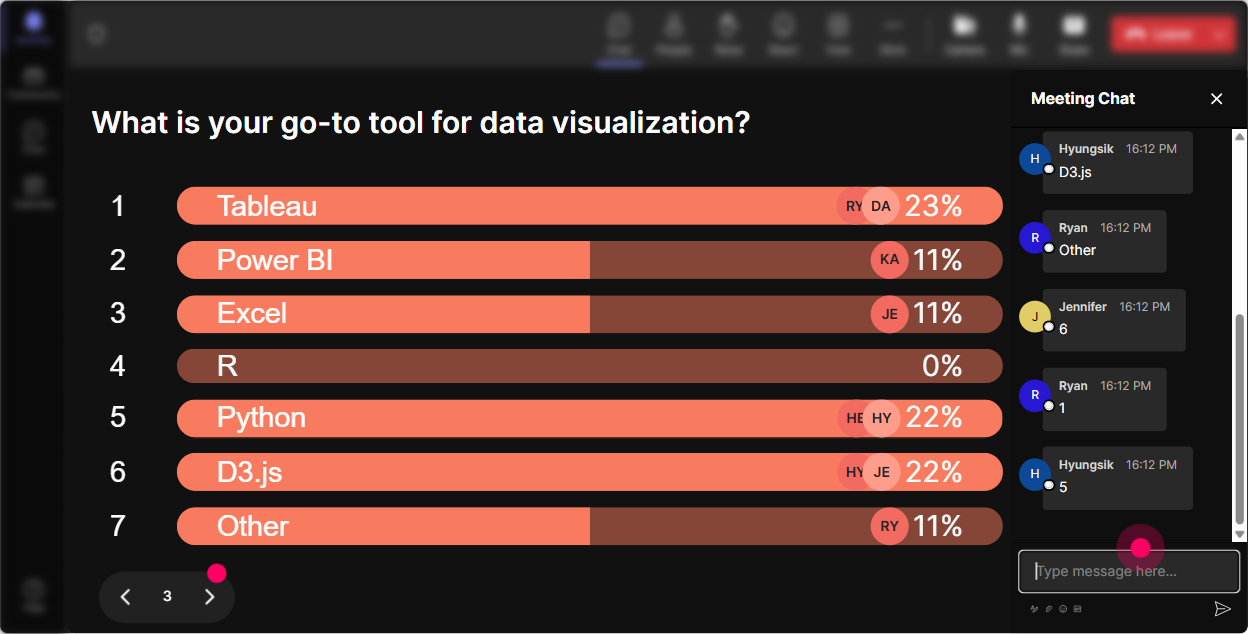
Power Polls / Open-Ended Polls: Let the group choose what to focus on (so they feel ownership)
If you want engagement to jump, let participants steer the session a bit. Polls help you do that without losing control. Use a Power Poll (with options) like: - Which part of Impact Visualization do you want to strengthen today? 1) Writing vivid outcome statements 2) Turning outcomes into a scene learners can picture 3) Choosing the right visuals/examples 4) Getting stakeholder buy-in for behavior change Use an Open-Ended Poll (no options) like: - What topic do you train most often? (StreamAlive will capture and group answers) - Whats your #1 challenge in getting learners to apply training? Why it works: youre not guessing what they need-youre showing them youre listening, and then you teach directly to whats on-screen.
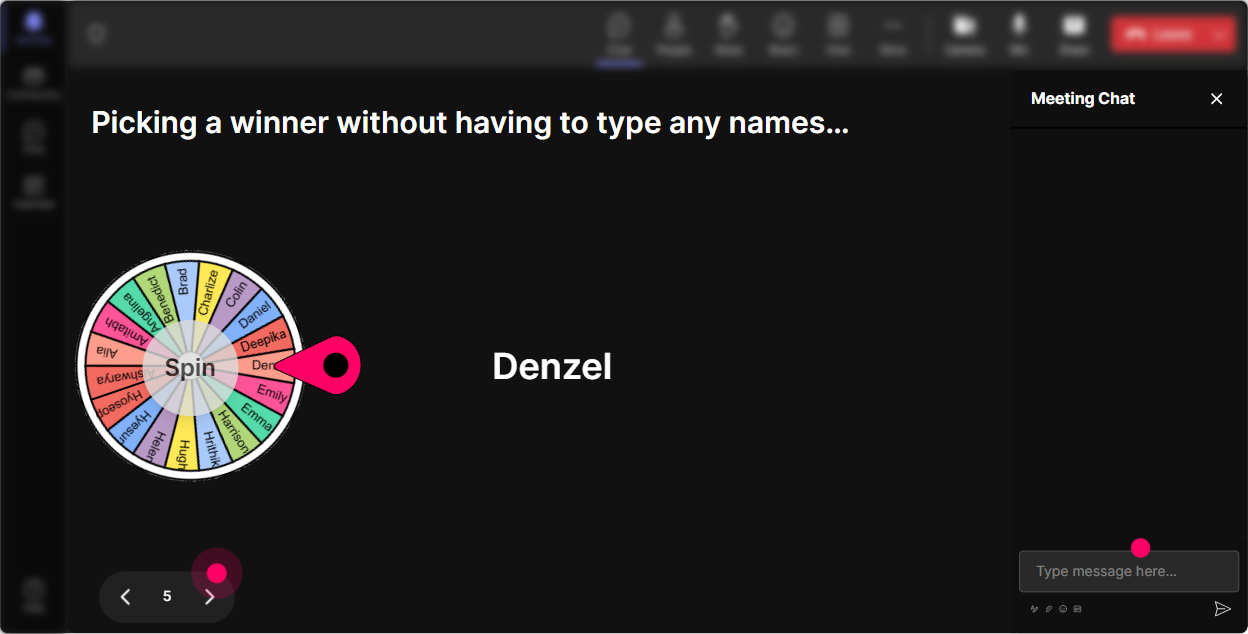
Winner Wheel (Spinner Wheel): Call on people without the cringe (and make participation feel rewarding)
We all know the classic moment: you ask a question, and the same two confident people answer while everyone else hides. Winner Wheel fixes that dynamic in a fun, light way. How to use it in this training: - Tell them: Drop your example in chat. Im going to spin the wheel and well workshop one live. - Spin from: people who commented during the Talking Tiles or Poll. - Use it to pick: - A volunteer to unmute and share their impact scene - A participant to choose which scenario you demonstrate first - A winner for a small perk (shoutout, resource link, template, or company swag if youve got it) Key vibe: it feels like a game, but it quietly trains the room that commenting = being part of the session.
Quiz: Quick knowledge checks that feel like a game, not a test
Impact Visualization has a few core do this / dont do that moments. A Quiz interaction is perfect for checking understanding fast-and keeping people alert. Quiz ideas (multiple choice): - Which outcome is the best example of an impact-based training result? A) Learners complete the module B) Learners can list the 5 steps C) Learners handle an objection confidently on a real client call (Correct) D) Learners say they enjoyed the session - Whats the strongest Impact Visualization prompt? A) Any questions? B) Imagine its two weeks from now and this skill worked-whats happening? (Correct) C) Did you understand the slide? D) Lets move on quickly Trainer move: After you reveal the correct answer, ask one follow-up in chat: What made that the best choice? Thats where the learning really sticks.

Rating Polls: Get a quick confidence check before you teach anything
Before you dive into models, steps, or examples, do a fast pulse check. Rating Polls are great because theyre low effort for learners and super clear for you. Ways to use it in Impact Visualization training: - On a scale of 110, how confident are you at helping learners see the outcome before they practice a skill? - Rate your current training sessions: how often do participants actually apply what you teach after the session? (1 = rarely, 10 = consistently) - Midway check: How clear is the Impact Visualization process so far? (110) What this unlocks: youll know whether to speed up, slow down, or add an extra example. Plus, when learners see the average move up later, they feel progress-which is engagement fuel.
Q&A (Quick Questions): Catch every question without losing your flow
In live training, great questions often get buried in chat-especially when people are actively responding to activities. StreamAlives Q&A pulls audience questions out and displays them cleanly so you dont miss them. Ways to use it in Impact Visualization ILT: - Set the norm: If you have a question, just type it in chat like normal-StreamAlive will capture it for me. - Do a dedicated pit stop: Lets pause for 3 minutes and clear the Q&A board. - Use it during practice: As you build your impact scene, drop questions in chat. Ill answer the top themes before we move on. Result: you look more present, you dont get derailed hunting through chat, and participants feel heard.

Analytics: Prove what worked, improve what didnt, and spot your future champions
After your Impact Visualization session, StreamAlives analytics help you move from I think it went well to I know what landed. What to look at: - Minute-by-minute engagement: Find the exact moments when chat spiked-maybe it was the word cloud, the live workshop, or the quiz. That tells you what to double down on next time. - Replay and interaction results: See which prompts got the best responses, and reuse the winners in future cohorts. - Top fans (most engaged participants): These are often your champions-people you can invite to co-facilitate breakouts, share case studies, or pilot new training. Simple way to use this internally: export or email the report to your team and say, Heres what got the highest engagement-and heres where we should adjust the next delivery. Thats how you keep improving and keep sessions consistently high-energy.

Use StreamAlive in all your training sessions
StreamAlive isn’t just for
Impact Visualization
training,
it can also be used for any instructor-led training session directly inside your PowerPoint presentation.
Explore similar traingin ideas: unlocking the potential of StreamAlive
See how StreamAlive transforms live training with engaging events and interactive sessions across industries, directly inside your PowerPoint presentation.

Interactions in action
(it's free)

.svg.png)


