Install StreamAlive for your PowerPoint slides
Learn more

Inclusive & Accessible Design Training for Training Agencies
StreamAlive helps 9x the audience engagement in your Virtual Instructor-led Trainings (VILT) directly inside your powerpoint presentation.
Make your instructor-led Inclusive & Accessible Design training more fun with polls, word clouds, spinner wheels and more
Works inside your existing PowerPoint presentation
Install the StreamAlive app for PowerPoint and see your slides come to life as people participate in your interactions
AI generates audience interactions for you
Let our AI scan your presentation and automatically come up with relevant questions based on the content. Or spend two hours coming up with your own questions, your choice!
Built to work with MS Teams and Zoom
Native apps for Teams and Zoom so you never have to leave your existing workflows
No QR Codes
Chat-powered interactions means your audience doesn’t need to scan QR codes or look at another screen to participate. They just type in the chat!

Quickly approved by your IT team
StreamAlive’s apps for Teams and Zoom means that they have been through rigorous quality assurance and client safety reviews. You’ll find everything an IT team needs to approve the app within the organization within your StreamAlive account.

Youve been asked to run an Inclusive & Accessible Design instructor-led training for a Training Agency-and you want it to be more than just slides and polite silence. Lets make it interactive, welcoming for everyone, and genuinely fun to facilitate. Here are practical ways to use StreamAlive to keep attention high (and participation up to 9x).
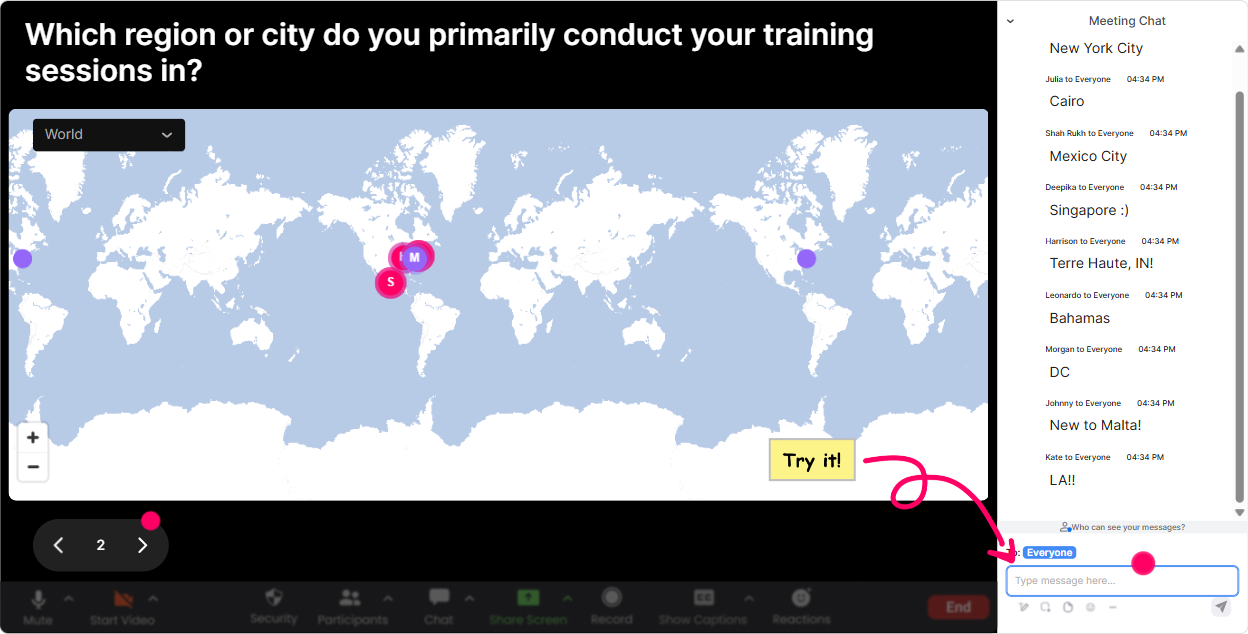
1) Magic Maps: Start inclusive-put everyone on the map
Inclusive sessions start with belonging. Magic Maps is a super simple way to do that in the first 2 minutes. How to use it: - Ask a location-based question, attendees answer in chat, and StreamAlive plots them live on a world map. - You instantly get a visual: time zones, regions, cultural variety-plus it naturally nudges people to participate early. Examples you can use in Inclusive & Accessible Design training: - Where are you joining from today? (City + country) - Pick a city thats done accessibility well (in your opinion). Where is it? - If you could improve accessibility in one public place anywhere in the world, where would it be? Trainer tip: If your group is global, use the map to set expectations: Weve got multiple time zones here-feel free to step away when needed, captions on, and Ill post key instructions in chat too. Thats accessibility in action before you even teach it.
2) Rating Polls: Get a quick accessibility confidence check (without calling anyone out)
When youre teaching Inclusive & Accessible Design, people come in with very different experience levels. A Rating Poll is the fastest, least awkward way to figure out where everyones at. How to use it: - Ask for a 110 rating in chat. - StreamAlive turns it into a live visual with an average and distribution-so you can adjust your pace right away. Examples: - Rate your confidence with Inclusive & Accessible Design basics (1 = brand new, 10 = I teach it). - How confident are you that your training materials are accessible today? - How often do you design with screen readers / captions / keyboard-only users in mind? (110) Trainer tip: Use the result to narrate inclusively: Looks like weve got a mix-awesome. Ill explain terms as we go, and Ill share a checklist at the end so nobody has to memorize everything.

3) Wonder Words (Word Cloud): Surface attitudes and assumptions-fast
A lot of accessibility conversations get stuck because people feel judged or overwhelmed. Word Clouds help you bring those feelings into the open-without putting anyone on the spot. How to use it: - Ask for a 12 word answer. - StreamAlive builds a live word cloud where common responses grow bigger. Examples: - When you hear accessibility, whats the first word that comes to mind? - Whats the biggest barrier to making training more accessible at your organization? (One or two words) - Inclusive design feels _______. Trainer tip: If you see words like time, budget, confusing, youve got your agenda right there. Say: Cool, were going to tackle those head-on with practical fixes you can do this week.

4) Talking Tiles: Turn lived experience into the lesson (without forcing anyone to speak)
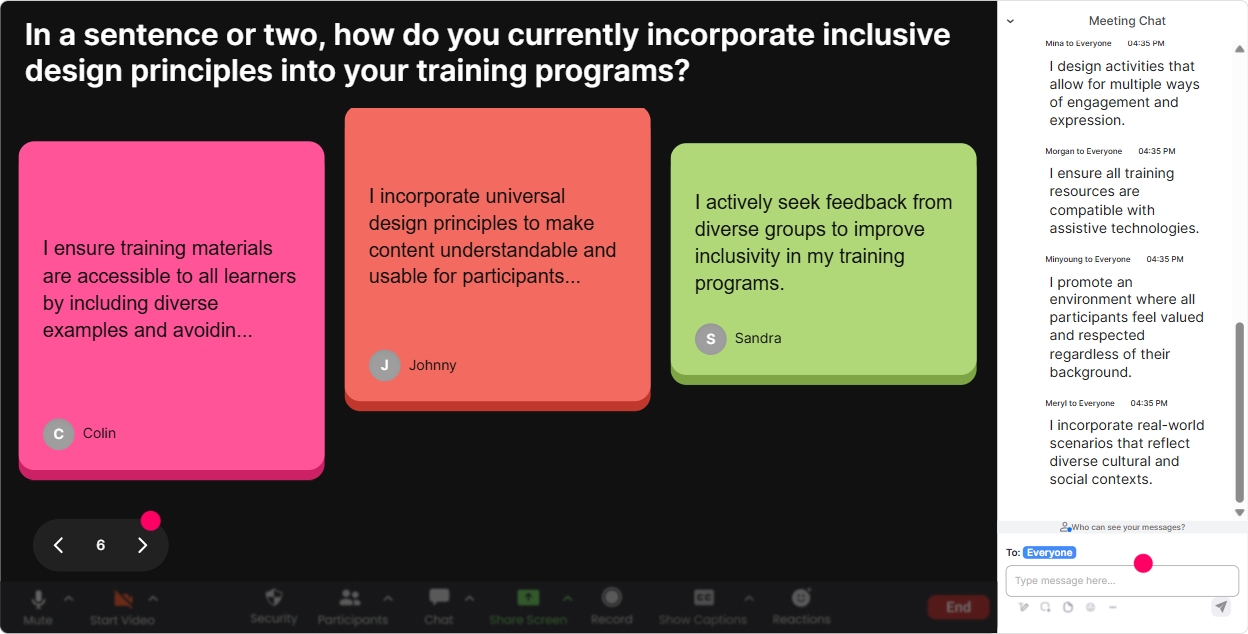
Inclusive & Accessible Design gets real when people connect it to their work-especially trainers, facilitators, and instructional designers. Talking Tiles is perfect for longer, more meaningful chat responses. How to use it: - Ask a short prompt that invites a full sentence. - Responses fall onto the screen like tiles-so the conversation feels alive, not buried in chat. Examples: - Whats one accessibility issue youve seen in a training session (as a learner or trainer)? - Finish this: A participant might struggle in my sessions when - Whats one change you can make to your next ILT to be more inclusive? Trainer tip: This is gold for case-based teaching. Pick 23 tiles and say, Lets work with these real examples and redesign them together. People feel seen-and you get instant relevance.
5) Power Polls: Let the group choose where to go deeper
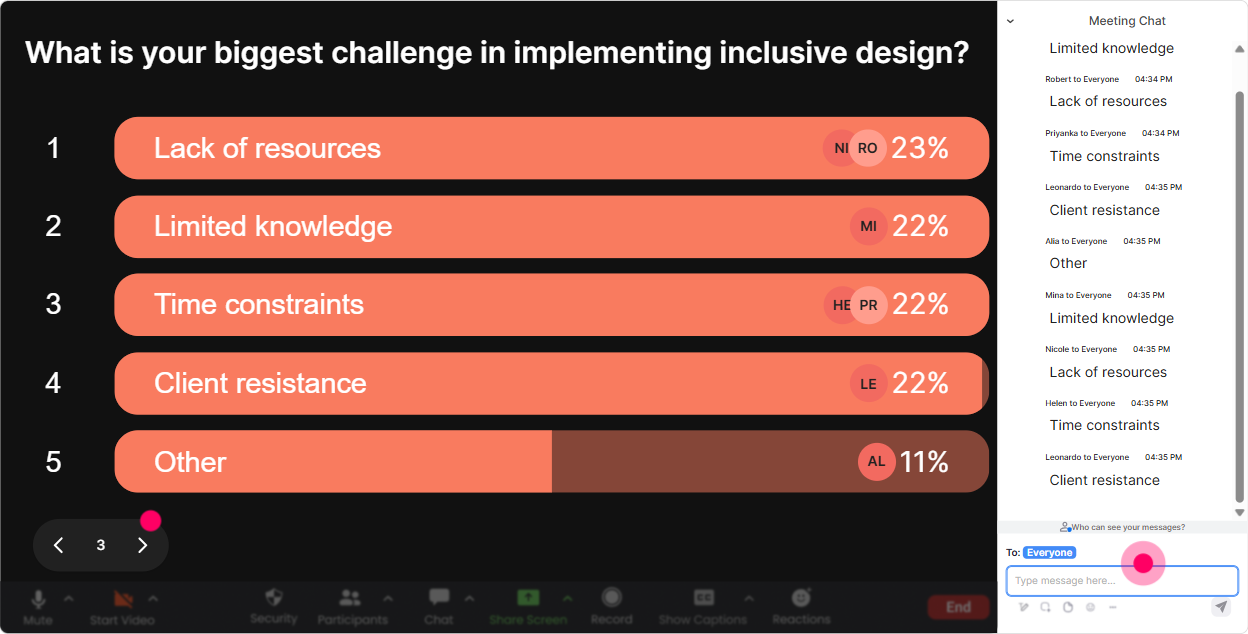
Accessibility is a big topic. If you try to cover everything evenly, you risk covering nothing well. Power Polls help you prioritize based on what your audience actually needs. How to use it: - Offer 46 options. - People vote by typing a number in chat. - Results show live so everyone knows what the group picked. Examples (choose options like these): - What do you want to focus on today? 1) Accessible slides & visuals 2) Facilitation for neurodiversity 3) Captioning, transcripts, and audio clarity 4) Activities that include introverts + multilingual learners 5) Accessibility checklists & QA - Where do you struggle most right now? 1) Color contrast 2) Alt text 3) Reading level/plain language 4) Keyboard navigation 5) Inclusive group activities Trainer tip: If your agency runs multiple cohorts, save the results and use them to tailor future sessions (and prove to stakeholders you designed based on learner needs).
6) Winner Wheel (Spinner Wheel): Make participation fair (and less intimidating)
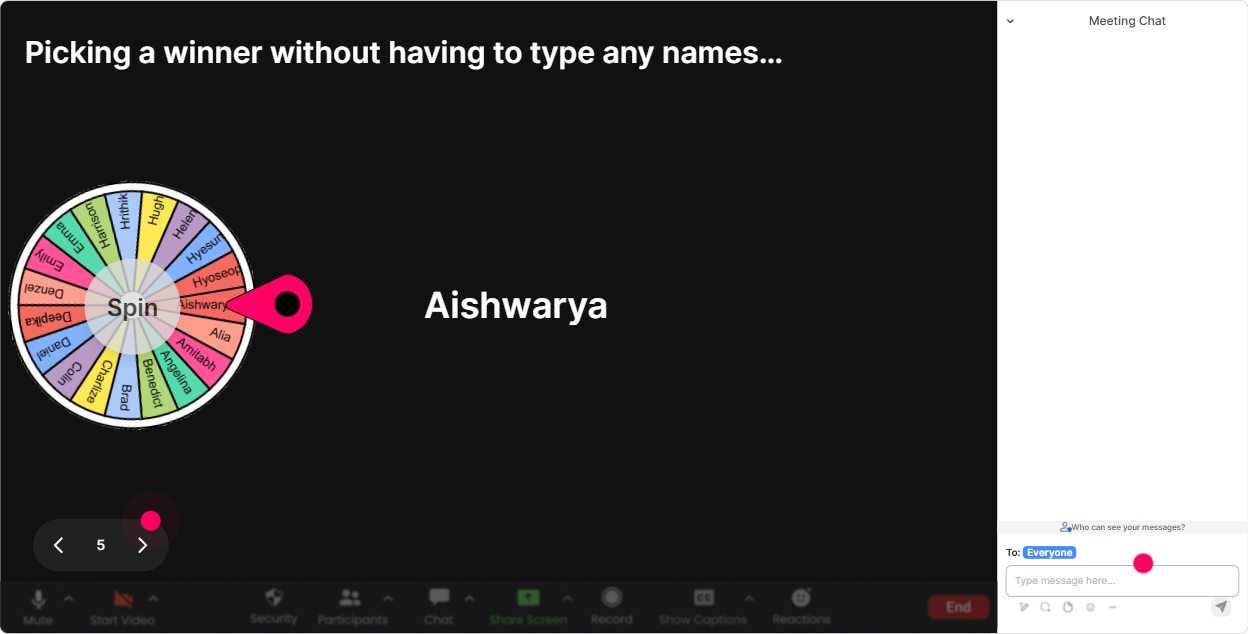
Sometimes you want voices, not just chat-but asking for volunteers usually gets you the same 2 confident people. Winner Wheel keeps it playful and fair. How to use it: - Run an interaction (poll/word cloud/tiles), then spin from the people who participated. - You can also base it on overall chat participation. Examples in your Inclusive & Accessible Design session: - Were going to do a quick redesign challenge. Ill spin the wheel to pick someone to choose the scenario. - Lets hear a real example-wheel pick: share one thing youre changing in your next training deck. - Pop a question you want answered today. Ill spin to pick one to start with. Trainer tip (important for inclusion): Offer an opt-out line. If you get picked and prefer not to unmute, just say pass in chat-totally fine. That small move builds psychological safety fast.
7) Quiz: Quick knowledge checks that feel like a game (not an exam)
Quizzes are perfect for Inclusive & Accessible Design because there are clear best practices-and lots of common myths. StreamAlive makes it feel light, fast, and interactive. How to use it: - Set up multiple choice options. - Participants answer in chat. - Reveal the correct answer when youre ready. Examples: - Which is the BEST alt text? A) Image B) Blue button C) Submit button at the end of the form (correct) D) Click here graphic - True or False: Captions only help Deaf/HoH learners. (False) - Whats a safe minimum font size for slides in live training? (Give options) Trainer tip: After revealing the answer, ask one follow-up: What made that tricky? Thats where the learning sticks-and chat will usually light up.

2) Rating Polls: Get a quick accessibility confidence check (without calling anyone out)
When youre teaching Inclusive & Accessible Design, people come in with very different experience levels. A Rating Poll is the fastest, least awkward way to figure out where everyones at. How to use it: - Ask for a 110 rating in chat. - StreamAlive turns it into a live visual with an average and distribution-so you can adjust your pace right away. Examples: - Rate your confidence with Inclusive & Accessible Design basics (1 = brand new, 10 = I teach it). - How confident are you that your training materials are accessible today? - How often do you design with screen readers / captions / keyboard-only users in mind? (110) Trainer tip: Use the result to narrate inclusively: Looks like weve got a mix-awesome. Ill explain terms as we go, and Ill share a checklist at the end so nobody has to memorize everything.
8) Q&A (Quick Questions): Catch every question without losing the chat
In accessibility training, people often ask important questions in the middle-then they get buried under thanks! and side comments. StreamAlives Q&A pulls questions out of chat automatically so you dont miss them. How to use it: - Tell participants: Drop questions anytime in chat. - StreamAlive detects and collects them so you can answer in a clean list. Examples of questions youll typically see (and can encourage): - How do I handle accessibility when I dont control the LMS? - Whats the simplest checklist for an ILT deck? - How do I make group work inclusive for introverts or anxious learners? Trainer tip: Batch your answers. Im going to teach this section, then well do a 5-minute Q&A sweep from the question list. It keeps flow AND makes learners feel heard.

9) Analytics: Prove engagement and improve every cohort
If you run training for agencies, you know the real question after delivery is: Did it land? StreamAlives Analytics helps you answer that with actual data, not vibes. How to use it: - Review minute-by-minute engagement to see where attention spiked or dipped. - Replay chat and interaction results to see what topics triggered the most participation. - Identify your most engaged attendees (helpful for follow-ups, champions, or internal advocates). Examples of how trainers use this after Inclusive & Accessible Design sessions: - Our engagement peaked during the slide makeover activity-so next cohort, Ill expand that section. - Most questions came in during captions/transcripts-so Ill add a template and a demo. - I can email the interaction report to my team or stakeholder to show participation and learning checks. Trainer tip: If youre trying to grow this training inside an agency, Analytics helps you justify it: you can literally show what worked, what people struggled with, and what they want next.

Use StreamAlive in all your training sessions
StreamAlive isn’t just for
Inclusive & Accessible Design
training,
it can also be used for any instructor-led training session directly inside your PowerPoint presentation.
Explore similar traingin ideas: unlocking the potential of StreamAlive
See how StreamAlive transforms live training with engaging events and interactive sessions across industries, directly inside your PowerPoint presentation.

Interactions in action
(it's free)

.svg.png)


