Install StreamAlive for your PowerPoint slides
Learn more

Remote & Hybrid Workplace Models Training for Corporate Trainers
StreamAlive helps 9x the audience engagement in your Virtual Instructor-led Trainings (VILT) directly inside your powerpoint presentation.
Make your instructor-led Remote & Hybrid Workplace Models training more fun with polls, word clouds, spinner wheels and more
Works inside your existing PowerPoint presentation
Install the StreamAlive app for PowerPoint and see your slides come to life as people participate in your interactions
AI generates audience interactions for you
Let our AI scan your presentation and automatically come up with relevant questions based on the content. Or spend two hours coming up with your own questions, your choice!
Built to work with MS Teams and Zoom
Native apps for Teams and Zoom so you never have to leave your existing workflows
No QR Codes
Chat-powered interactions means your audience doesn’t need to scan QR codes or look at another screen to participate. They just type in the chat!

Quickly approved by your IT team
StreamAlive’s apps for Teams and Zoom means that they have been through rigorous quality assurance and client safety reviews. You’ll find everything an IT team needs to approve the app within the organization within your StreamAlive account.

Youve been asked to run a session on Remote & Hybrid Workplace Models for corporate trainers-and you already know the big challenge: keeping people present when theyre behind screens. The good news? With a few smart interactions, you can turn quiet webinar energy into a room that actually feels alive. Heres how StreamAlive helps you do that.
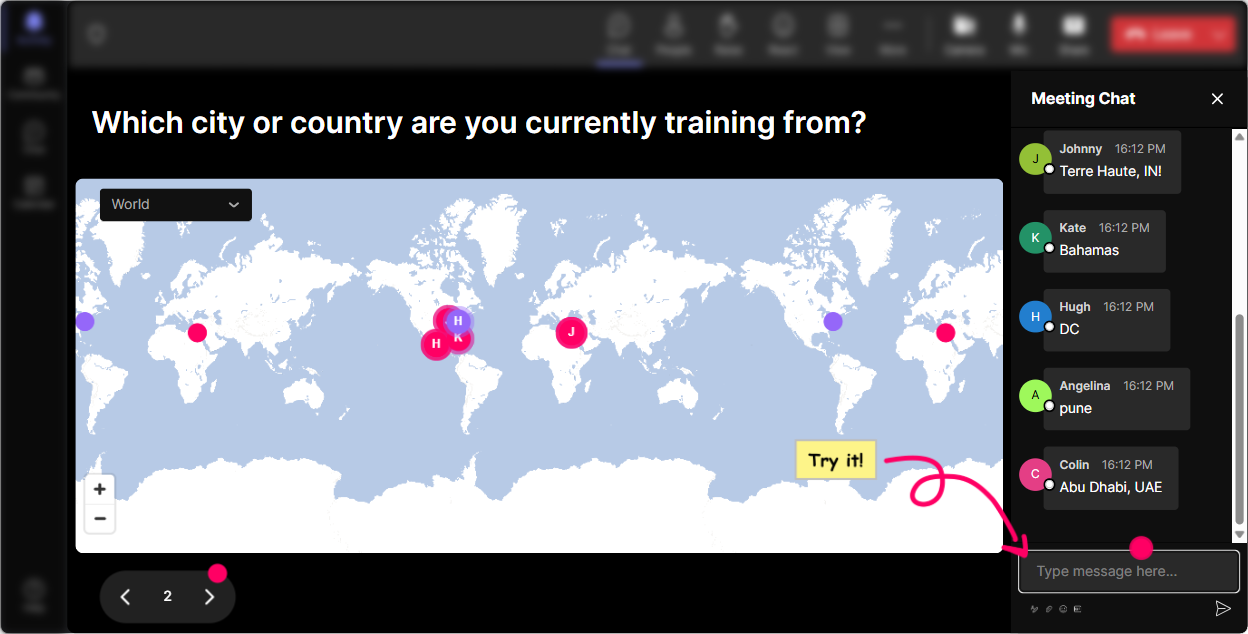
1) Magic Maps: Kick off your Remote/Hybrid session by putting everyone on the map
This is your easiest win in the first 3 minutes. Instead of the usual awkward Where are you joining from? with a few people replying, Magic Maps turns it into a real-time visual moment. How to use it in Remote & Hybrid Workplace Models training: - Icebreaker that immediately reinforces the topic: Where are you working from most days right now-city and country? (Great way to show how distributed the group already is.) - Make it practical: If your company went fully remote tomorrow, where would you relocate on earth? - Culture + collaboration angle: Which city has your best memory of working with a team in-person? Trainer tip: If your group is large, the map clusters will show hotspots (like multiple people in the same region). Use that to naturally segue into time zones, meeting fatigue, and async collaboration realities.
2) Rating Polls: Do a quick confidence check before you teach anything
Before you jump into frameworks and best practices, find out where people really are-because remote/hybrid means different things in different companies. How to use Rating Polls in this training: - Baseline confidence: On a scale of 110, how confident are you in designing training for hybrid teams? - Reality check: Rate how well your organizations current hybrid model is working (1 = chaos, 10 = smooth). - After a module: How ready do you feel to handle engagement in a mixed room (remote + in-person)? Why it works: You instantly see sentiment and spread (not just an average). And when you re-run the same rating near the end, you can show improvement live-which feels rewarding and keeps people participating.

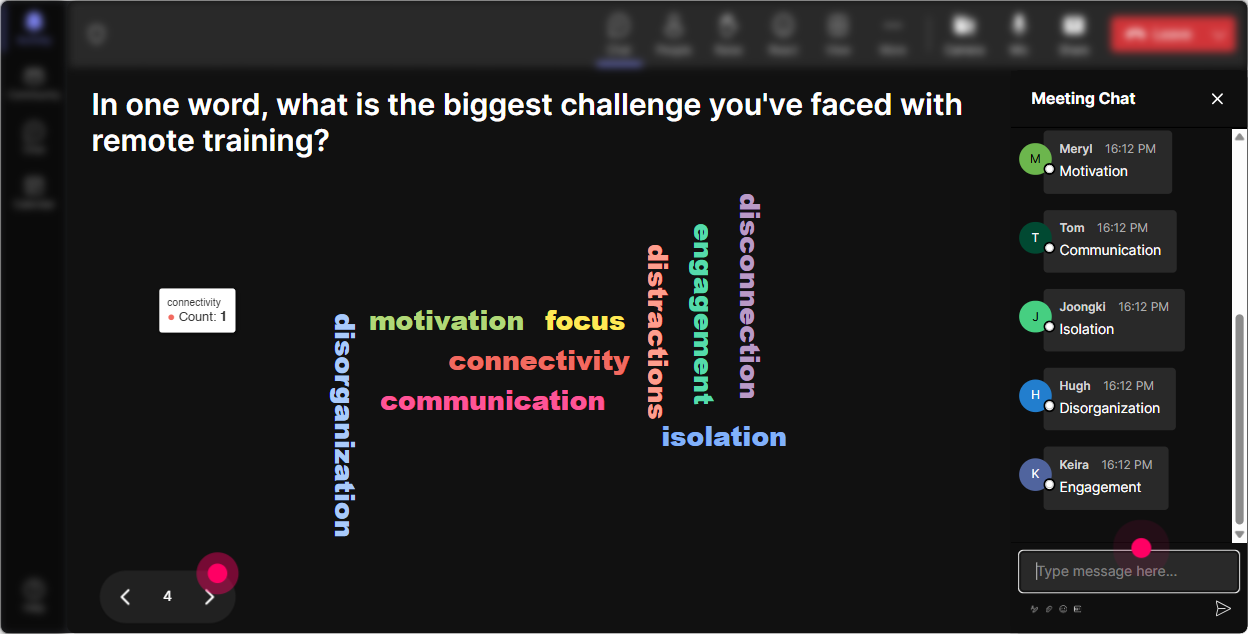
3) Wonder Words: Get the real feelings in the room (fast)
Hybrid work comes with opinions-strong ones. Wonder Words helps you capture the vibe in 10 seconds, without forcing people to speak up. Use it to surface emotions, friction, and expectations: - When you hear hybrid workplace model, whats the first word that comes to mind? - Whats the hardest part of training hybrid groups? One or two words. - Whats one word you want learners to feel in your hybrid sessions? (Examples: included, seen, confident, connected) Trainer tip: If you see words like disconnected, draining, or ignored getting big-pause and name it. That tiny moment of yep, were not alone builds trust and gets more chat participation for the rest of the session.
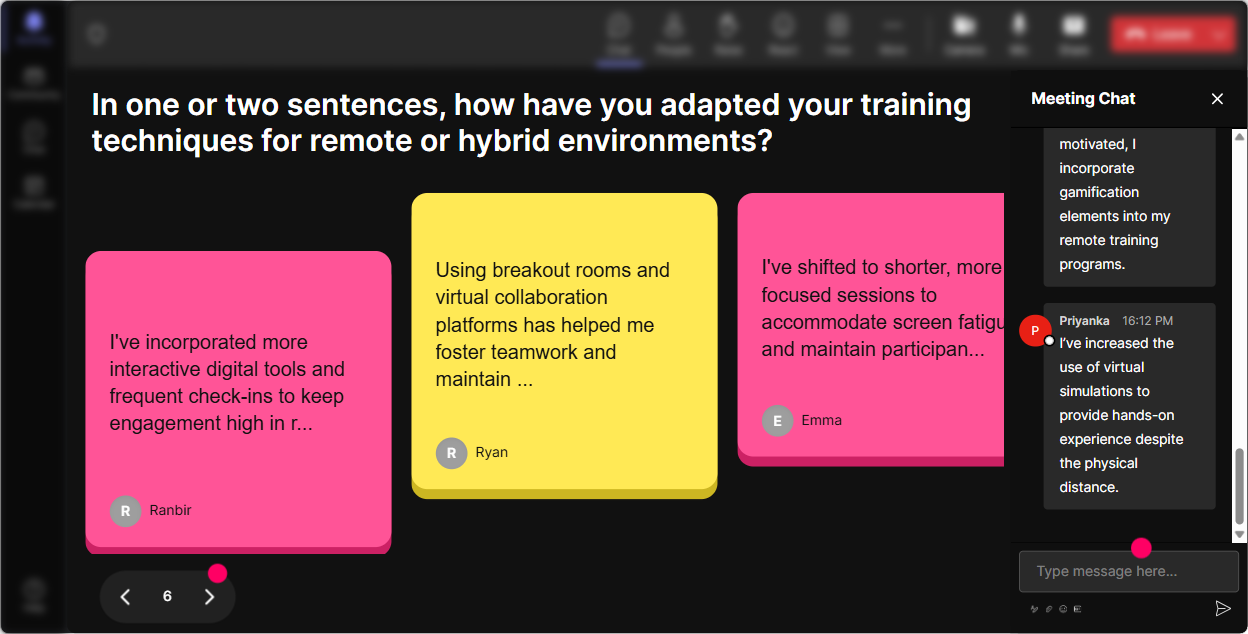
4) Talking Tiles: Turn chat into a live brainstorming wall (without the awkward silence)
When you need longer responses-examples, experiences, challenges-Talking Tiles makes it fun to read and easy to facilitate. People see their message become part of the session, so theyre more likely to contribute. Great prompts for Remote & Hybrid Workplace Models training: - Tell me one thing that breaks in training when half the group is remote. - Whats one ground rule you wish every hybrid meeting/training followed? - Share a tactic youve used to keep remote participants from feeling like second-class attendees. Trainer tip: Use the tiles to spot patterns, then group them out loud: Im seeing a lot about audio issues, side conversations in the room, and camera-off fatigue lets tackle those. Thats facilitation gold.
5) Power Polls: Let the group choose the direction (so it feels customized)
Remote/hybrid sessions lose people when they feel generic. A quick poll makes your training feel tailored-because youre literally letting them steer. Ways to use Power Polls in this topic: - Which hybrid challenge do you want to spend time on today? Options: 1) Engagement 2) Tech setup 3) Facilitation in mixed rooms 4) Measurement/ROI 5) Managing time zones - Whats your current work model? Options: 1) Mostly remote 2) Mostly in-office 3) True hybrid 4) Still evolving - In hybrid training, whats the biggest engagement killer? Options: 1) Cameras off 2) In-room side talk 3) Not enough interaction 4) Audio/video issues Trainer tip: Run a poll early, then later run another one like: Did we solve the #1 challenge you voted for? People love seeing that loop closed.

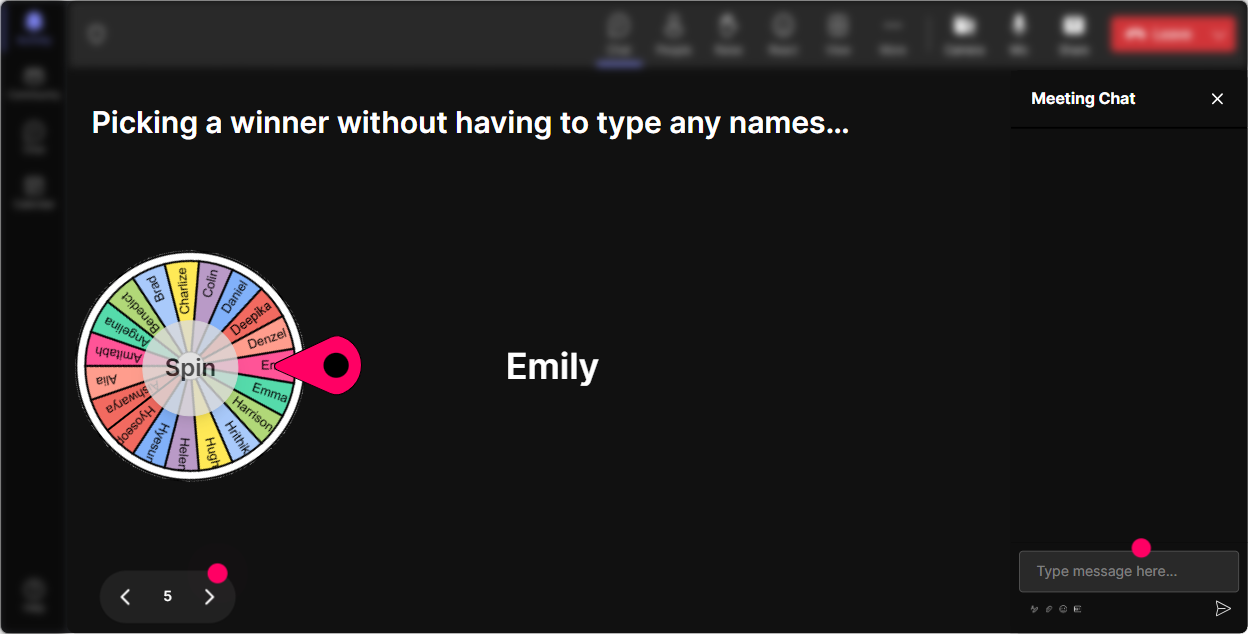
6) Winner Wheel: Pick a speaker without the cringe of calling on people
In hybrid and remote sessions, youll always get the same few voices. Winner Wheel helps you mix it up in a light, fair way-so participation spreads out. How to use it during this training: - After a poll: Im going to spin the wheel and ask one person to share why they chose that option. - For examples: Whos willing to share a hybrid training fail (so we can all learn)? Type me in chat. Then spin. - For quick reflections: Drop one tip in chat. Ill spin and invite someone to expand for 30 seconds. Trainer tip: Keep it low-pressure. Say things like, If youre driving or cant unmute, just type pass and well spin again. That keeps it fun, not scary.
7) Quiz: Do quick knowledge checks that dont feel like tests
A quiz is perfect when you want to correct myths about remote/hybrid work and training-without sounding preachy. People answer in chat, results show live, and you reveal the correct option. Quiz ideas for Remote & Hybrid Workplace Models training: - Which practice most improves hybrid inclusion? A) Always focus on the in-room group first B) Remote participants lead chat + Q&A C) Use one shared digital space for everyone (Correct) D) Avoid breakout rooms - Whats a best practice for hybrid facilitation? A) One camera is enough B) Repeat in-room comments into the mic (Correct) C) Let side conversations happen D) Q&A only at the end Trainer tip: Use quizzes as transitions. Teach a concept, quiz it, reveal the answer, then give one real example of how to apply it in a training room.

2) Rating Polls: Do a quick confidence check before you teach anything
Before you jump into frameworks and best practices, find out where people really are-because remote/hybrid means different things in different companies. How to use Rating Polls in this training: - Baseline confidence: On a scale of 110, how confident are you in designing training for hybrid teams? - Reality check: Rate how well your organizations current hybrid model is working (1 = chaos, 10 = smooth). - After a module: How ready do you feel to handle engagement in a mixed room (remote + in-person)? Why it works: You instantly see sentiment and spread (not just an average). And when you re-run the same rating near the end, you can show improvement live-which feels rewarding and keeps people participating.
8) Q&A: Capture questions automatically-so you dont miss the good ones
In hybrid sessions, chat moves fast and questions get buried. StreamAlives Q&A pulls questions out and displays them neatly so you can manage them without scrolling like crazy. How to use it in this training: - Tell people: Drop your questions anytime-StreamAlive will catch them. - During a section like Hybrid engagement strategies, pause and answer the top 3 questions that came in. - End with: Lets do a lightning round-only questions left in the Q&A list. Trainer tip: This also helps you stay organized when youre juggling facilitation + content + tech. And your audience feels heard because their question visibly makes it onto the board.

9) Analytics: After the session, see what actually landed (and what didnt)
This is the part most trainers skip-and its honestly where you level up fast. StreamAlive analytics show you engagement minute-by-minute, what interactions popped off, and who your most engaged participants were. How to use Analytics for Remote & Hybrid Workplace Models training: - Identify engagement dips: If chat drops every time you go into a long lecture segment, youll know exactly where to add an interaction next time. - Prove impact: Share poll results and participation with stakeholders-especially useful when leadership asks, Was this training effective? - Spot your champions: Find your Fantastic Fans (most engaged folks) and invite them to be peer leaders in future hybrid cohorts. Trainer tip: Use the replay results to refine your run-of-show. If Wonder Words sparked the biggest spike, bake in more moments like that. If a quiz brought attention back after a break, repeat that pattern.

Use StreamAlive in all your training sessions
StreamAlive isn’t just for
Remote & Hybrid Workplace Models
training,
it can also be used for any instructor-led training session directly inside your PowerPoint presentation.
Explore similar traingin ideas: unlocking the potential of StreamAlive
See how StreamAlive transforms live training with engaging events and interactive sessions across industries, directly inside your PowerPoint presentation.

Interactions in action
(it's free)

.svg.png)


