Install StreamAlive for your PowerPoint slides
Learn more

AI Fluency Training for Corporate Trainers
StreamAlive helps 9x the audience engagement in your Virtual Instructor-led Trainings (VILT) directly inside your powerpoint presentation.
Make your instructor-led AI Fluency training more fun with polls, word clouds, spinner wheels and more
Works inside your existing PowerPoint presentation
Install the StreamAlive app for PowerPoint and see your slides come to life as people participate in your interactions
AI generates audience interactions for you
Let our AI scan your presentation and automatically come up with relevant questions based on the content. Or spend two hours coming up with your own questions, your choice!
Built to work with MS Teams and Zoom
Native apps for Teams and Zoom so you never have to leave your existing workflows
No QR Codes
Chat-powered interactions means your audience doesn’t need to scan QR codes or look at another screen to participate. They just type in the chat!

Quickly approved by your IT team
StreamAlive’s apps for Teams and Zoom means that they have been through rigorous quality assurance and client safety reviews. You’ll find everything an IT team needs to approve the app within the organization within your StreamAlive account.

Youve been asked to run an AI Fluency instructor-led training for corporate trainers-and you want it to feel alive, not like another slide marathon. Good news: with StreamAlive, you can turn chat into instant, on-screen interactions that keep people participating the whole way through. Here are practical ideas you can plug straight into your session.
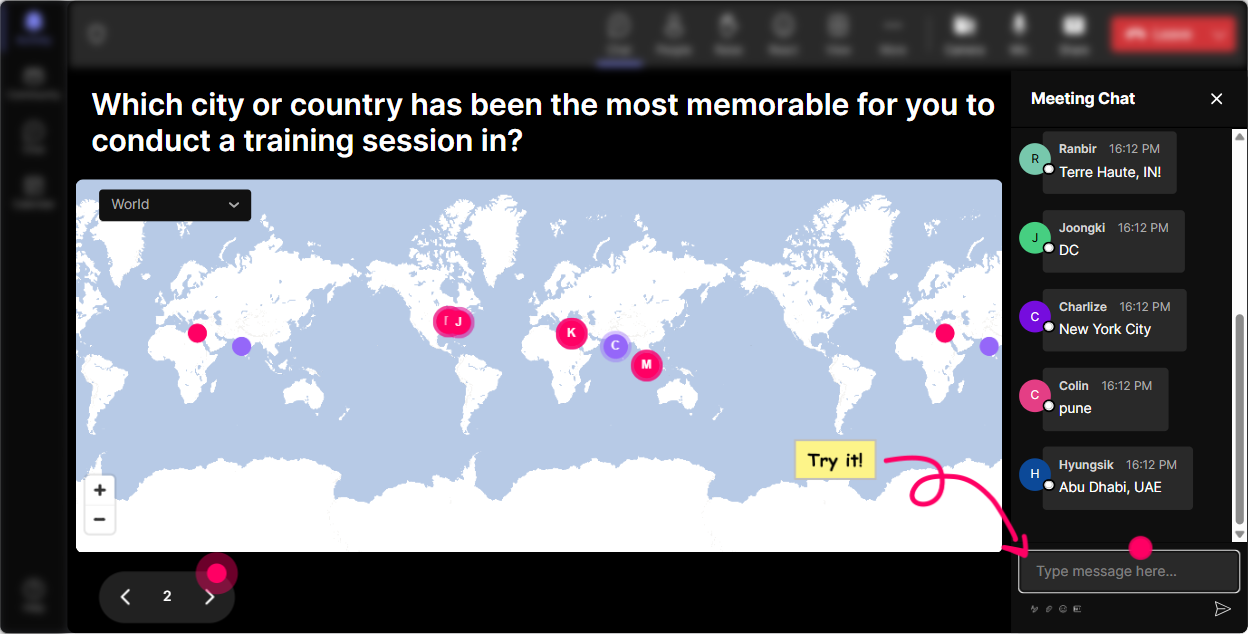
Magic Maps: Start with Where are you joining from? but make it fun
This is your easiest win in the first 2 minutes. Instead of a boring roll call, you get instant energy because everyone can contribute with one quick chat message-and then boom, theyre literally on the map. How to use it in AI Fluency training: - Kick-off icebreaker: Where in the world are you joining from today? - Make it AI-themed: If AI could teleport you anywhere on earth to learn from the best trainer, where would you go? - Tie it to business context: Which city is your toughest audience to train (remote or in-person)? Trainer tip: If your group is large, turn on the setting that allows one location per person so the map stays clean. And if you see a big cluster (say, Singapore or Chicago), call it out-people love hearing their place mentioned.
Rating Polls: Get a quick confidence check before you teach anything
Rating Polls are perfect when you want fast sentiment without making it awkward. People can answer in seconds, and you instantly see the groups comfort level-so you can adjust your pace. Ideas you can run right away: - On a scale of 110, how confident are you explaining AI to your learners? - Rate your current AI Fluency level (1 = brand new, 10 = I teach this already). - Mid-session pulse check: How clear is the difference between AI, ML, and GenAI so far? (110) - End-of-module check: How ready are you to write a useful prompt for your next training deck? (110) Trainer tip: If you see ratings spread out, say it out loud: Totally fine-this tells me exactly where to slow down and where to go deeper. That reassurance alone boosts participation.

Wonder Words (Word Cloud): Make emotions and assumptions visible in seconds
AI Fluency sessions come with feelings-excitement, skepticism, fear, overwhelm. A word cloud lets you surface that instantly, without putting anyone on the spot. And it gives you the perfect segue into your content. Word cloud prompts that work great: - In 12 words, how do you feel about AI showing up in training work? - Whats the first word you associate with AI Fluency? - Whats one risk you think AI creates for trainers? - Whats one opportunity AI creates for trainers? Trainer tip: Use Combine Similar Answers so excited and excitement dont split the vote. Then read the biggest words out loud-people feel seen immediately.

Talking Tiles: Turn real trainer stories into your best teaching moments
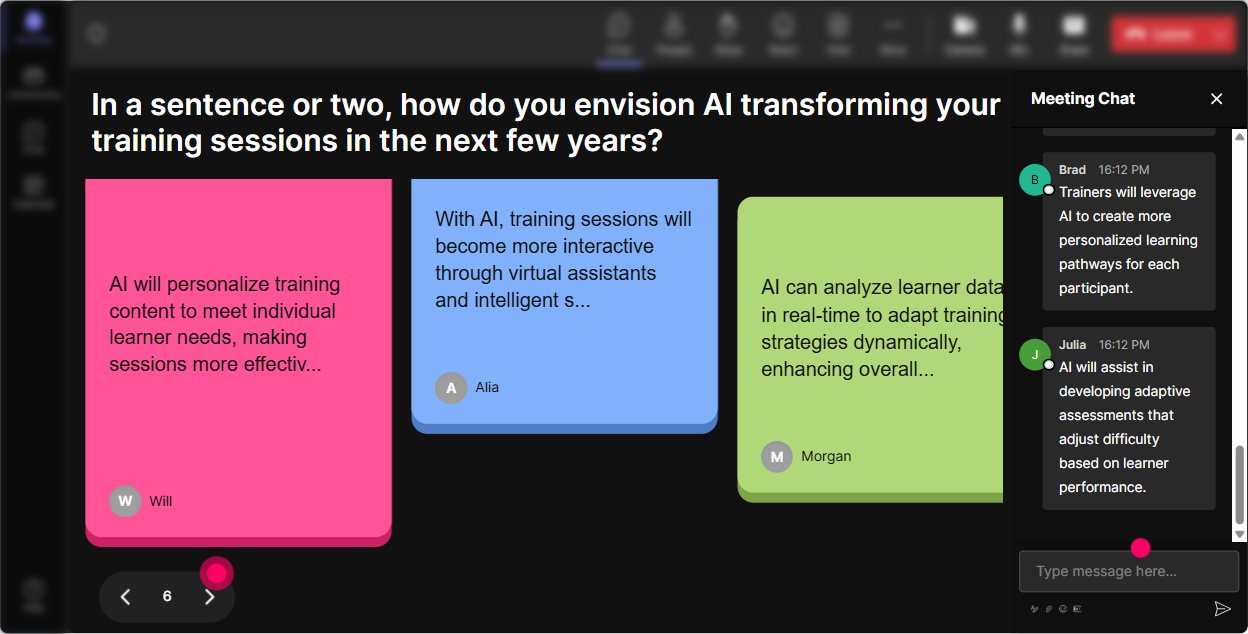
Talking Tiles are your go-to when you want more than one-word answers. You ask a real question, people respond in chat, and their messages appear visually as tiles on screen-so it feels like a live conversation, not a lecture. Prompts that spark great discussion in AI Fluency training: - Where could AI save you the most time in your training workflow? - Whats one task youd never want AI to touch in your training role-and why? - Share one moment where a learner asked you something and you wished you had a smarter tool to help. - Whats a training deliverable you create often (agenda, facilitator guide, role-play, quiz)? Trainer tip: Pick 23 tiles and react to them in the moment: This one is gold-lets build a prompt for that together. Thats how you get the room to feel truly interactive.
Power Polls: Let the audience choose the direction (and theyll stay locked in)
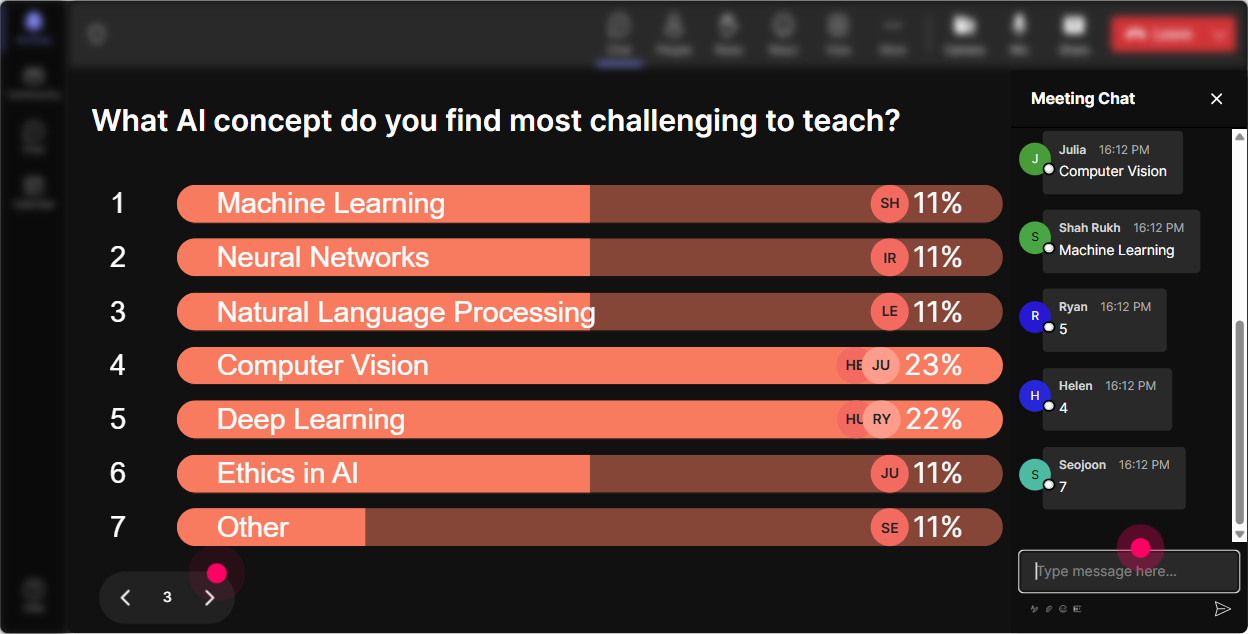
Polls are magic because they give people control. Instead of guessing what trainers want from AI Fluency, you literally ask-and then tailor the session on the fly. Poll ideas for corporate trainer audiences: - What do you want most from today? (1) Better prompts (2) AI safety & ethics (3) Use cases for ILT (4) Measuring learning impact - Where would AI help you most? (1) Design (2) Delivery (3) Assessments (4) Admin/reporting - Which fear is most real for you? (1) Wrong info (2) Data privacy (3) Losing authenticity (4) Learners misusing AI Trainer tip: Run a poll, then say: Cool-based on this, well spend extra time on option #2. People pay attention when they feel youre responding to them live.
Winner Wheel: Get volunteers without the awkward silence
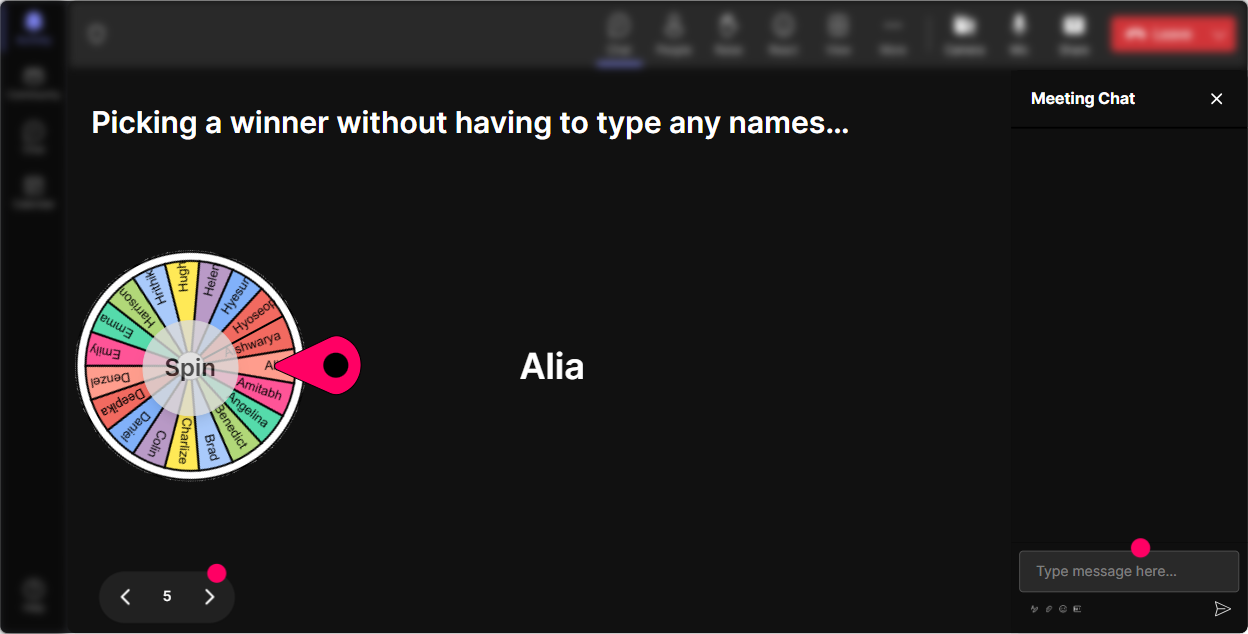
You know that moment when you ask, Who wants to share? and the room goes quiet? Winner Wheel fixes that in a fun way. People participate more in chat because they know it might get them picked (and it feels fair, not forced). Ways to use it in AI Fluency ILT: - Drop one AI use case youre curious about in chat-Winner Wheel will pick someone and well workshop it live. - Type READY if youll unmute for 30 seconds and share how your learners are using AI. - Share your biggest AI training challenge-wheel picks one and we solve it together. Trainer tip: Make the winning low-pressure: Youre not on the spot for perfection-just give us the real version. That keeps it playful and safe.
Quiz: Quick knowledge checks that dont kill the vibe
Quizzes are perfect for AI Fluency because you can bust myths fast. And because StreamAlive collects answers from chat and visualizes results live, it feels like a game-no extra links, no separate tools. Quiz questions you can use: - Which is the best definition of AI Fluency? (A) Knowing every AI tool (B) Using AI responsibly and effectively for real work (C) Coding ML models (D) Replacing human judgment) - Whats the biggest risk of copying AI output into training content? (A) Tone (B) Hallucinations/incorrect info (C) Formatting (D) Speed) - Which prompt is best for creating a role-play scenario? (A) Make a role play (B) Create a 5-min role-play for new managers with objectives, roles, constraints, and rubric etc. Trainer tip: After you reveal the correct answer, ask: If you picked something else, what made it feel right? Thats where real learning shows up.

Rating Polls: Get a quick confidence check before you teach anything
Rating Polls are perfect when you want fast sentiment without making it awkward. People can answer in seconds, and you instantly see the groups comfort level-so you can adjust your pace. Ideas you can run right away: - On a scale of 110, how confident are you explaining AI to your learners? - Rate your current AI Fluency level (1 = brand new, 10 = I teach this already). - Mid-session pulse check: How clear is the difference between AI, ML, and GenAI so far? (110) - End-of-module check: How ready are you to write a useful prompt for your next training deck? (110) Trainer tip: If you see ratings spread out, say it out loud: Totally fine-this tells me exactly where to slow down and where to go deeper. That reassurance alone boosts participation.
Q&A (Quick Questions): Catch every question without losing the chat
During AI sessions, questions come fast-and they get buried in chat. StreamAlive automatically detects and collects questions so you can answer them cleanly, in order, without scrolling like a maniac. How to use it in your AI Fluency session: - As we go, drop questions anytime-StreamAlive will capture them and Ill hit them in our Q&A breaks. - Run Q&A checkpoints: after AI basics, after prompting, after ethics & safety. - Use it for parking lot items: If its tool-specific, ask it anyway-Ill group those at the end. Trainer tip: If you see repeat questions, say: Love it-multiple people asked this, so lets slow down here. That boosts trust instantly.

Analytics: Improve every future AI Fluency session (without guessing)
After the session, StreamAlive analytics show you what actually worked-minute by minute. So next time you run AI Fluency training, youll know exactly where engagement spiked, where it dipped, and which interactions got people talking. How trainers can use the data: - See which segment lost attention (maybe your AI history slides were too long) and tighten it. - Replay chat moments and spot the topics that triggered the most discussion (those are your best hooks). - Identify your most engaged participants (your potential champions for future cohorts). - Share interaction results with your team via email to prove engagement and outcomes. Trainer tip: Use analytics like a trainers highlight reel: keep what lands, cut what drags, and youll feel your next session get smoother-and way more interactive-almost automatically.

Use StreamAlive in all your training sessions
StreamAlive isn’t just for
AI Fluency
training,
it can also be used for any instructor-led training session directly inside your PowerPoint presentation.
Explore similar traingin ideas: unlocking the potential of StreamAlive
See how StreamAlive transforms live training with engaging events and interactive sessions across industries, directly inside your PowerPoint presentation.

Interactions in action
(it's free)

.svg.png)


