Install StreamAlive for your PowerPoint slides
Learn more

GenAI Training for Corporate Trainers
StreamAlive helps 9x the audience engagement in your Virtual Instructor-led Trainings (VILT) directly inside your powerpoint presentation.
Make your instructor-led GenAI training more fun with polls, word clouds, spinner wheels and more
Works inside your existing PowerPoint presentation
Install the StreamAlive app for PowerPoint and see your slides come to life as people participate in your interactions
AI generates audience interactions for you
Let our AI scan your presentation and automatically come up with relevant questions based on the content. Or spend two hours coming up with your own questions, your choice!
Built to work with MS Teams and Zoom
Native apps for Teams and Zoom so you never have to leave your existing workflows
No QR Codes
Chat-powered interactions means your audience doesn’t need to scan QR codes or look at another screen to participate. They just type in the chat!

Quickly approved by your IT team
StreamAlive’s apps for Teams and Zoom means that they have been through rigorous quality assurance and client safety reviews. You’ll find everything an IT team needs to approve the app within the organization within your StreamAlive account.

So youve been asked to run a GenAI instructor-led training for corporate trainers-and you want it to feel alive, not like a lecture. Good news: you can teach prompts, policies, and use-cases *and* keep everyone participating. Here are practical ways to do it using StreamAlive interactions (the stuff that can spike engagement like crazy).
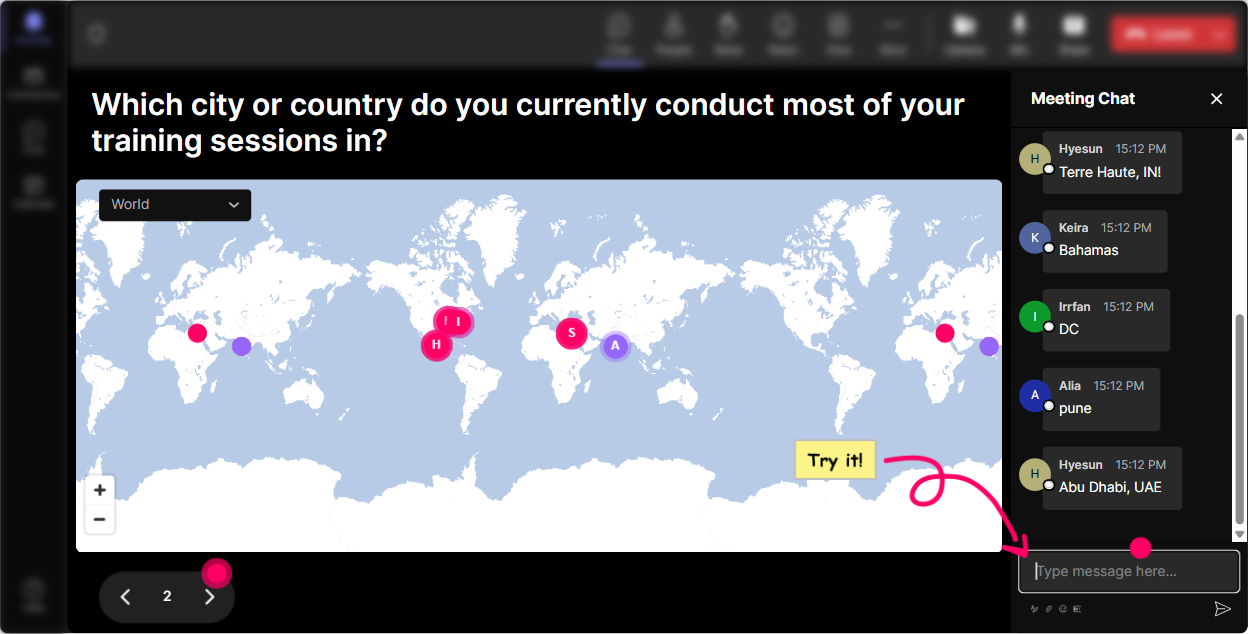
1) Magic Maps: Put your GenAI class on the map in the first 60 seconds
You know that awkward first minute where everyone is quiet? Magic Maps fixes that instantly. **How to use it in GenAI training:** - Kick off with: **Where are you joining from today?** and watch locations pop onto a live world map. - Make it GenAI-themed: **If GenAI could teleport you anywhere for a 1-week learning retreat, where would you go?** - Or keep it role-based: **Which city is your learners main location?** (great if youre training global L&D teams) **Why it works:** its an instant warm-up, and it subtly tells people: Chat is part of this session. **Trainer tip:** If your prompt needs one clear answer, set **one location per attendee** so you dont get NYC + London + home office in one message. Reset the map later if you do a second round (like dream destination near the end).
2) Rating Polls: Get a real-time GenAI confidence check (and tailor your pace)
Before you jump into prompting frameworks, you need to know where the room is at. Rating Polls make it fast and visual. **How to use it in GenAI training:** - Ask: **On a scale of 110, how confident are you using GenAI in your training work?** - Or: **How clear is your organizations GenAI policy right now? (1 = no idea, 10 = crystal clear)** - Mid-session pulse check: **Rate this: I can write a solid prompt for a facilitation scenario (110).** **Why it works:** youre not guessing. Youll instantly see if you should slow down, speed up, or add examples. **Trainer tip:** Do a second rating poll at the end with the same question. Its a simple confidence before vs after story you can report to stakeholders.

3) Wonder Words (Word Cloud): Find out what people *really* think about GenAI
GenAI brings out emotions-excitement, fear, skepticism, all of it. A word cloud lets people express that quickly without needing a speech. **How to use it in GenAI training (12 word answers):** - **GenAI at work feels?** (watch words like exciting, overwhelming, risky, useful grow) - **Whats one word you associate with prompting?** - **Whats the biggest GenAI risk in training?** (answers like bias, privacy, hallucinations become teachable moments) **Why it works:** it gives you an instant read of the room-and your learners feel seen. **Trainer tip:** Use **Combine Similar Answers** so privacy and data privacy dont split into tiny bubbles. Then react live: Im seeing privacy getting big-lets address that next.

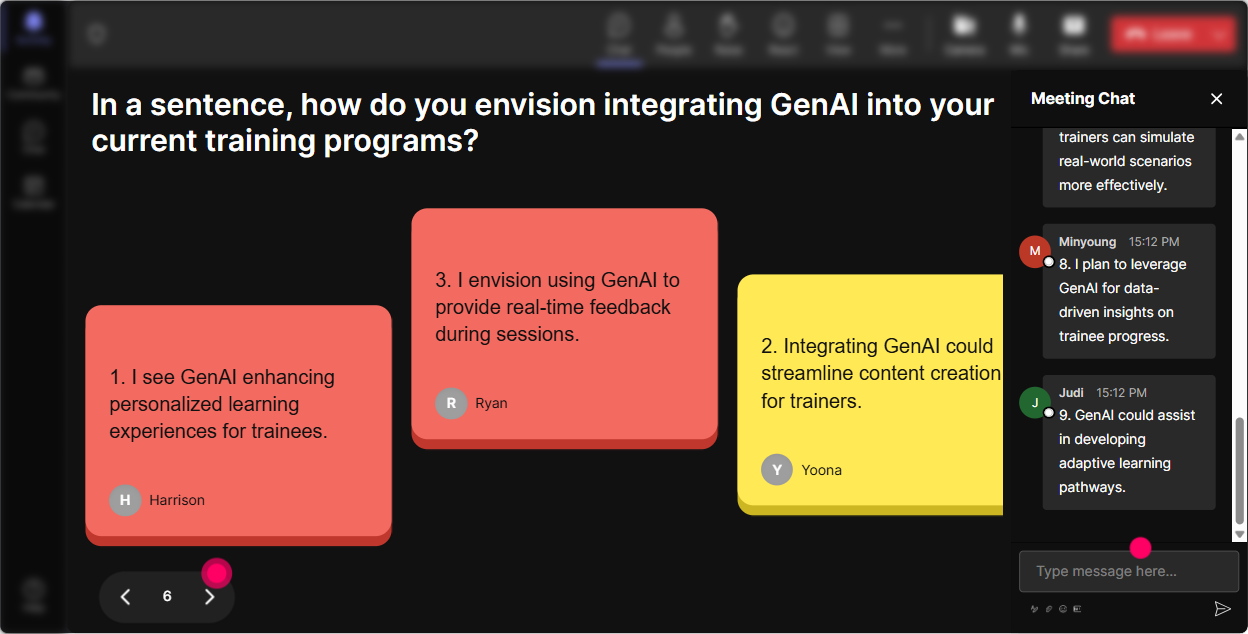
4) Talking Tiles: Turn real GenAI use-cases into a visual brainstorm (without awkward silence)
When you want longer responses (more than a couple words), Talking Tiles is money. People type, and their messages show up as falling tiles on screen-so the chat becomes your brainstorming wall. **How to use it in GenAI training:** - Ask: **In your trainer role, where could GenAI save you 30 minutes a week?** - Or: **Whats one training task you *wish* GenAI could do for you?** - Great for scenario-building: **Describe your toughest learner situation in one sentence.** (you can later use these as examples for prompt writing) **Why it works:** everyone contributes at once, and you get a pile of real-world context to teach from. **Trainer tip:** Pick 23 tiles and say, Lets turn *this exact situation* into a prompt together. Thats when the session stops being theoretical and starts being useful.
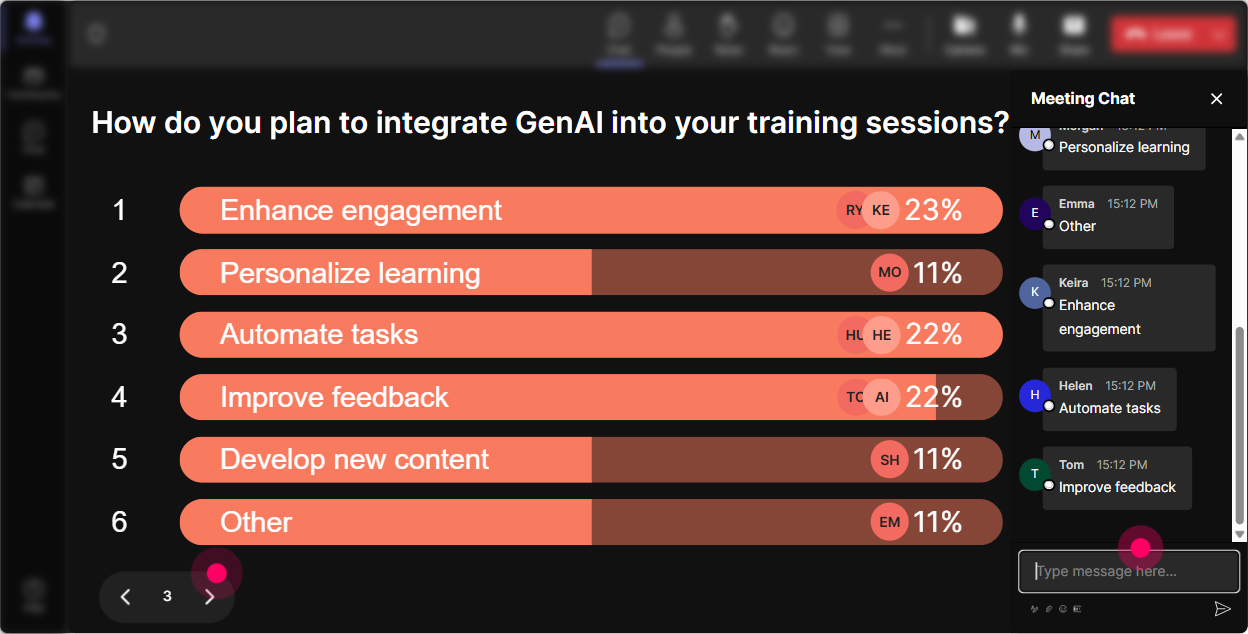
5) Power Polls: Let the room vote on what GenAI topic to go deeper on
Instead of deciding the agenda alone, let the audience steer (even if its just the next 10 minutes). Power Polls keep it quick and show results live. **How to use it in GenAI training:** - **What do you want most from today?** 1) Prompting basics 2) Training design with GenAI 3) Policy/risk & compliance 4) Facilitation activities using GenAI - **Which GenAI use-case should we demo live?** 1) Create a lesson plan 2) Rewrite boring content 3) Build a quiz + answer key 4) Create role-play scenarios **Why it works:** people pay attention when they feel like they had a say. **Trainer tip:** Run a poll right before a demo. Then do the winning demo and say, Cool-since you chose it, Im expecting you to try it with me. Participation jumps.
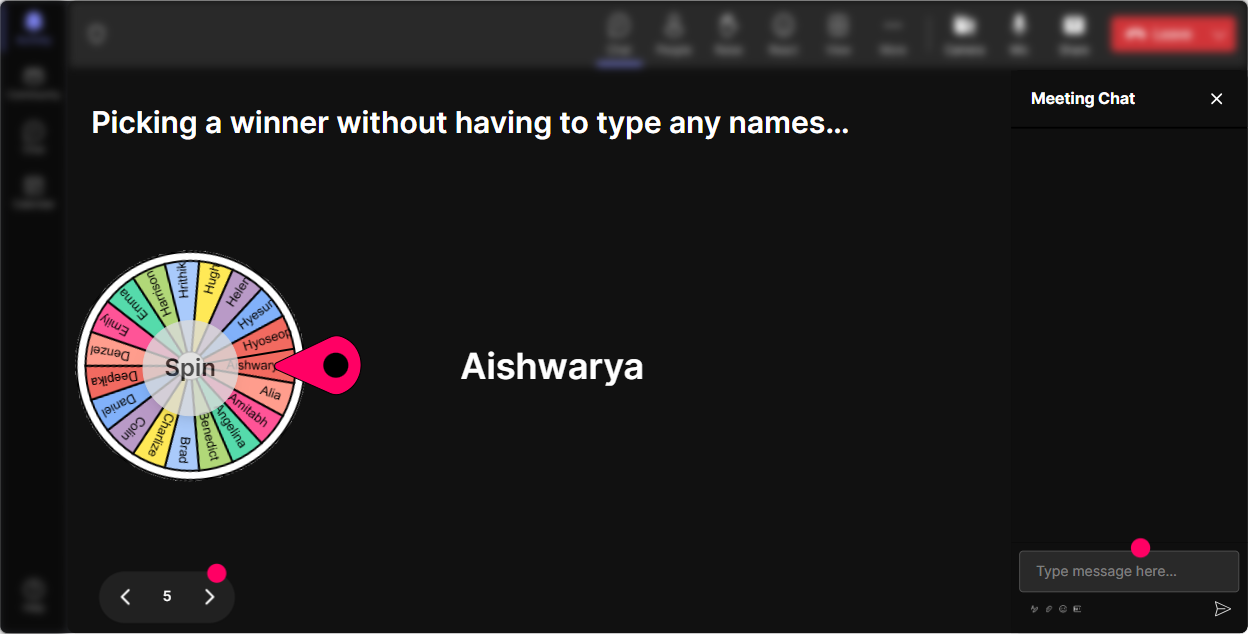
6) Winner Wheel (Spinner Wheel): Get volunteers without the crickets
Every trainer knows the Any volunteers? moment. The Spinner Wheel turns that into a fun, fair way to get voices in the room-without putting pressure on one person. **How to use it in GenAI training:** - Tell them: **Drop IN in the chat if youre open to being picked to unmute and share your prompt.** - Then spin the wheel to choose who shares. - Or use it for mini-rewards: **Im going to spin for a Best Prompt Booster-winner gets my prompt template.** **Why it works:** it nudges quiet folks to participate because theres a clear mechanic-and it feels playful, not forced. **Trainer tip:** Choose winners from **people who commented during a specific interaction** (like the prompt-writing exercise). It rewards participation and trains the room to stay active.
7) Quiz: Do quick GenAI knowledge checks that dont feel like school
GenAI training needs tiny checkpoints-otherwise people *think* they got it until they try it later. A Quiz interaction makes it fast, visual, and engaging. **How to use it in GenAI training (multiple choice, one correct):** - **Which is the best example of a good prompt?** 1) Make this better 2) Summarize this 3) Act as an L&D manager. Create a 30-minute session outline on X for Y audience, include 3 activities and 5 quiz questions. 4) Explain GenAI - **What should you do when GenAI gives confident wrong info?** 1) Share it anyway 2) Verify with a trusted source 3) Ask it to be funnier 4) Ignore it **Why it works:** it creates a natural teach moment-you can reveal the correct answer and explain why. **Trainer tip:** Use quizzes right after you teach a concept like hallucinations, bias, or prompt structure. It locks learning in immediately.

2) Rating Polls: Get a real-time GenAI confidence check (and tailor your pace)
Before you jump into prompting frameworks, you need to know where the room is at. Rating Polls make it fast and visual. **How to use it in GenAI training:** - Ask: **On a scale of 110, how confident are you using GenAI in your training work?** - Or: **How clear is your organizations GenAI policy right now? (1 = no idea, 10 = crystal clear)** - Mid-session pulse check: **Rate this: I can write a solid prompt for a facilitation scenario (110).** **Why it works:** youre not guessing. Youll instantly see if you should slow down, speed up, or add examples. **Trainer tip:** Do a second rating poll at the end with the same question. Its a simple confidence before vs after story you can report to stakeholders.
8) Q&A (Quick Questions): Catch every GenAI question without digging through chat
In GenAI sessions, questions come fast-and they get buried even faster. StreamAlives Q&A feature pulls questions from chat and displays them cleanly so you can actually manage them. **How to use it in GenAI training:** - Tell the group: **Type your question in chat anytime-StreamAlive will capture it.** - Use it during sensitive topics like policy: **Ask your is this allowed? questions here.** - Run a parking lot moment: **Drop your biggest GenAI concern as a question.** **Why it works:** you spend less time scrolling and more time teaching. **Trainer tip:** Batch-answer: Im seeing three questions about data privacy-let me address them together. The room feels heard, and you keep control of the flow.

9) Analytics: Prove engagement, spot drop-offs, and improve your GenAI training next time
After your session, youll want to know what actually worked-not just people said it was good. StreamAlive analytics shows you engagement patterns and participation. **How to use it for GenAI instructor-led training:** - Check **minute-by-minute engagement** to see where attention spiked (usually demos) and where it dipped (usually long explanations). - Use **chat replay** to revisit the exact moments people got confused or excited. - Identify your **most engaged participants (Fantastic Fans)**-these are your champions for rolling GenAI practices into the business. - Review **interaction reports** to see which polls/word clouds/questions drove the most activity. - Share results via **email reports** with your L&D team or stakeholders (Heres the confidence increase + participation proof). **Why it works:** it helps you continuously refine your GenAI training-more of what lands, less of what drags. **Trainer tip:** If youre doing a GenAI training series, compare analytics across sessions. Youll quickly learn the best timing for polls, demos, and practice rounds to keep engagement high.

Use StreamAlive in all your training sessions
StreamAlive isn’t just for
GenAI
training,
it can also be used for any instructor-led training session directly inside your PowerPoint presentation.
Explore similar traingin ideas: unlocking the potential of StreamAlive
See how StreamAlive transforms live training with engaging events and interactive sessions across industries, directly inside your PowerPoint presentation.

Interactions in action
(it's free)

.svg.png)


