Install StreamAlive for your PowerPoint slides
Learn more

Team-based RTO Training for L&D Leaders
StreamAlive helps 9x the audience engagement in your Virtual Instructor-led Trainings (VILT) directly inside your powerpoint presentation.
Make your instructor-led Team-based RTO training more fun with polls, word clouds, spinner wheels and more
Works inside your existing PowerPoint presentation
Install the StreamAlive app for PowerPoint and see your slides come to life as people participate in your interactions
AI generates audience interactions for you
Let our AI scan your presentation and automatically come up with relevant questions based on the content. Or spend two hours coming up with your own questions, your choice!
Built to work with MS Teams and Zoom
Native apps for Teams and Zoom so you never have to leave your existing workflows
No QR Codes
Chat-powered interactions means your audience doesn’t need to scan QR codes or look at another screen to participate. They just type in the chat!

Quickly approved by your IT team
StreamAlive’s apps for Teams and Zoom means that they have been through rigorous quality assurance and client safety reviews. You’ll find everything an IT team needs to approve the app within the organization within your StreamAlive account.

Youve been asked to run a Team-based RTO instructor-led training for L&D Leaders-and you want it to feel less like a lecture and more like a session people actually enjoy showing up for. The trick? Make it team-based, fast-moving, and super interactive. Here are practical ideas using StreamAlive to keep everyone participating (not just watching).
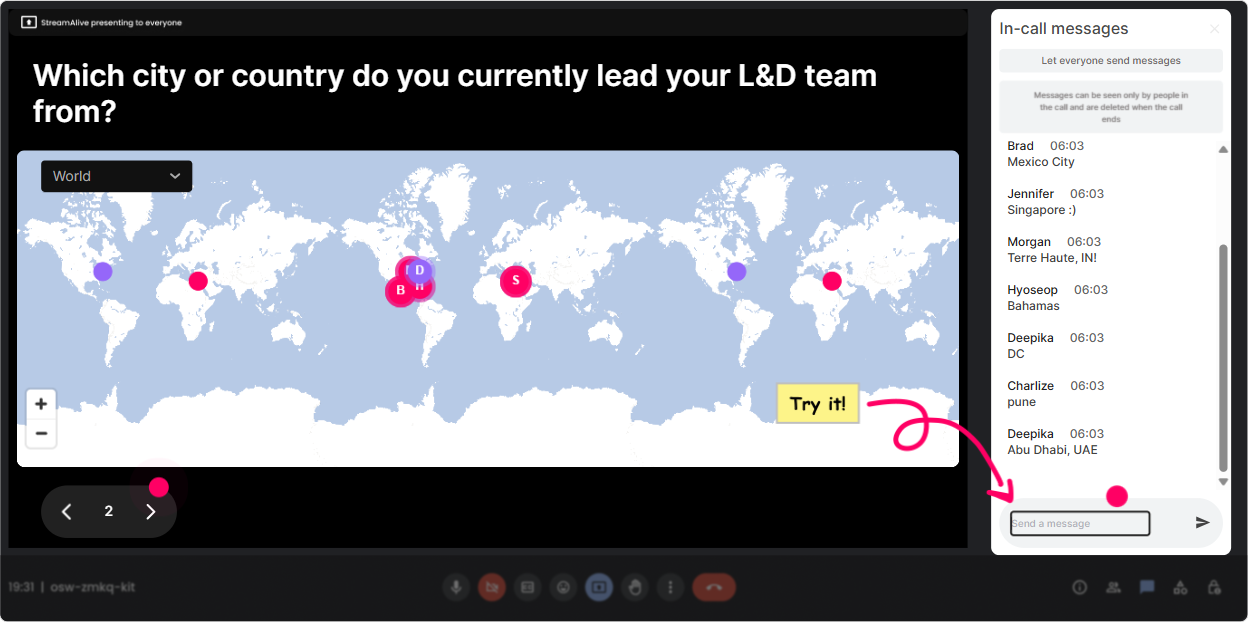
1) Magic Maps: Kick off with were all in this together energy
This is your instant icebreaker-no awkward small talk needed. Ask a location-based question, and StreamAlive drops everyone onto a live world map in real time. Its visual, its fun, and it gets people typing within the first 60 seconds. How to use it in Team-based RTO training: - Start with: Where are you joining from today? (classic, works every time) - Or make it RTO-themed: Which office/city is your home base for RTO? - Or make it team-based: If your team could do a quarterly offsite anywhere on earth, where would it be? Trainer tip: If youre running mixed regions/business units, call out clusters: Okay, looks like weve got a mini hub in Toronto-Toronto folks, whats your biggest RTO win so far? It naturally sparks discussion without you forcing it.
2) Rating Polls: Take a quick read of the room before you teach anything
Before you dive into frameworks and activities, find out where people actually are. Rating Polls let participants drop a number in chat, and you instantly see the average and spread on screen. How to use it in Team-based RTO training: - Rate your current confidence in leading team-based RTO training (110). - How aligned is your org right now on what good RTO learning looks like? (110) - How engaged are your managers in supporting RTO learning programs? (110) Trainer tip: Use the result to steer your session live. If the average is a 45, you know you need more fundamentals + examples. If its 89, skip the basics and go straight to advanced facilitation moves and case practice.

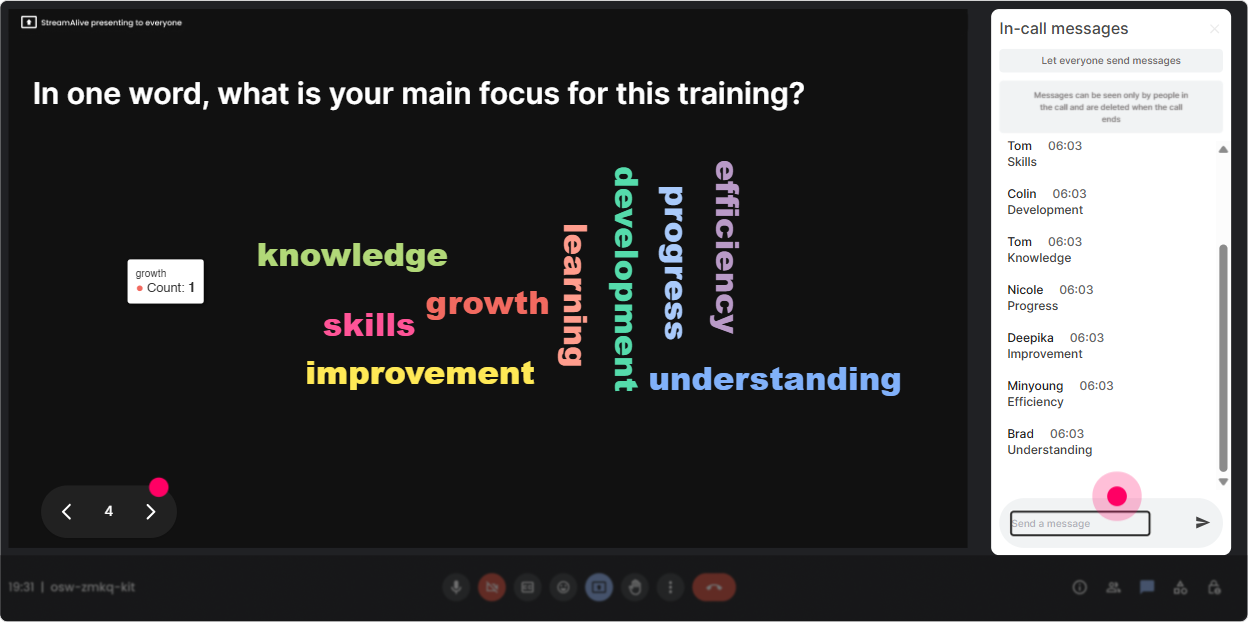
3) Wonder Words (Word Cloud): Make opinions visible (and normalize the mixed feelings)
RTO can bring up a lot. Some people love the energy. Some are dealing with resistance. A word cloud helps you surface the emotional temperature fast-without putting anyone on the spot. How to use it in Team-based RTO training: - In 12 words, how do you feel about team-based RTO training? - Whats the biggest challenge you face with RTO learning right now? (keep it short answers) - Whats one word you want your learners to feel in your RTO sessions? Trainer tip: When you see big words appear (like resistance, time, logistics, energy), dont rush past it. Say: Cool, were not alone-lets build today around what youre actually dealing with. Thats how you earn trust early.
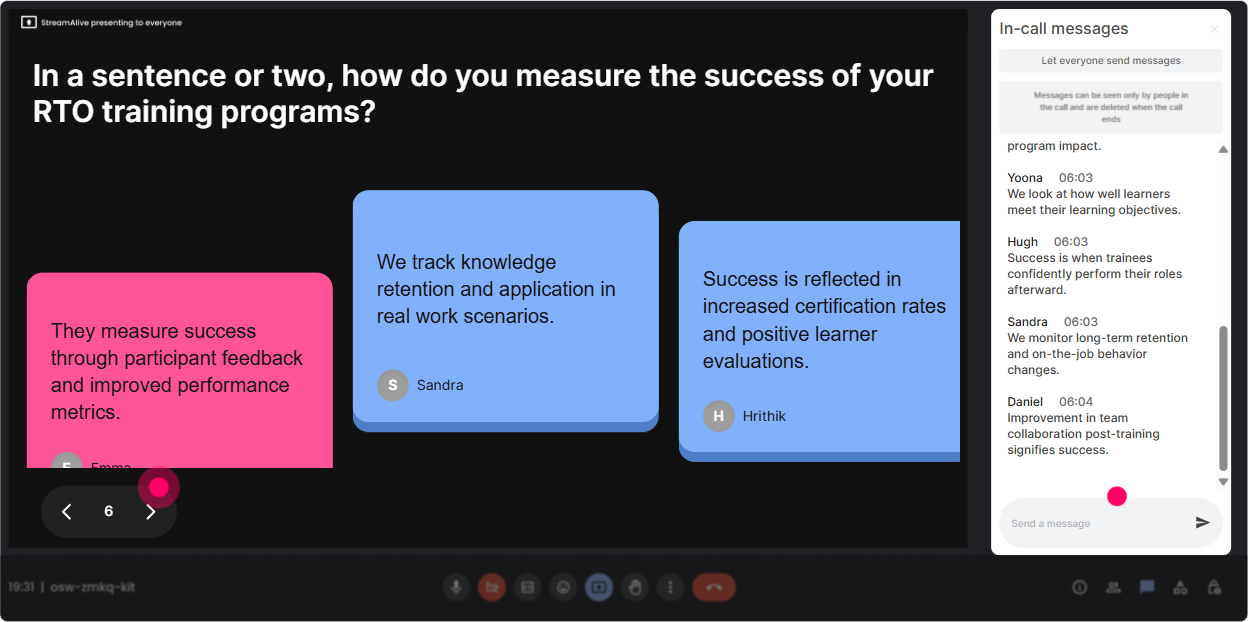
4) Talking Tiles: Turn your chat into a brainstorm wall (that actually looks alive)
When you want more than one-word answers, Talking Tiles is perfect. People type fuller responses, and StreamAlive turns them into dynamic tiles on screen-so it feels like a real-time group brainstorm. How to use it in Team-based RTO training: - What impact is RTO having on your learning programs right now? - Describe one team-based activity youve tried (or want to try) in RTO training. - Whats one moment where you saw in-person learning outperform virtual? Trainer tip: Use it to build a menu of ideas. You can literally say: Alright, Im going to pick 3 tiles to unpack-who wrote these? Suddenly you have peer-led sharing without the dead silence.
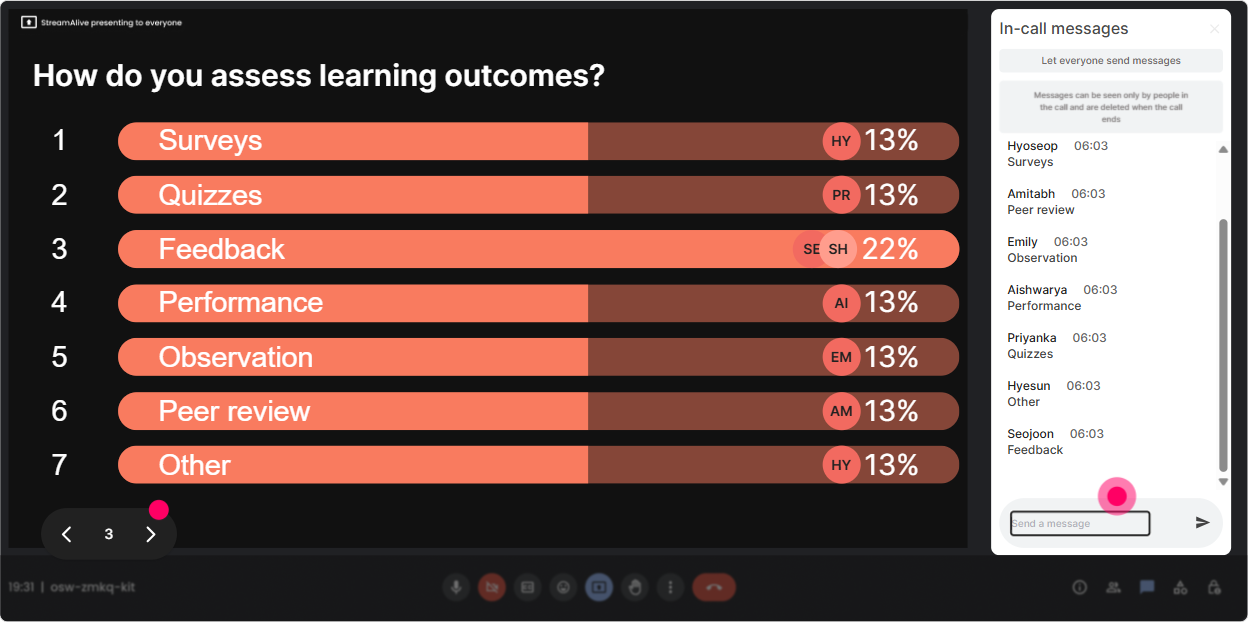
5) Power Polls: Let the group choose what to focus on (so it feels customized)
Instead of guessing what L&D Leaders want most, let them vote. Power Polls show results live, which makes the session feel responsive-and people stay engaged because they helped shape the agenda. How to use it in Team-based RTO training: - What do you want the most help with today? 1) Designing team-based activities 2) Handling low participation 3) Making RTO sessions worth the commute 4) Proving impact to leadership - Which part of your session design needs the most work? 1) Openers & icebreakers 2) Instructions & timing 3) Debriefs that land 4) Assessment & follow-through Trainer tip: After the poll, say: Perfect-this is now our priority order. That one line makes people feel like theyre in the drivers seat.
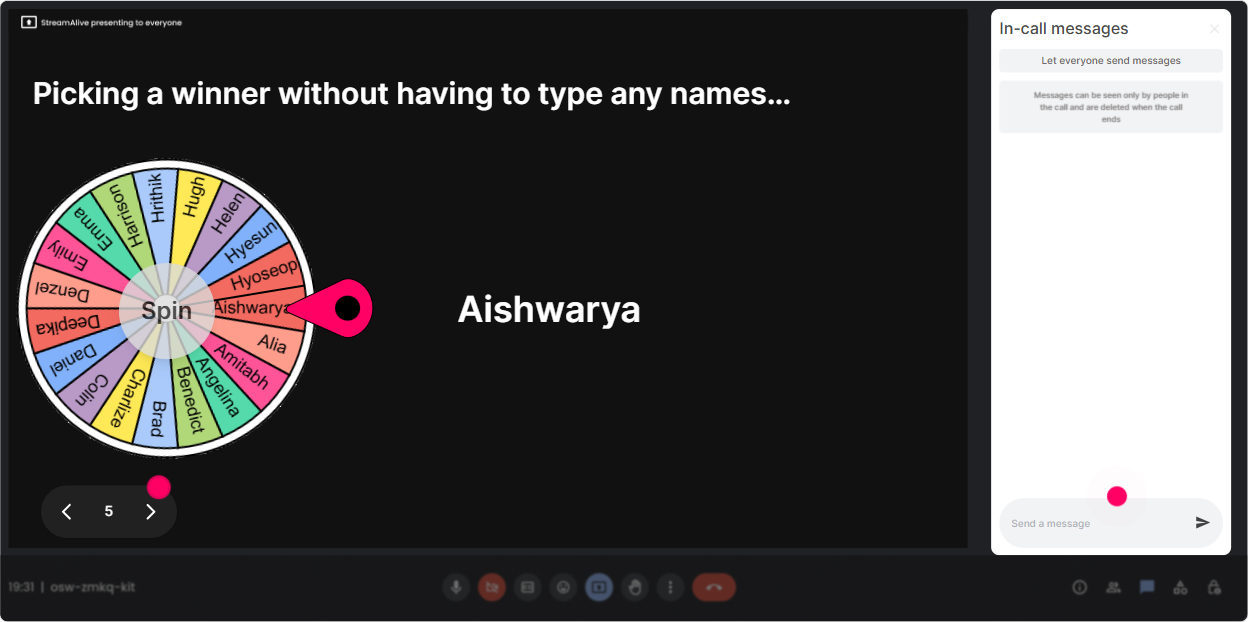
6) Winner Wheel (Spinner Wheel): Get volunteers without the awkward begging
You know the moment: you ask a question, and everyone suddenly becomes a statue. The Winner Wheel solves that in a fun, fair way-pick someone randomly from people who participated. How to use it in Team-based RTO training: - Drop a best practice for team-based facilitation in chat-then well spin the wheel and hear one idea live. - Type ready if youre willing to role-play a tough participant. Lets spin. - Share a challenge in chat. Ill spin and coach one situation live. Trainer tip: Keep it playful and low-pressure: You can pass if you want, but Im hoping you dont. Participation goes up because it feels like a game, not a demand.
7) Quiz: Do quick knowledge checks that dont feel like school
Quizzes are your best friend for keeping attention high-especially in RTO sessions where people can get distracted by side conversations. StreamAlive Quiz makes it easy: you set options, people answer in chat, you reveal the correct one. How to use it in Team-based RTO training: - Question: Which is the best debrief question after a team activity? A) Did everyone have fun? B) Who wants to share what they liked? C) What happened, why did it happen, and how does it apply to your work? (correct) D) Any final thoughts? - Question: Whats the biggest reason team-based activities fail in instructor-led sessions? A) Bad tech B) Unclear instructions + rushed timing (correct) C) Too many slides D) People dont like teamwork Trainer tip: Use quizzes as transitions. Teach a concept quiz it discuss the why. That rhythm keeps energy up and makes learning stick.

2) Rating Polls: Take a quick read of the room before you teach anything
Before you dive into frameworks and activities, find out where people actually are. Rating Polls let participants drop a number in chat, and you instantly see the average and spread on screen. How to use it in Team-based RTO training: - Rate your current confidence in leading team-based RTO training (110). - How aligned is your org right now on what good RTO learning looks like? (110) - How engaged are your managers in supporting RTO learning programs? (110) Trainer tip: Use the result to steer your session live. If the average is a 45, you know you need more fundamentals + examples. If its 89, skip the basics and go straight to advanced facilitation moves and case practice.
8) Q&A (Quick Questions): Stop losing great questions in the chat
In fast-moving sessions, good questions get buried under thanks! and side comments. StreamAlives Q&A pulls questions out of the chat and displays them neatly so you can actually manage them. How to use it in Team-based RTO training: - Set a rule: If its a question, start with Q: so it gets captured. - Run a mid-session checkpoint: Whats one question you have about running team-based activities in RTO? - End with: Drop your toughest RTO facilitation situation-lets do rapid coaching. Trainer tip: This is gold for multi-facilitator sessions. One person teaches, another monitors the captured questions, and you dont miss the important stuff.

9) Analytics: Prove engagement and improve the next session (without guessing)
After the session, you want to know what actually worked-where people leaned in, where energy dipped, and which interactions got the most participation. StreamAlive Analytics gives you that in a way thats easy to act on. How to use it in Team-based RTO training: - Check minute-by-minute engagement: Spot where attention dropped (maybe the instructions were too long, or the discussion ran over). - Review chat replay + interactions: See which prompts sparked the best team-based ideas. - Identify your top engaged participants: Great for follow-ups, champions, or even pulling a few into a pilot cohort. - Share results with stakeholders: Email reports make it easy to show, Heres participation, heres sentiment, heres what people asked for next. Trainer tip: If youre trying to justify why instructor-led RTO is worth it, analytics helps you show real participation-way more convincing than the session went well.

Use StreamAlive in all your training sessions
StreamAlive isn’t just for
Team-based RTO
training,
it can also be used for any instructor-led training session directly inside your PowerPoint presentation.
Explore similar traingin ideas: unlocking the potential of StreamAlive
See how StreamAlive transforms live training with engaging events and interactive sessions across industries, directly inside your PowerPoint presentation.

Interactions in action
(it's free)

.svg.png)


