Install StreamAlive for your PowerPoint slides
Learn more

Workflow Automation Training for Training Agencies
StreamAlive helps 9x the audience engagement in your Virtual Instructor-led Trainings (VILT) directly inside your powerpoint presentation.
Make your instructor-led Workflow Automation training more fun with polls, word clouds, spinner wheels and more
Works inside your existing PowerPoint presentation
Install the StreamAlive app for PowerPoint and see your slides come to life as people participate in your interactions
AI generates audience interactions for you
Let our AI scan your presentation and automatically come up with relevant questions based on the content. Or spend two hours coming up with your own questions, your choice!
Built to work with MS Teams and Zoom
Native apps for Teams and Zoom so you never have to leave your existing workflows
No QR Codes
Chat-powered interactions means your audience doesn’t need to scan QR codes or look at another screen to participate. They just type in the chat!

Quickly approved by your IT team
StreamAlive’s apps for Teams and Zoom means that they have been through rigorous quality assurance and client safety reviews. You’ll find everything an IT team needs to approve the app within the organization within your StreamAlive account.

Youve been asked to run a Workflow Automation instructor-led training for a Training Agency-and you want it to feel alive, not like another click-here, do-this demo. The good news: you can teach real automation concepts and keep people talking the whole time. Here are practical ways to do it using StreamAlive so engagement doesnt dip mid-session.
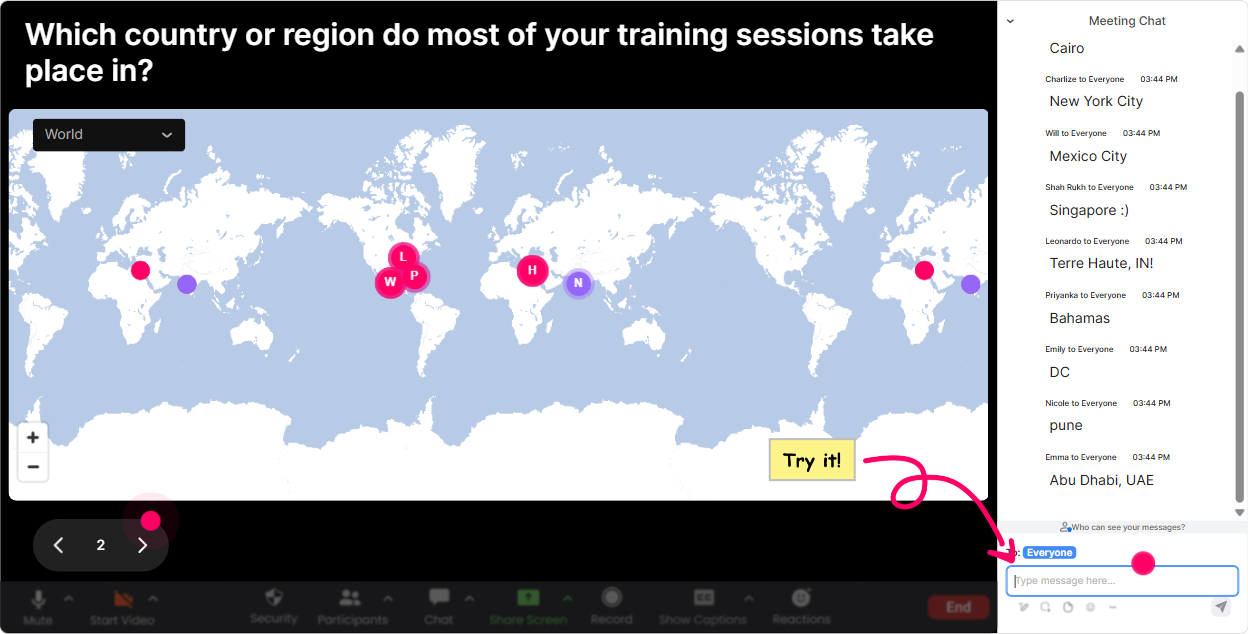
Magic Maps: Put your Training Agency audience on the map (and start the conversation fast)
In Workflow Automation training, people often join from different branches, regions, or even client sites. Use **Magic Maps** right at the start to break the ice and instantly make the room feel full. Try prompts like: - **Where are you joining from today (city + country)?** (classic opener, works every time) - **Which location is your busiest training delivery hub?** (nice segue into workload + automation) - **If you could automate one admin task today and get that time back where would you spend it? (Answer with a place)** (fun, but still connected to the topic) Trainer tip: If your session includes regional workflows (APAC vs EMEA processes, different compliance rules, etc.), the map becomes more than an icebreaker-it becomes context for why workflows vary and why automation needs good inputs. Also, clusters are great: when you see 10 people in one city, you can say, Cool-lets use your branch as our example workflow.
Rating Polls: Quick pulse check on automation confidence (without awkward silence)
Before you go deep into tools, triggers, approvals, and exceptions-get a fast read on where everyone is at. **Rating Polls** are perfect because people can answer in seconds and you can show the results instantly. Use it at key moments like: - **Start of session:** On a scale of 110, how confident are you with workflow automation today? - **After explaining basics:** Rate how clear trigger action exception handling feels right now (110). - **Before the hands-on build:** How ready do you feel to build your first automation with me? (110) Trainer move: If you see a lot of 4s and 5s, you can slow down and do a quick example. If you see 8s and 9s, you can skip ahead and keep momentum. Its like having a live co-facilitator telling you what the room needs.

Wonder Words (Word Cloud): Get instant feelings + pain points in one screen
Automation can trigger all kinds of emotions-excitement, fear, skepticism (We tried that it failed). A **Wonder Words** cloud lets people be honest without writing an essay, and you get a clear vibe check. Great prompts for Workflow Automation training (keep answers 12 words): - **When you hear workflow automation, whats the first word that comes to mind?** - **Whats the biggest blocker to automation in your training operations?** (examples youll see: approvals, data, tools, buy-in) - **What do you want more of after automation?** (time, accuracy, consistency, less admin) Trainer tip: Use the biggest words in the cloud as your agenda. Literally say: Okay, approvals and data are huge-lets tackle those first. People feel seen, and youve just increased buy-in without trying too hard.

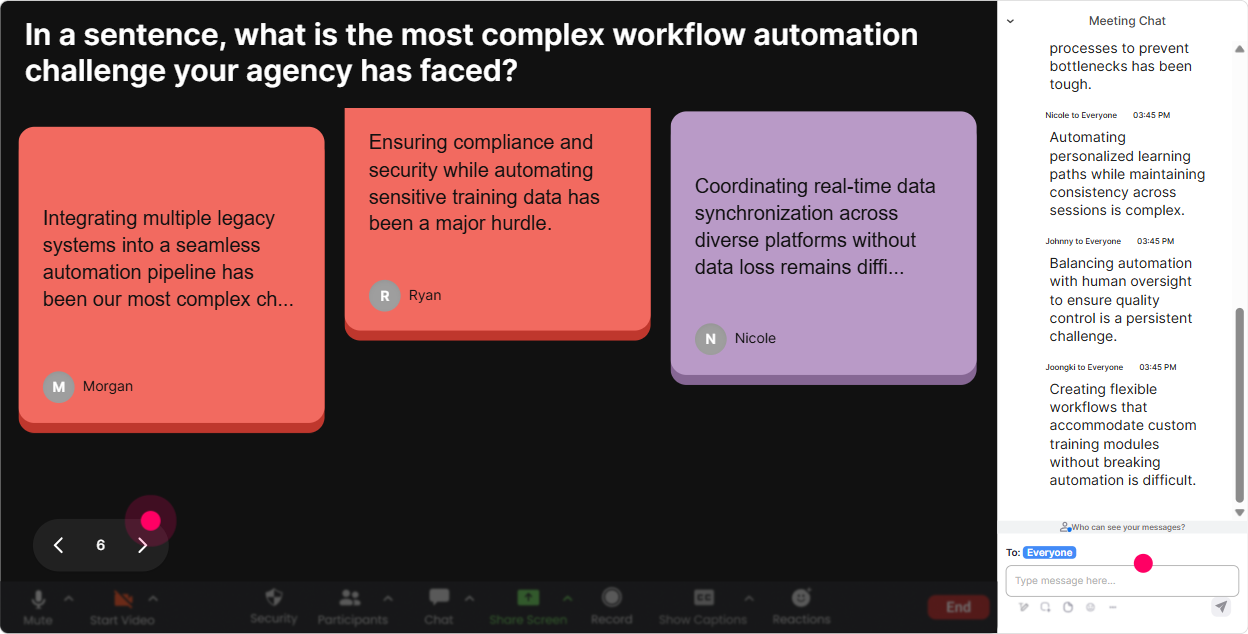
Talking Tiles: Turn real workflow stories into your best teaching material
This is where you stop teaching generic automation and start teaching *their* reality. **Talking Tiles** is awesome when you want slightly longer responses-mini stories, examples, messy real-life processes. Prompts that work really well for Training Agencies: - **Whats one task you do repeatedly every week that should be automated?** - **Describe your current workflow for: enrolling a learner + sending confirmations (what steps, what tools)?** - **Where do handoffs break today-sales to ops, ops to trainers, trainers to learners?** - **Whats one workflow mistake that keeps happening (and costs time or reputation)?** Trainer move: As the tiles fall, pick 23 and say, Lets convert THIS into an automation flow together. Suddenly your session becomes interactive problem-solving, not a lecture. And bonus: participants realize others share the same pain, so they engage more.
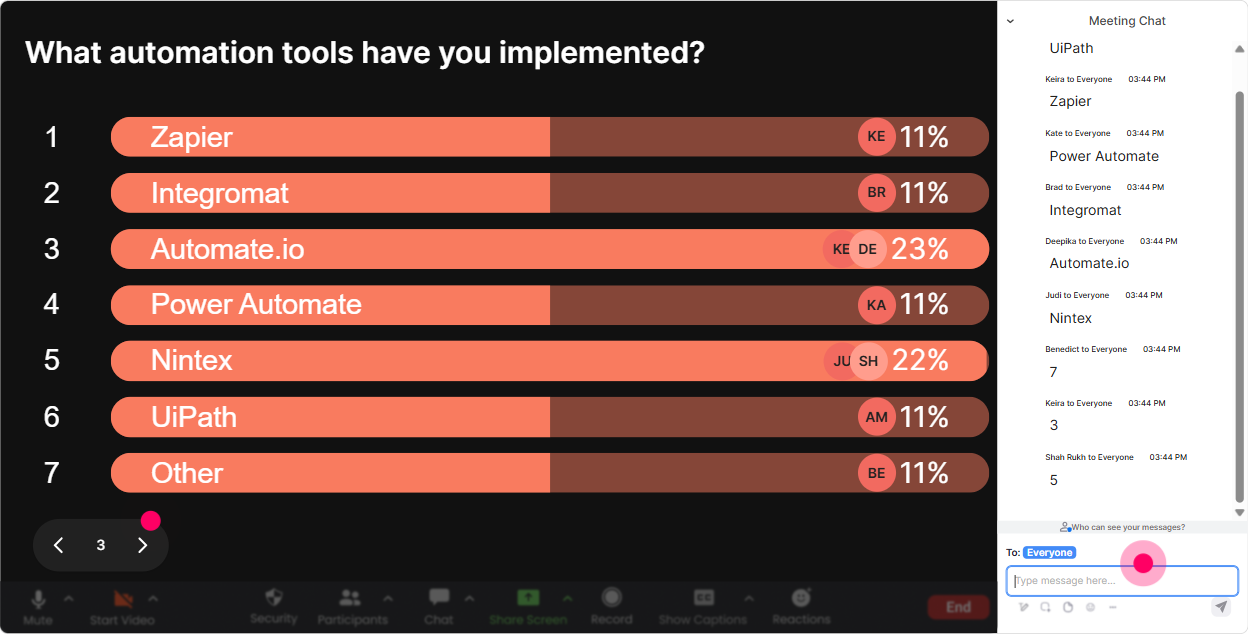
Power Polls: Let the group choose what to go deeper on (so youre not guessing)
In instructor-led Workflow Automation training, the easiest way to lose engagement is covering the wrong use cases. **Power Polls** lets the audience steer (without derailing your structure). Use a poll like: **Which workflow should we automate first in this session?** Options: 1) Lead onboarding workflow (sales to ops) 2) Trainer scheduling + calendar confirmations 3) Learner enrollment + payment + invoice notifications 4) Feedback collection + certificate issuing 5) Internal approvals (discounts, custom proposals, exceptions) Other strong poll moments: - **Where do you want automation: speed, quality, compliance, or cost?** - **What tool are you using today for workflow steps?** (Sheets, LMS, CRM, email, Teams, forms) Trainer tip: After the poll, say: Cool-majority picked enrollment + confirmations. Ill still cover the other items, but Ill use *that* as our running example. That one sentence massively increases attention because people know its relevant.
Winner Wheel (Spinner Wheel): Get participation without putting people on the spot
Getting volunteers is hard-especially when people are worried theyll say the wrong thing. The **Winner Wheel** makes it playful and fair, so you can call on people without it feeling like pressure. Ways to use it in Workflow Automation training: - **Drop in chat: whats one workflow youd love to automate?** spin the wheel Alright, well build a version of *that*. - **Knowledge check moment:** Type A/B/C in chat spin among responders ask the winner to explain their choice - **Micro-rewards:** Spin a winner from people who contributed during the troubleshooting section (this encourages chat activity all session) Trainer move: Frame it like, You dont have to be perfect-I just want your real-world context. The wheel keeps energy up and nudges quiet participants to type something so theyre included.

Quiz: Quick knowledge checks that feel like a game (not an exam)
When teaching workflow automation, people *think* they understand until they build something and it breaks. A **Quiz** helps you spot confusion early and keeps attention high. Quiz ideas tailored for Training Agencies: 1) **In automation, what should happen first?** A) Action B) Trigger C) Report D) Notification 2) **Which is the best example of a trigger in a training ops workflow?** A) Send certificate PDF B) Update CRM record C) Learner completes payment D) Create invoice 3) **Whats a common automation failure point?** A) Clear ownership B) Clean data C) Missing exception handling D) Documented process Trainer tip: After revealing the correct answer, ask one follow-up in chat: Where have you seen this go wrong? That turns a quiz into a discussion, not just a right/wrong moment.

Rating Polls: Quick pulse check on automation confidence (without awkward silence)
Before you go deep into tools, triggers, approvals, and exceptions-get a fast read on where everyone is at. **Rating Polls** are perfect because people can answer in seconds and you can show the results instantly. Use it at key moments like: - **Start of session:** On a scale of 110, how confident are you with workflow automation today? - **After explaining basics:** Rate how clear trigger action exception handling feels right now (110). - **Before the hands-on build:** How ready do you feel to build your first automation with me? (110) Trainer move: If you see a lot of 4s and 5s, you can slow down and do a quick example. If you see 8s and 9s, you can skip ahead and keep momentum. Its like having a live co-facilitator telling you what the room needs.
Q&A (Quick Questions): Capture every question from chat-without losing your place
In workflow automation sessions, questions come fast-especially once you start showing examples. **Quick Questions** pulls questions out of chat and displays them neatly, so youre not scrolling and missing things. How to use it like a pro: - Tell people: **If you have a question, start it with Q: and StreamAlive will catch it.** - Do **two Q&A checkpoints**: one after fundamentals, one after the build/demo - Use it for parking lot questions: I see 6 questions-let me finish this step, then well clear them. Great Q&A prompts to invite useful questions: - **Q: What part of your workflow has the most exceptions?** - **Q: Where do approvals slow you down the most?** - **Q: Which tool is the hardest to integrate with today?** Trainer move: Answer 12 questions live, then say, Im going to use the next question as our next demo scenario. That keeps questions coming and keeps you in control.

Analytics: Know what landed, what bored them, and who your champions are
After your session, **StreamAlive Analytics** tells you what actually happened-no guessing based on Great session! messages. Heres how trainers for Training Agencies can use it: - **Minute-by-minute engagement:** Spot where chat dropped (was it too conceptual, too tool-heavy, too long without interaction?) - **Replay interaction results:** See which polls or word clouds got the most responses-then reuse those formats next time - **Identify top engaged participants (Fantastic Fans):** These are your future champions-great for follow-up, pilot groups, or internal advocates for automation - **Email/share reports:** Handy when you need to show a client or agency leader: Heres what the group struggled with and what they want next. Trainer tip: Use analytics to improve your run-of-show: if engagement spikes during real workflow examples, you know to add more Talking Tiles + fewer slides next time. Thats how your training gets better every delivery-and how you build sessions people actually stay for.

Use StreamAlive in all your training sessions
StreamAlive isn’t just for
Workflow Automation
training,
it can also be used for any instructor-led training session directly inside your PowerPoint presentation.
Explore similar traingin ideas: unlocking the potential of StreamAlive
See how StreamAlive transforms live training with engaging events and interactive sessions across industries, directly inside your PowerPoint presentation.

Interactions in action
(it's free)

.svg.png)


