Install StreamAlive for your PowerPoint slides
Learn more

AI-Copilots Training for Corporate Trainers
StreamAlive helps 9x the audience engagement in your Virtual Instructor-led Trainings (VILT) directly inside your powerpoint presentation.
Make your instructor-led AI-Copilots training more fun with polls, word clouds, spinner wheels and more
Works inside your existing PowerPoint presentation
Install the StreamAlive app for PowerPoint and see your slides come to life as people participate in your interactions
AI generates audience interactions for you
Let our AI scan your presentation and automatically come up with relevant questions based on the content. Or spend two hours coming up with your own questions, your choice!
Built to work with MS Teams and Zoom
Native apps for Teams and Zoom so you never have to leave your existing workflows
No QR Codes
Chat-powered interactions means your audience doesn’t need to scan QR codes or look at another screen to participate. They just type in the chat!

Quickly approved by your IT team
StreamAlive’s apps for Teams and Zoom means that they have been through rigorous quality assurance and client safety reviews. You’ll find everything an IT team needs to approve the app within the organization within your StreamAlive account.

Youve been asked to run an instructor-led session on AI-Copilots for corporate trainers-and you want it to feel alive, not like another slide marathon. The easiest win? Turn your audience into the content as you teach. Here are simple ways to use StreamAlive to keep people responding, reflecting, and participating all the way through.
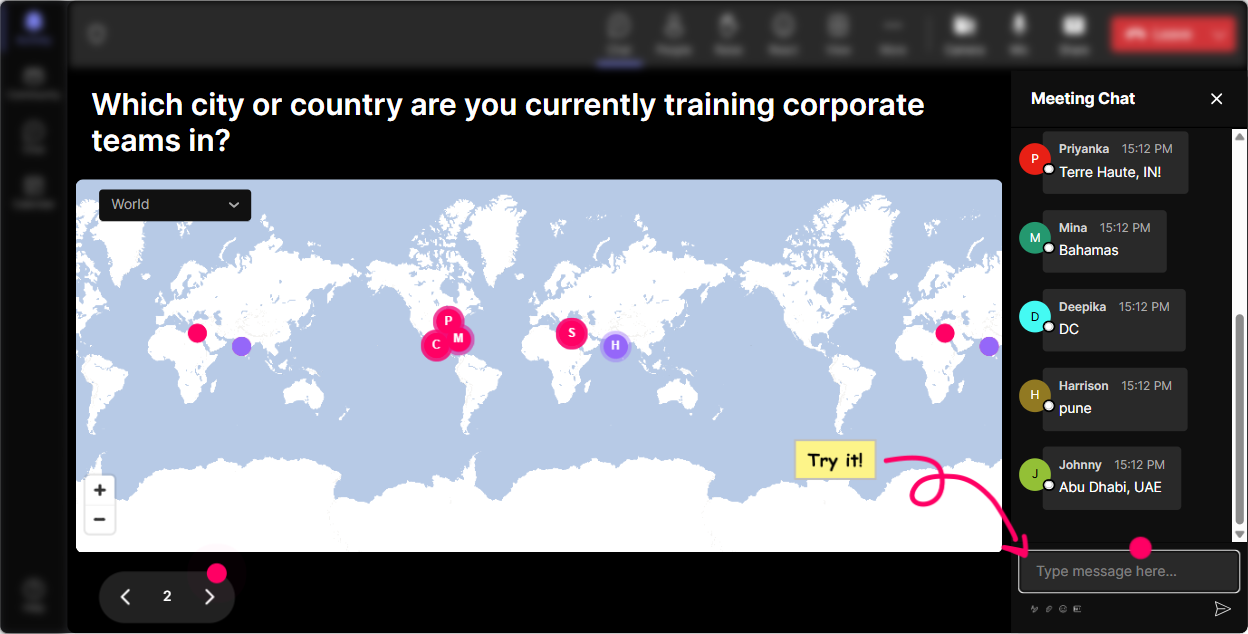
Magic Maps: Put your trainers on the map (and instantly warm up the room)
If you want engagement in the first 60 seconds, dont start with Todays agenda Start with a question people can answer fast. With Magic Maps, everyone types a location in chat and StreamAlive plots it live on a world map. Its a super easy icebreaker-and it immediately turns passive attendees into active participants. Try these in an AI-Copilots training for trainers: - Where are you joining from today? (classic, always works) - If you could teleport anywhere on earth to design your dream training program, where would you go? - Which city do you think will adopt AI in workplace learning the fastest? - Where is your learner audience mostly located? (great if they train globally) Trainer tip: If youre about to discuss AI adoption across regions or global training teams, the map becomes more than a warm-up-it becomes a natural transition into your content.
Rating Polls: Get a quick confidence check before you teach anything
Before you explain prompts, copilots, or workflows-find out where everyones really at. Rating Polls let people rate something on a numeric scale right from chat, and you see the results live. Perfect moments to use it in AI-Copilots ILT: - Start of session: On a scale of 110, how confident are you using an AI-Copilot today? - After your demo: How clear was that Copilot workflow? 1 (lost) to 10 (crystal clear) - Midway pulse check: How likely are you to try this in your next training design task? 110 - End of session: Rate your readiness to teach AI-Copilot basics to your own learners. 110 What this does for you: it tells you whether to slow down, go deeper, or move on-without awkwardly asking Is everyone with me? and getting silence.

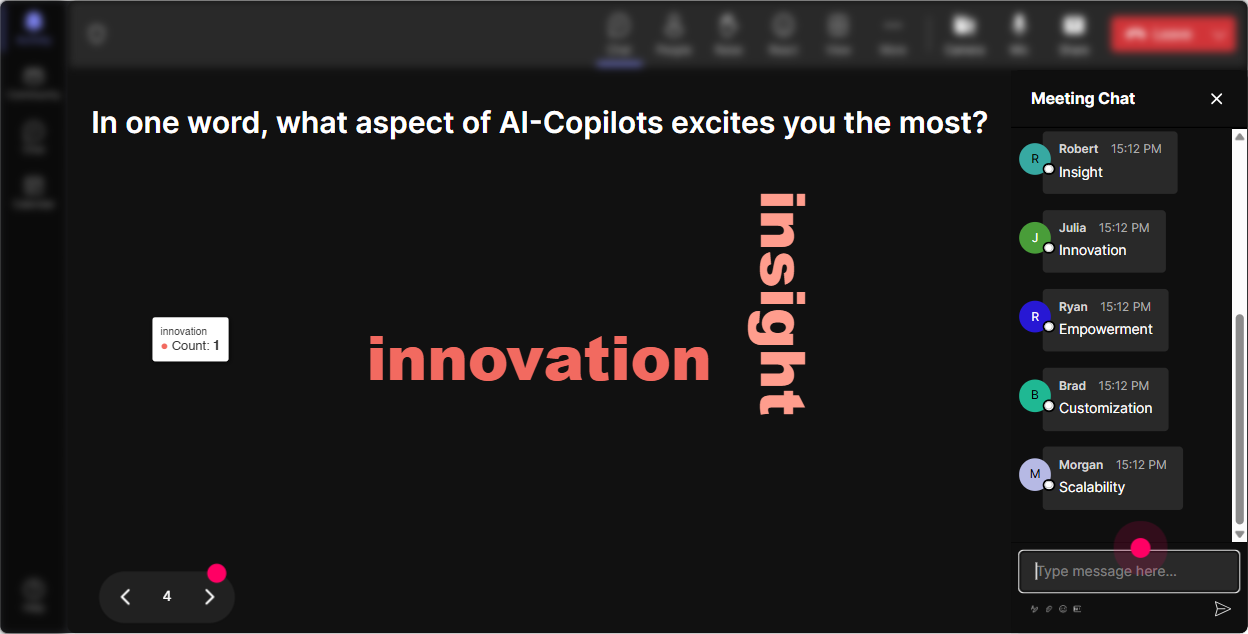
Wonder Words (Word Cloud): Find the rooms vibe about AI in one question
AI-Copilots bring mixed emotions-excitement, skepticism, fear, curiosity. Wonder Words makes that visible in seconds. Ask for 12 word answers, and StreamAlive builds a live word cloud where popular responses grow bigger. Use it early to surface feelings: - In one word, how do you feel about AI-Copilots in training work? - Whats the biggest benefit you hope AI gives you? (e.g., speed, ideas, clarity) - Whats your biggest worry? (e.g., accuracy, privacy, replacement) - One word: what do you want from todays session? Trainer move: When you see words like overwhelmed or skeptical, say it out loud and normalize it. That simple moment of I see you can boost trust (and participation) fast.
Talking Tiles: Turn longer answers into a live, visual conversation
Sometimes you want more than a one-word response. Talking Tiles is great when you want people to share quick thoughts (a sentence or two) and you want those thoughts to become the content on screen. Use it during your application moments: - What part of your training job would an AI-Copilot help with most? - Describe one task you wish you could automate or speed up in course design. - Whats one place you do NOT want AI involved in your work? - Share a prompt youve tried (or want to try) for learner engagement. Why it works: it feels like a group brainstorm without sending people into breakouts. And because their messages appear visually, even quiet participants feel seen-without needing to unmute.

Power Polls: Let the audience choose what you teach next
Power Polls are perfect when you want quick decision-making, priorities, or a choose-your-own-adventure vibe. You can give options, people respond with the option number in chat, and results show live. Smart ways to use this in AI-Copilots training for trainers: - What do you want to focus on today? 1) Prompting basics 2) Training design help (objectives, outlines) 3) Facilitator support (activities, questions) 4) Evaluation (quizzes, rubrics, feedback) - Where do you want AI-Copilot to help first? 1) Slide creation 2) Role-plays & scenarios 3) Knowledge checks 4) Email/comms for stakeholders - Whats your Copilot comfort level? 1) Never used 2) Tried a few times 3) Use weekly 4) Use daily Trainer tip: Use the poll results to narrate your agenda shift: Looks like most of you want scenarios and role-plays-cool, lets build one together. That line alone makes the session feel customized.

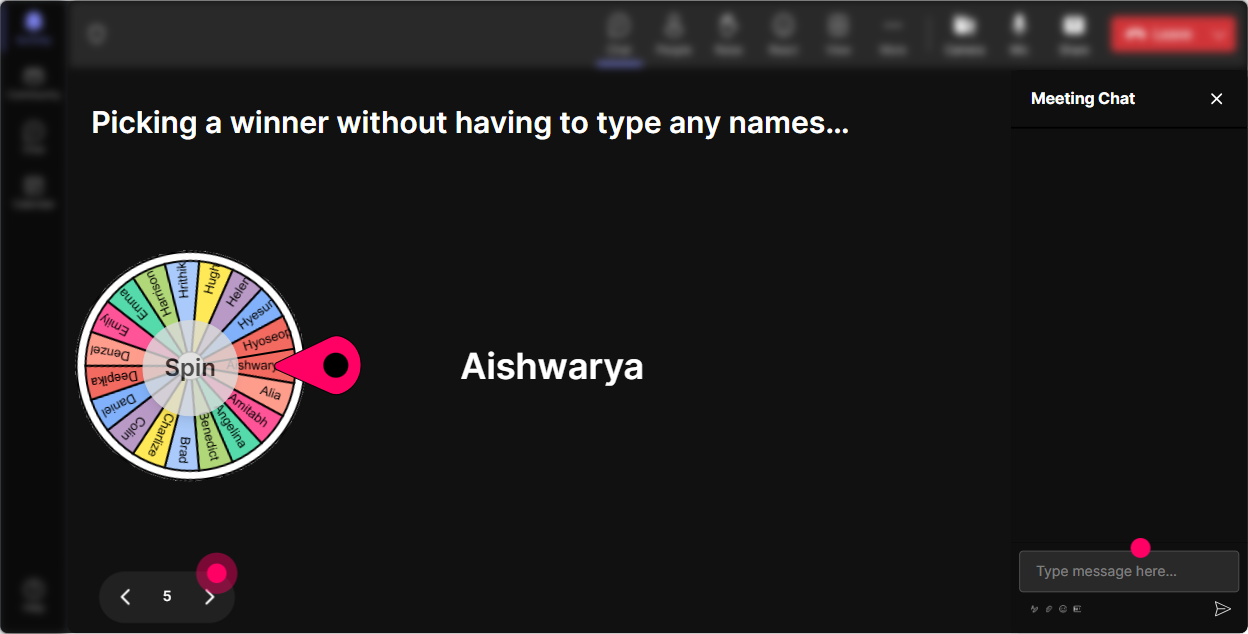
Winner Wheel (Spinner Wheel): Get volunteers without the awkward silence
You know that moment when you ask, Who wants to share? and everyone suddenly becomes very interested in their mute button? Winner Wheel fixes that. Heres how to use it in a fun, low-pressure way: - Drop ME in chat if youre willing to share a prompt youd use for lesson planning-Winner Wheel will pick who goes first. - Type one training topic you teach. Ill spin and the winner tells us how they *might* use AI-Copilot for it. - After this demo, I need a brave volunteer to critique the AI output. Comment critique and lets spin. This is the secret: people participate more because it feels fair and playful. And because the criteria can be based on commenters, it nudges quieter folks to jump into chat.
Quiz: Make knowledge checks feel like a game (not a test)
Quiz interactions are perfect for quick knowledge checks while teaching AI-Copilots-especially because you can reveal the correct answer when youre ready. Ideas you can run during ILT: - Which prompt is most likely to give a useful, structured answer? A) Make this better. B) Write training content. C) Act as a corporate trainer. Create a 30-min module outline for new managers on feedback skills. Include objectives, 3 activities, and a 5-question knowledge check. D) Help. (Correct: C) - What should you do FIRST when AI output looks confident but wrong? A) Share it anyway B) Ask AI to cite sources / verify and cross-check C) Ignore it D) Use it only for final answers - Which is the best use of AI-Copilot for trainers? A) Replacing facilitation B) Drafting options and speeding up prep C) Avoiding SME review D) Skipping learner feedback Trainer move: After revealing the correct answer, ask one follow-up in chat: What made you choose your option? Thats where the real learning shows up.

Rating Polls: Get a quick confidence check before you teach anything
Before you explain prompts, copilots, or workflows-find out where everyones really at. Rating Polls let people rate something on a numeric scale right from chat, and you see the results live. Perfect moments to use it in AI-Copilots ILT: - Start of session: On a scale of 110, how confident are you using an AI-Copilot today? - After your demo: How clear was that Copilot workflow? 1 (lost) to 10 (crystal clear) - Midway pulse check: How likely are you to try this in your next training design task? 110 - End of session: Rate your readiness to teach AI-Copilot basics to your own learners. 110 What this does for you: it tells you whether to slow down, go deeper, or move on-without awkwardly asking Is everyone with me? and getting silence.
Q&A (Quick Questions): Catch every question without losing the flow
When you teach AI-Copilots, questions pop up constantly-about policies, privacy, what tools to use, whats allowed, and whats hype. The problem is: chat flies by. StreamAlives Q&A (Quick Questions) detects and collects audience questions from chat and displays them clearly, so youre not hunting through messages. How to use it in your session: - Park questions during demos: Ask questions anytime-StreamAlive will capture them and Ill hit them after this walkthrough. - Run a dedicated Myth-busting Q&A segment: Drop your biggest Copilot concern as a question. - Close strong: Whats one question you still have before you try this at work? This keeps the session smooth: participants feel heard, and you dont derail every 30 seconds to scroll chat.

Analytics: Prove engagement, improve your next session, and spot your champions
After the session, StreamAlive Analytics helps you see what actually worked-minute by minute. This is gold if youre running AI-Copilot training internally and need to show impact. What you can learn (and use right away): - Which moments spiked engagement (maybe your live prompt demo crushed it-and slide #17 didnt) - Chat replay alongside engagement so you can connect *what you taught* with *how people responded* - Who your most engaged participants were (your future champions, pilot group, or peer coaches) - Interaction reports so you can reuse what worked (best poll questions, best word clouds) - Email/share reports with your team on Teams or via email for easy internal proof If your goal is up to 9x more engagement, analytics is how you see the pattern, repeat what works, and keep leveling up every time you run the training.

Use StreamAlive in all your training sessions
StreamAlive isn’t just for
AI-Copilots
training,
it can also be used for any instructor-led training session directly inside your PowerPoint presentation.
Explore similar traingin ideas: unlocking the potential of StreamAlive
See how StreamAlive transforms live training with engaging events and interactive sessions across industries, directly inside your PowerPoint presentation.

Interactions in action
(it's free)

.svg.png)


