Install StreamAlive for your PowerPoint slides
Learn more

Vibe Coding Training for L&D Leaders
StreamAlive helps 9x the audience engagement in your Virtual Instructor-led Trainings (VILT) directly inside your powerpoint presentation.
Make your instructor-led Vibe Coding training more fun with polls, word clouds, spinner wheels and more
Works inside your existing PowerPoint presentation
Install the StreamAlive app for PowerPoint and see your slides come to life as people participate in your interactions
AI generates audience interactions for you
Let our AI scan your presentation and automatically come up with relevant questions based on the content. Or spend two hours coming up with your own questions, your choice!
Built to work with MS Teams and Zoom
Native apps for Teams and Zoom so you never have to leave your existing workflows
No QR Codes
Chat-powered interactions means your audience doesn’t need to scan QR codes or look at another screen to participate. They just type in the chat!

Quickly approved by your IT team
StreamAlive’s apps for Teams and Zoom means that they have been through rigorous quality assurance and client safety reviews. You’ll find everything an IT team needs to approve the app within the organization within your StreamAlive account.

Youve been asked to run a Vibe Coding instructor-led training for L&D Leaders-and you want it to feel alive, not like another slide-and-sigh webinar. The easiest win? Build in moments where everyone participates, not just listens. Here are practical ways to do that using StreamAlive so your session stays high-energy from minute one.
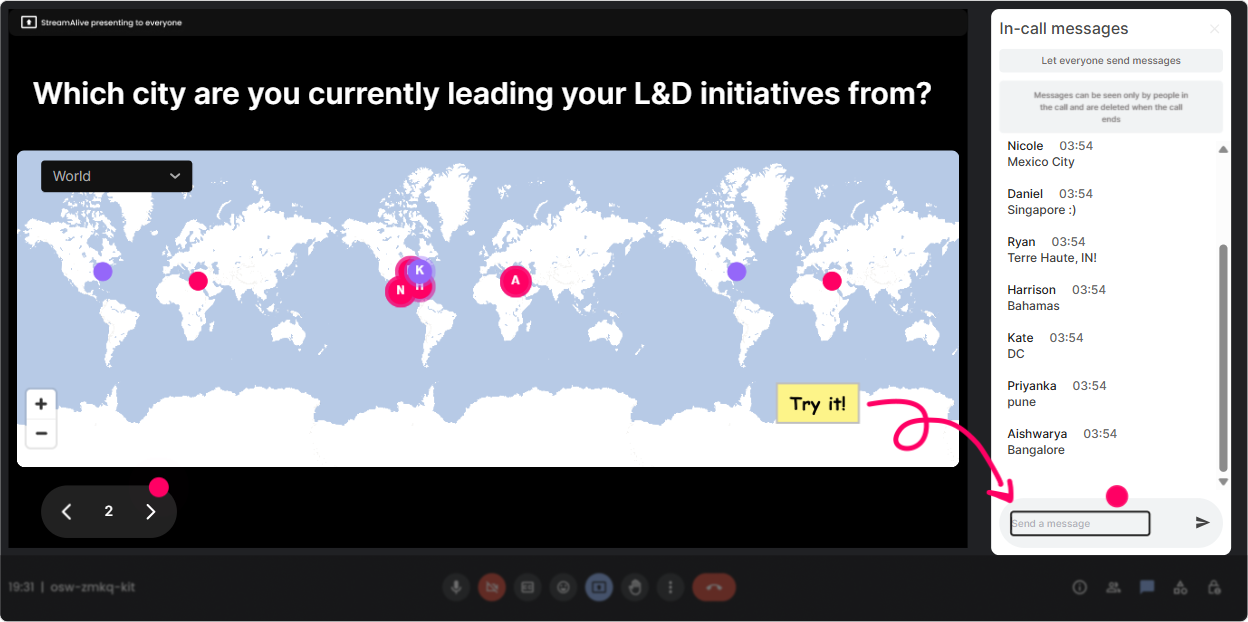
1) Magic Maps: Put your L&D Leaders on the map (and instantly break the ice)
If you start your session with Where are you joining from? and get 3 replies you already know how that ends. With Magic Maps, that same question becomes a real-time visual that pulls people in fast. How to use it in Vibe Coding training: - Kickoff icebreaker: Where in the world are you joining from today? (classic, but now it looks amazing on screen) - Make it relevant: If you could teleport your learning team to one place to redesign training with AI, where would it be? - Tie it to business context: Which city/region is your biggest learner audience located in? (great lead-in to scale + personalization conversations) Trainer tip: If you want clean data, set it to one location per person. And if youve got a cluster (say, lots of folks from London or Chicago), call it out-people love hearing their area mentioned.
2) Rating Polls: Get a quick confidence check (without the awkward silence)
Before you dive into prompts, tools, or workflows, you need to know where people are starting from. Rating Polls give you that pulse check in seconds-and you can adapt on the fly. Ways to use Rating Polls in a Vibe Coding ILT: - Opening baseline: On a scale of 110, how confident are you with Vibe Coding right now? - Mid-session temperature check: How clear is the difference between prompting and building a repeatable workflow? (1 = not clear, 10 = super clear) - After a demo: How likely are you to try this in your next training design sprint? Trainer tip: If the average is low, say it out loud like a human: Perfect-then were exactly where we need to be. Lets slow down and make this easy. It instantly creates safety.

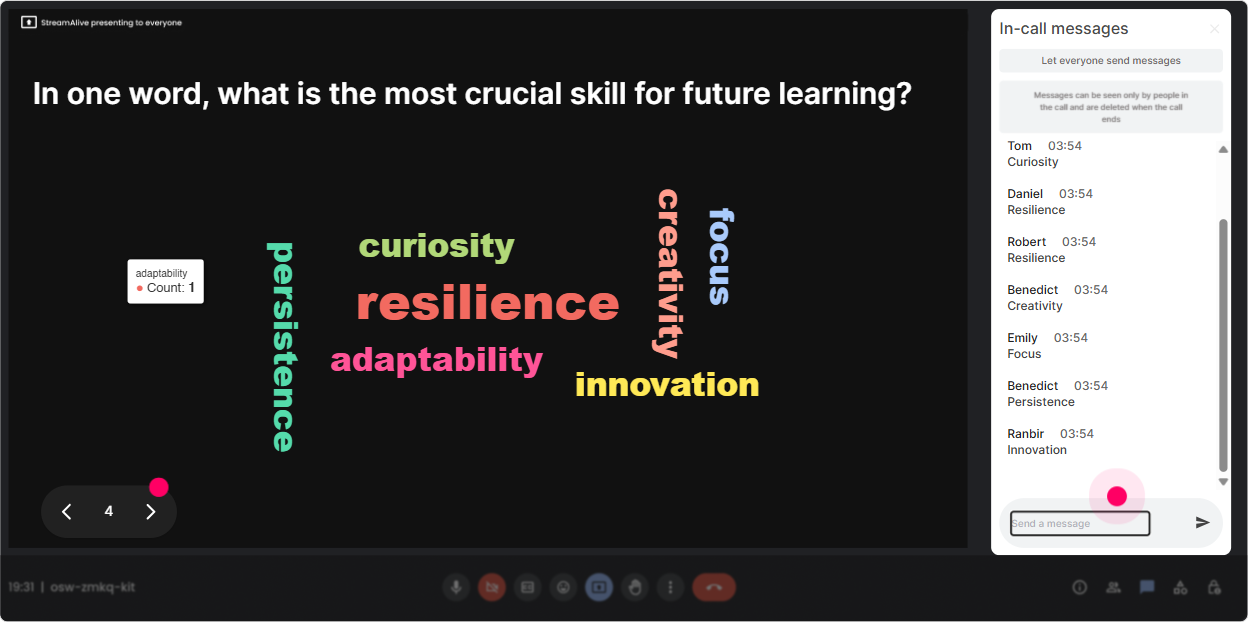
3) Wonder Words (Word Cloud): Find the vibe in the room-fast
Vibe Coding is one of those topics where people show up with feelings. Excited. Skeptical. Overwhelmed. Curious. A word cloud lets you SEE the rooms mood in real time-and it makes people feel understood. Great Word Cloud prompts for L&D Leaders: - In 12 words, how do you feel about Vibe Coding? - Whats the biggest barrier to trying this at work? (examples youll get: time, risk, compliance, tools, skills) - What do you want Vibe Coding to help you do? (examples: storyboards, modules, assessments, faster design) Trainer tip: Use Combine Similar Answers so you dont end up with excited, Excited!!, and excited as three different vibes.
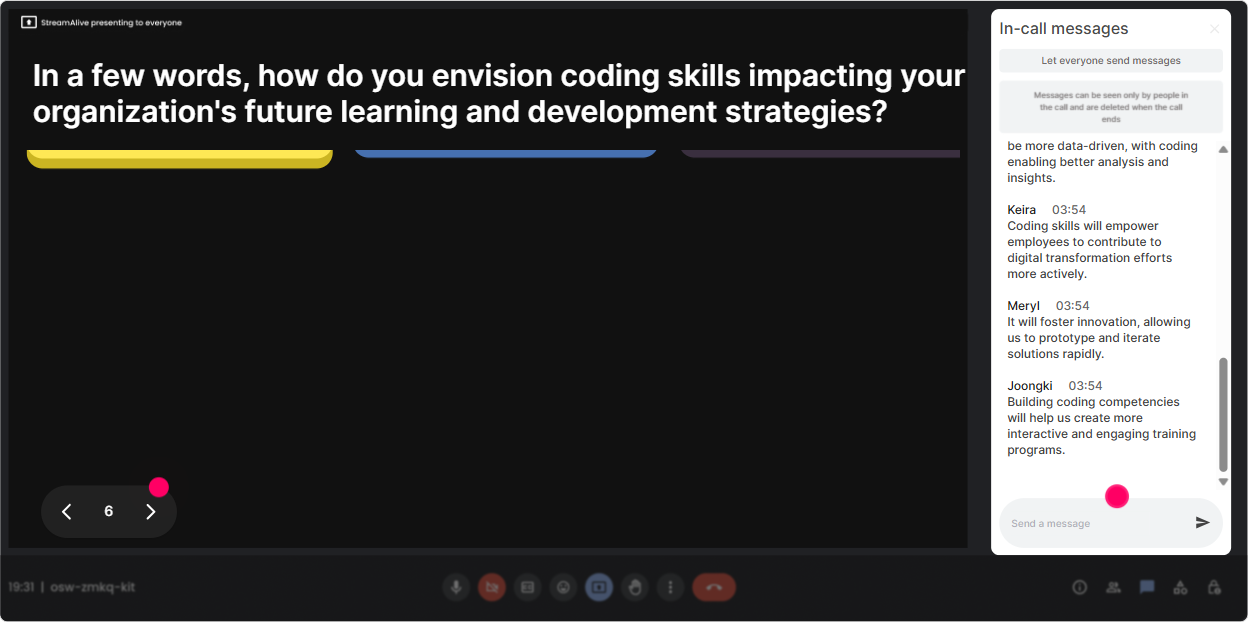
4) Talking Tiles: Turn real discussion into a visual brainstorm (without breakout chaos)
When you ask a bigger question (the kind people answer with a sentence or two), Talking Tiles is money. It makes responses feel like a group brainstorm-without forcing people to unmute or go into breakouts. Perfect Talking Tiles questions for this session: - Where could Vibe Coding save you the most time in your current L&D workflow? - What part of your role would you love to automate or speed up-without losing quality? - Whats one training deliverable you wish you could produce in half the time? Trainer tip: Once the tiles drop in, read out a few and group them live: Im seeing a theme-onboarding, assessments, and rapid content updates. Lets tackle those. Thats how you keep momentum.
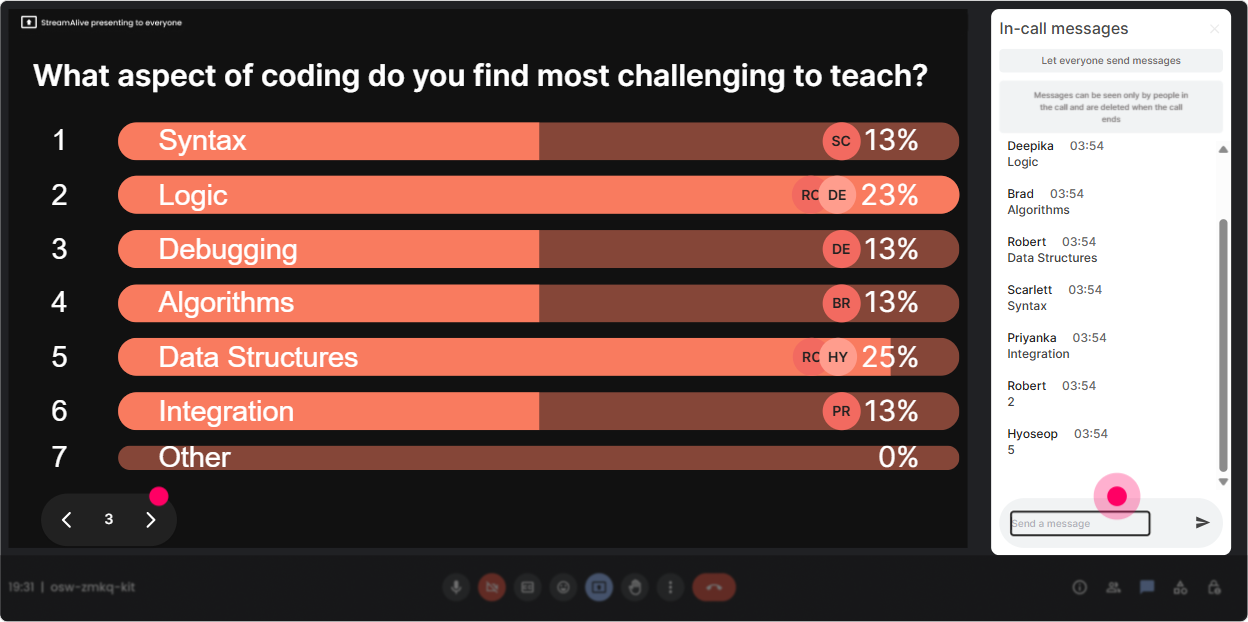
5) Power Polls: Let the audience choose the agenda (and youll get buy-in instantly)
You can absolutely plan your run-of-show but youll get way more engagement if people feel like they helped steer it. Power Polls make that easy. Poll ideas that work especially well for L&D Leaders: - What do you want to focus on today? 1) Prompt frameworks for training design 2) Building AI-assisted activities & role-plays 3) Faster storyboarding and lesson planning 4) Assessments and rubrics with AI - Which risk worries you most with Vibe Coding? 1) Data/privacy 2) Hallucinations/accuracy 3) Quality control 4) IP/copyright - Where would you try this first? 1) Onboarding 2) Sales enablement 3) Compliance training 4) Leadership development Trainer tip: Run a poll early, then literally say: Cool-majority vote says were doing this first. People pay attention when its their choice.
6) Winner Wheel (Spinner Wheel): Get volunteers without begging for volunteers
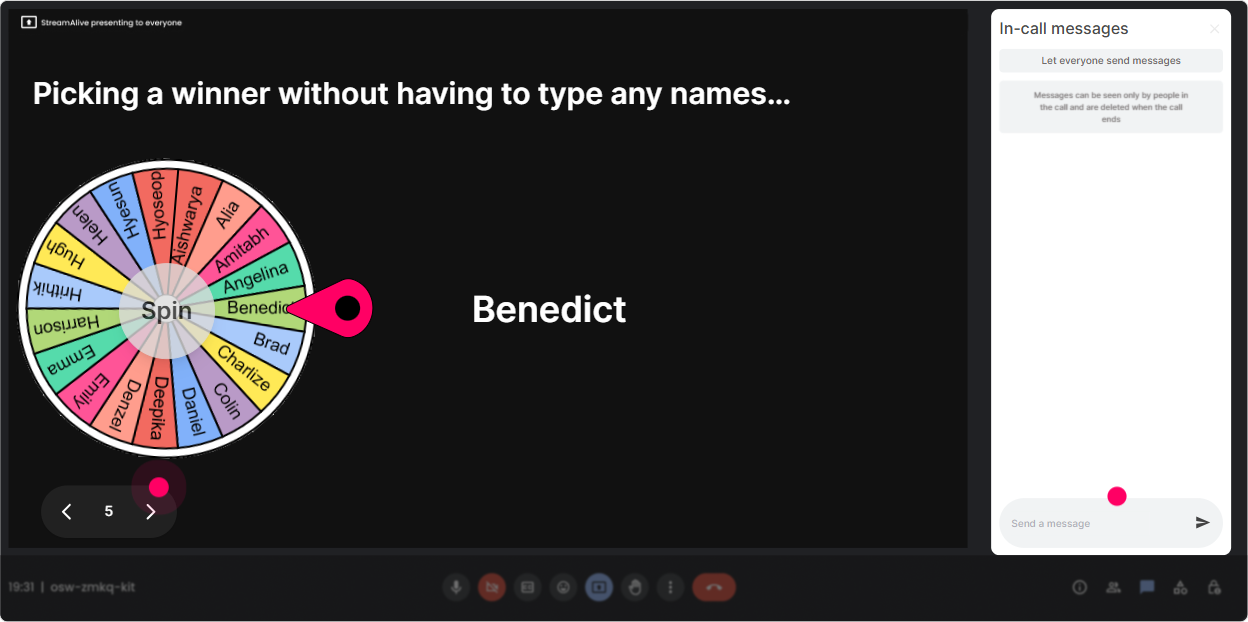
You know that moment: Anyone want to share? And suddenly everyone is deeply interested in their mute button. Use the Winner Wheel instead. It keeps it playful, fair, and way less awkward. How to use it in a Vibe Coding training: - Drop one word in chat: whats your use-case? spin the wheel ask the winner to elaborate (30 seconds) - Type ME if you want a live prompt makeover on one of your training tasks. spin do a mini coaching moment - Who wants to be brave and share their biggest concern about AI in L&D? spin from commenters so its not random-from-silent Trainer tip: Set expectations: If you get picked, Ill just ask one quick question-no pressure, 20 seconds is perfect. That keeps it fun instead of scary.
7) Quiz: Do quick knowledge checks that feel like a game
Quizzes are perfect for those Lets make sure we got it moments-especially when youre teaching new terms, prompt patterns, or decision rules. And because its in chat, participation stays high. Quiz questions you can use: - Which prompt is MOST likely to produce consistent outputs? A) Make a course on feedback. B) Create a 30-minute manager module on feedback using SBI, include 2 role-plays and a 5-question quiz. Audience: new managers. Tone: practical. (Correct) C) Write something about feedback. - Whats the best first step before using AI on a training deliverable? A) Copy/paste your SME doc and hit enter B) Define audience + outcome + constraints (Correct) C) Ask AI to make it engaging Trainer tip: After revealing the correct answer, ask: What made that the best option? and let chat explain. Thats where the learning sticks.

2) Rating Polls: Get a quick confidence check (without the awkward silence)
Before you dive into prompts, tools, or workflows, you need to know where people are starting from. Rating Polls give you that pulse check in seconds-and you can adapt on the fly. Ways to use Rating Polls in a Vibe Coding ILT: - Opening baseline: On a scale of 110, how confident are you with Vibe Coding right now? - Mid-session temperature check: How clear is the difference between prompting and building a repeatable workflow? (1 = not clear, 10 = super clear) - After a demo: How likely are you to try this in your next training design sprint? Trainer tip: If the average is low, say it out loud like a human: Perfect-then were exactly where we need to be. Lets slow down and make this easy. It instantly creates safety.
8) Q&A: Capture every question without losing your flow
In a fast-moving session, questions get buried in the chat. StreamAlive Q&A pulls them out and displays them clearly so you can actually manage the conversation like a pro. How to use Q&A in this topic: - Park questions during demos: If youve got a question, drop it anytime-StreamAlive will catch it and Ill hit a Q&A pit stop in 5 minutes. - Do a myth-busting segment: Ask your toughest question about Vibe Coding-privacy, accuracy, policies, all fair game. - End with rapid-fire: Lets do 8 minutes of Q&A-top questions on screen, lets go. Trainer tip: This is also a great way to reassure leadership-level attendees: their concerns wont be ignored or lost.

9) Analytics: Prove engagement, spot drop-offs, and improve the next run
After the session, you dont want to rely on I think it went well. Analytics shows you what actually happened-minute by minute. How L&D Leaders (and trainers) can use StreamAlive Analytics after Vibe Coding training: - See which segments spiked engagement (usually: demos, polls, and try this prompt moments) - Identify where engagement dipped (thats your cue to tighten slides or add an interaction next time) - Find your most engaged participants (your future champions for rollout, pilots, or internal communities) - Pull interaction reports and share outcomes with stakeholders on Teams or via email (Heres what the group voted as top priority + key concerns) Trainer tip: If youre running this training as part of a rollout, these analytics become your evidence: adoption interest, confidence lift (via Rating Polls), and the exact topics people care about most.

Use StreamAlive in all your training sessions
StreamAlive isn’t just for
Vibe Coding
training,
it can also be used for any instructor-led training session directly inside your PowerPoint presentation.
Explore similar traingin ideas: unlocking the potential of StreamAlive
See how StreamAlive transforms live training with engaging events and interactive sessions across industries, directly inside your PowerPoint presentation.

Interactions in action
(it's free)

.svg.png)


