Install StreamAlive for your PowerPoint slides
Learn more

Workflow Automation Training for L&D Leaders
StreamAlive helps 9x the audience engagement in your Virtual Instructor-led Trainings (VILT) directly inside your powerpoint presentation.
Make your instructor-led Workflow Automation training more fun with polls, word clouds, spinner wheels and more
Works inside your existing PowerPoint presentation
Install the StreamAlive app for PowerPoint and see your slides come to life as people participate in your interactions
AI generates audience interactions for you
Let our AI scan your presentation and automatically come up with relevant questions based on the content. Or spend two hours coming up with your own questions, your choice!
Built to work with MS Teams and Zoom
Native apps for Teams and Zoom so you never have to leave your existing workflows
No QR Codes
Chat-powered interactions means your audience doesn’t need to scan QR codes or look at another screen to participate. They just type in the chat!

Quickly approved by your IT team
StreamAlive’s apps for Teams and Zoom means that they have been through rigorous quality assurance and client safety reviews. You’ll find everything an IT team needs to approve the app within the organization within your StreamAlive account.

Youve been asked to run Workflow Automation instructor-led training for L&D Leaders, and you want it to feel lively-not like another slide marathon. The fastest win? Get people talking early, then keep them interacting every few minutes. Here are practical ways to do that using StreamAlive so engagement stays high (and honestly, the session feels easier to facilitate too).
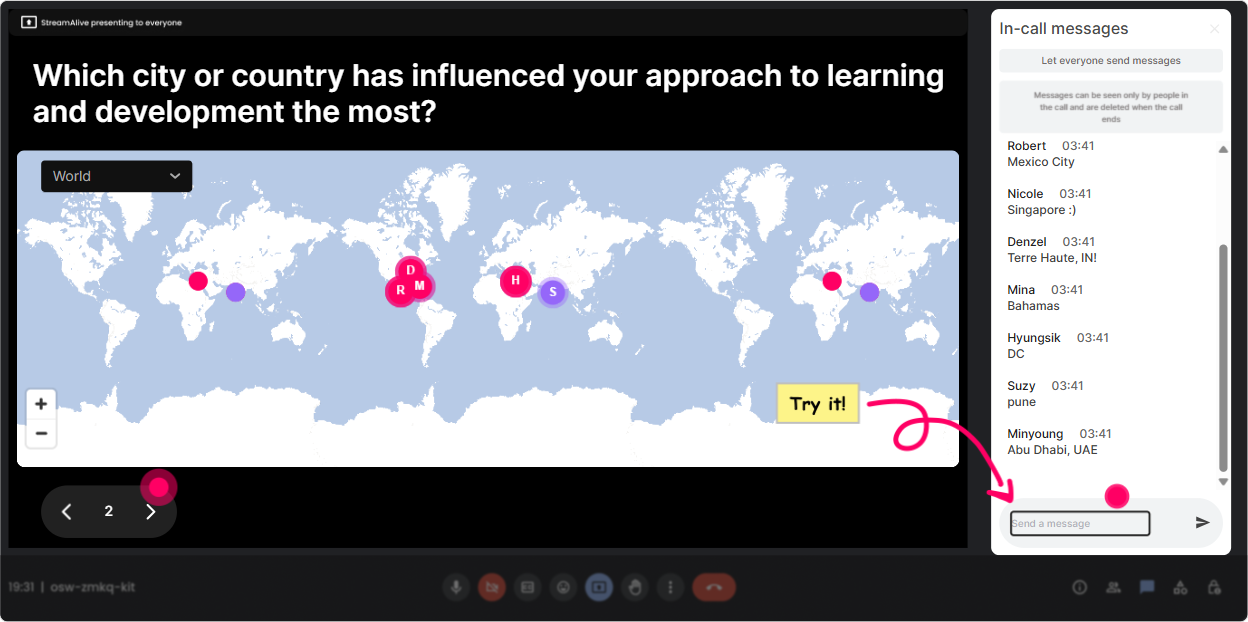
1) Magic Maps: Put your L&D leaders on the map right away
This is the easiest warm-up ever, and it instantly makes the room feel real. How to use it in your Workflow Automation ILT: - Kickoff question: Where are you joining from today? (classic, works every time) - Make it relevant: Which city is your automation HQ-where most of your training ops happen? - Fun + insight: If you could teleport to any city to learn best-in-class automation from another L&D team, where would you go? Trainer tip: If youre training a global group, call out clusters like Okay wow, weve got a whole automation squad in Toronto! Its a tiny moment, but it pulls people in fast and sets a participatory tone.
2) Rating Polls: Get a quick pulse on automation confidence (without awkward cold-calling)
Rating Polls are your secret weapon for reading the room in 15 seconds. No long surveys, no guessing. Workflow Automation training prompts that work: - On a scale of 110, how confident are you with workflow automation today? - Rate your current process maturity: 1 = totally manual, 10 = mostly automated. - Mid-session check: How clear is this trigger action exception handling concept? 110. What this does for you as the trainer: - If the average is low, you slow down and give examples. - If its high, you skip the basics and go straight to real use cases (which L&D leaders love).

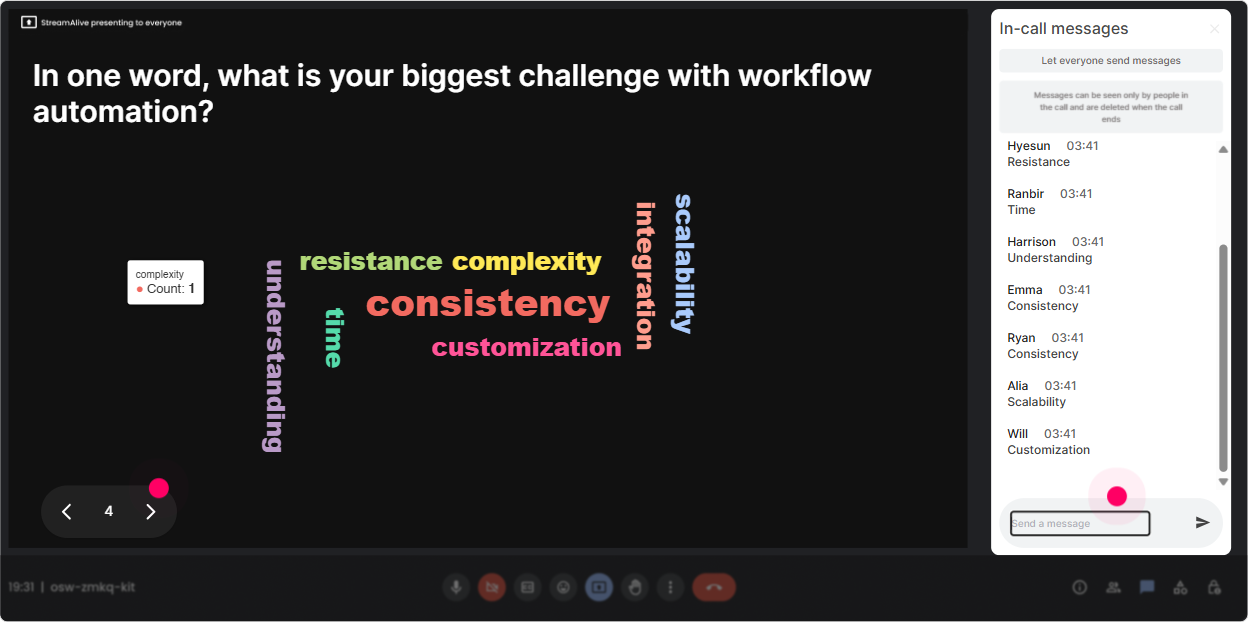
3) Wonder Words (Word Cloud): Find the emotion in the room-fast
Workflow automation can trigger very different reactions: excitement, fear, skepticism, even we tried this before and it flopped. Word Clouds let people say it quickly, and you get the vibe instantly. Great Word Cloud questions for this topic: - In ONE word, how do you feel about workflow automation? - Whats the biggest blocker to automating L&D workflows at your org? (12 words) - Name one process youd love to never do manually again. Trainer tip: When the word cloud forms, react to it out loud. Im seeing approval delays popping up a lot perfect, were going to tackle that today. People feel seen, and now theyre emotionally invested.
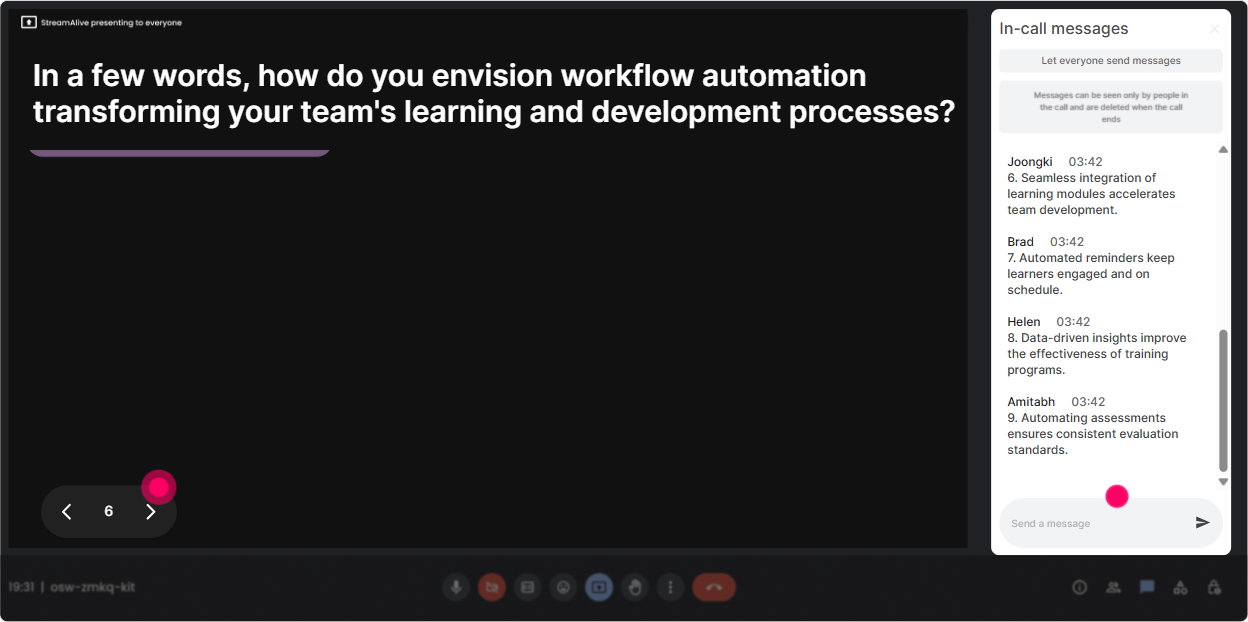
4) Talking Tiles: Turn real workflow pain into your best teaching material
Talking Tiles are perfect when you want slightly longer answers-real stories, real context, real examples. And it looks super dynamic on screen, which helps keep attention. Use it like this in Workflow Automation ILT: - Whats one workflow in your L&D team that breaks when ONE person is out sick? - Describe a training process you wish could run end-to-end without follow-ups. - Whats the most common handoff that causes delays (intake design scheduling comms reporting)? Why this works: Youre not teaching automation in theory-youre literally collecting their real-world scenarios, then you can say, Cool, lets automate THAT. Engagement skyrockets because its their work, not generic examples.
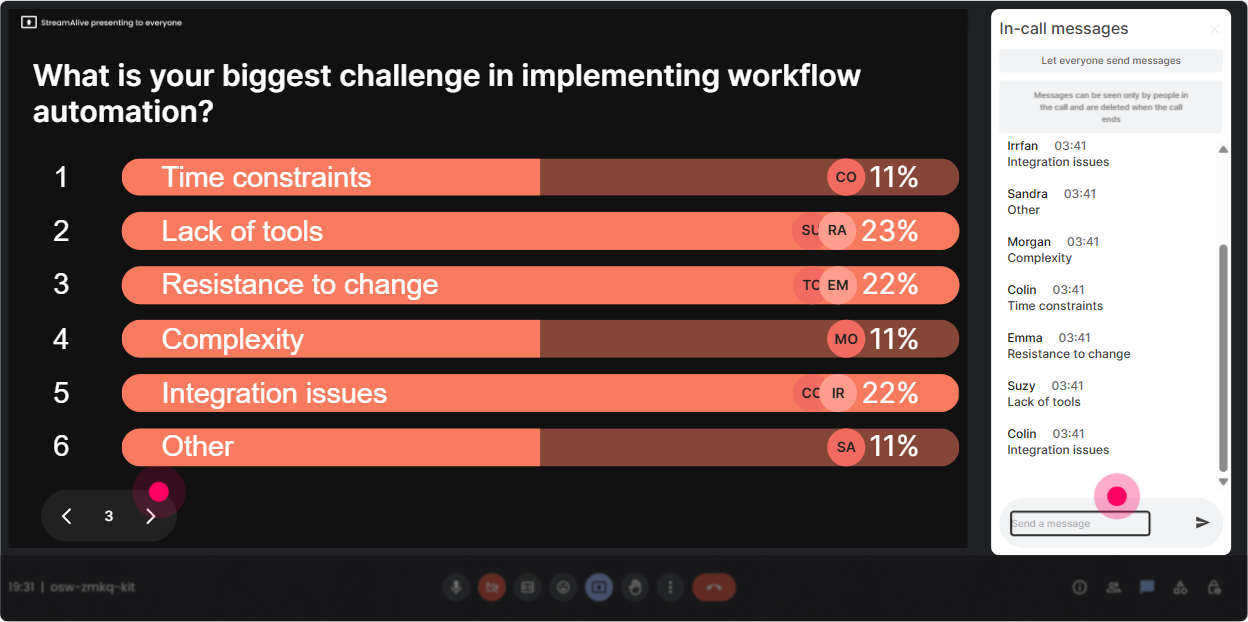
5) Power Polls: Let them choose the agenda (and youll get way less resistance)
If you want buy-in from L&D leaders, let them steer where you go first. Power Polls make this simple-and the results show live, so it feels like a real group decision. Poll ideas for Workflow Automation training: - What do you want to focus on today? 1) Automating training requests/intake 2) Automated reminders + nudges 3) Approvals and sign-offs 4) Reporting and completion tracking - Which tool ecosystem are you trying to automate around? 1) Microsoft 365/Teams 2) Google Workspace 3) LMS/LXP workflows 4) HRIS (Workday, SAP, etc.) Trainer tip: Run this early, then again later as a what do we do next? poll. It keeps energy up and reduces that end-of-session drift.
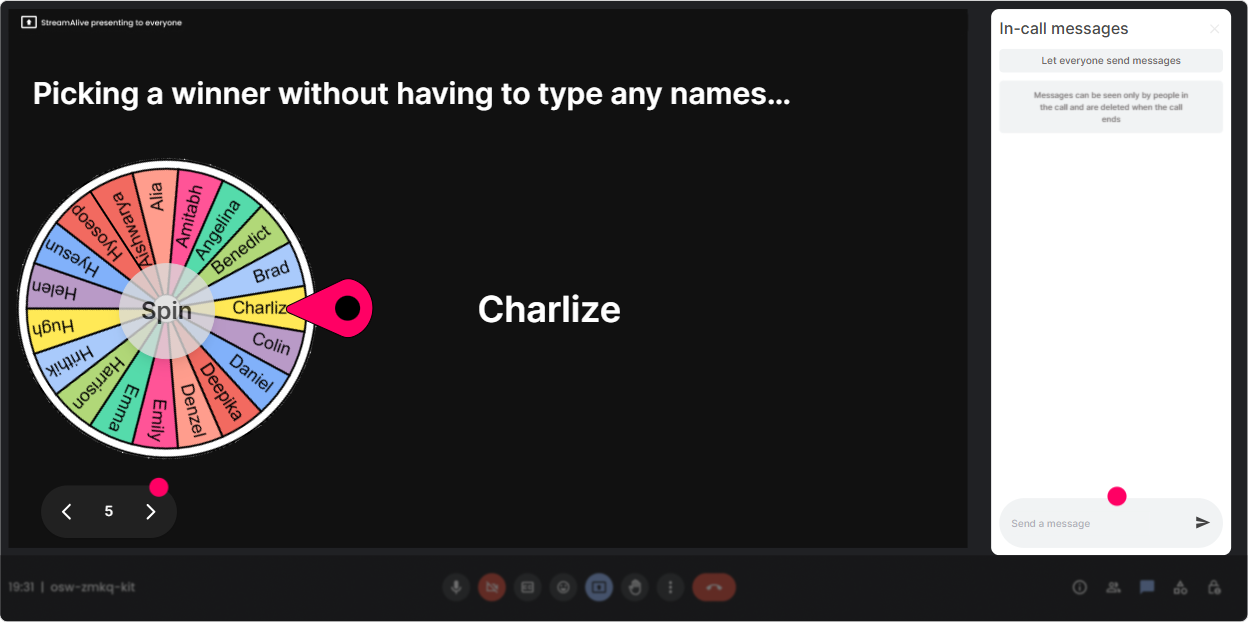
6) Winner Wheel (Spinner Wheel): Get volunteers without the cringe
You know that moment when you ask, Anyone want to share? and the room goes silent? The Spinner Wheel fixes that in a fun way. Ways to use it in Workflow Automation ILT: - Drop a process you want to automate in chat-I'll spin the wheel and well pick one to workshop live. - Type ME if youre open to sharing your current workflow. Wheel decides who goes. - Everyone who answered the last poll is eligible-lets pick one person to tell us why they chose that option. Important: It feels lighthearted, but it also creates a culture of participation. People comment more because they know engagement might get them picked (in a fun way, not a scary way).
7) Quiz: Make knowledge checks feel like a game, not an exam
Quizzes are awesome for keeping attention during the concept parts-like triggers, conditions, exceptions, and approvals. Workflow Automation quiz questions you can run: - Which is the best example of a workflow trigger? A) A report dashboard B) A learner completes a course C) A slide deck D) A calendar view - In automation, whats an exception? A) A step you can ignore B) A rare case the workflow cant handle normally C) A faster workflow D) A duplicate process Trainer tip: After you reveal the correct answer, ask ONE follow-up: Where could this show up in your training operations? Thats how you turn quiz energy into real application.

2) Rating Polls: Get a quick pulse on automation confidence (without awkward cold-calling)
Rating Polls are your secret weapon for reading the room in 15 seconds. No long surveys, no guessing. Workflow Automation training prompts that work: - On a scale of 110, how confident are you with workflow automation today? - Rate your current process maturity: 1 = totally manual, 10 = mostly automated. - Mid-session check: How clear is this trigger action exception handling concept? 110. What this does for you as the trainer: - If the average is low, you slow down and give examples. - If its high, you skip the basics and go straight to real use cases (which L&D leaders love).
8) Q&A (Quick Questions): Catch every question without losing your place
When youre teaching workflow automation, people will ask questions mid-stream-and the normal chat can get messy fast. StreamAlives Q&A pulls questions out and organizes them so you dont miss anything. How to use it smoothly: - Tell them: Drop questions anytime in chat-StreamAlive will capture them, Ill pause every 10 minutes to answer. - Use it for parking lot topics: If we cant get to it now, Ill hit it in the last Q&A block. This keeps you from constantly scanning chat while trying to teach (which is basically impossible).

9) Analytics: Prove engagement, improve the session, and spot your champions
After the training, StreamAlive Analytics helps you see what actually worked-minute by minute. How L&D leaders and trainers can use this: - See where engagement spiked: Was it the intake workflow demo? The exception-handling section? The approval use case? - Spot drop-off moments: If engagement dipped during a certain chunk, you know what to tighten next time. - Identify your most engaged participants: These are often your future champions for rolling out automation internally. - Share results easily: Send reports to your email or share insights with your team on Teams. Trainer tip: Use analytics to refine your run-of-show. Aim for an interaction every 37 minutes. Thats how you keep people with you-and thats where the up to 9x engagement effect really shows up.

Use StreamAlive in all your training sessions
StreamAlive isn’t just for
Workflow Automation
training,
it can also be used for any instructor-led training session directly inside your PowerPoint presentation.
Explore similar traingin ideas: unlocking the potential of StreamAlive
See how StreamAlive transforms live training with engaging events and interactive sessions across industries, directly inside your PowerPoint presentation.

Interactions in action
(it's free)

.svg.png)


