Install StreamAlive for your PowerPoint slides
Learn more

AI-Copilots Training for L&D Leaders
StreamAlive helps 9x the audience engagement in your Virtual Instructor-led Trainings (VILT) directly inside your powerpoint presentation.
Make your instructor-led AI-Copilots training more fun with polls, word clouds, spinner wheels and more
Works inside your existing PowerPoint presentation
Install the StreamAlive app for PowerPoint and see your slides come to life as people participate in your interactions
AI generates audience interactions for you
Let our AI scan your presentation and automatically come up with relevant questions based on the content. Or spend two hours coming up with your own questions, your choice!
Built to work with MS Teams and Zoom
Native apps for Teams and Zoom so you never have to leave your existing workflows
No QR Codes
Chat-powered interactions means your audience doesn’t need to scan QR codes or look at another screen to participate. They just type in the chat!

Quickly approved by your IT team
StreamAlive’s apps for Teams and Zoom means that they have been through rigorous quality assurance and client safety reviews. You’ll find everything an IT team needs to approve the app within the organization within your StreamAlive account.

Youve been asked to run an instructor-led session on AI-Copilots for L&D Leaders-and you already know the content matters, but the energy in the room matters more. If you want participation (not passive listening), build tiny moments where everyone can respond every few minutes. Here are easy, real-world ways to use StreamAlive to keep your session moving and boost engagement big-time.
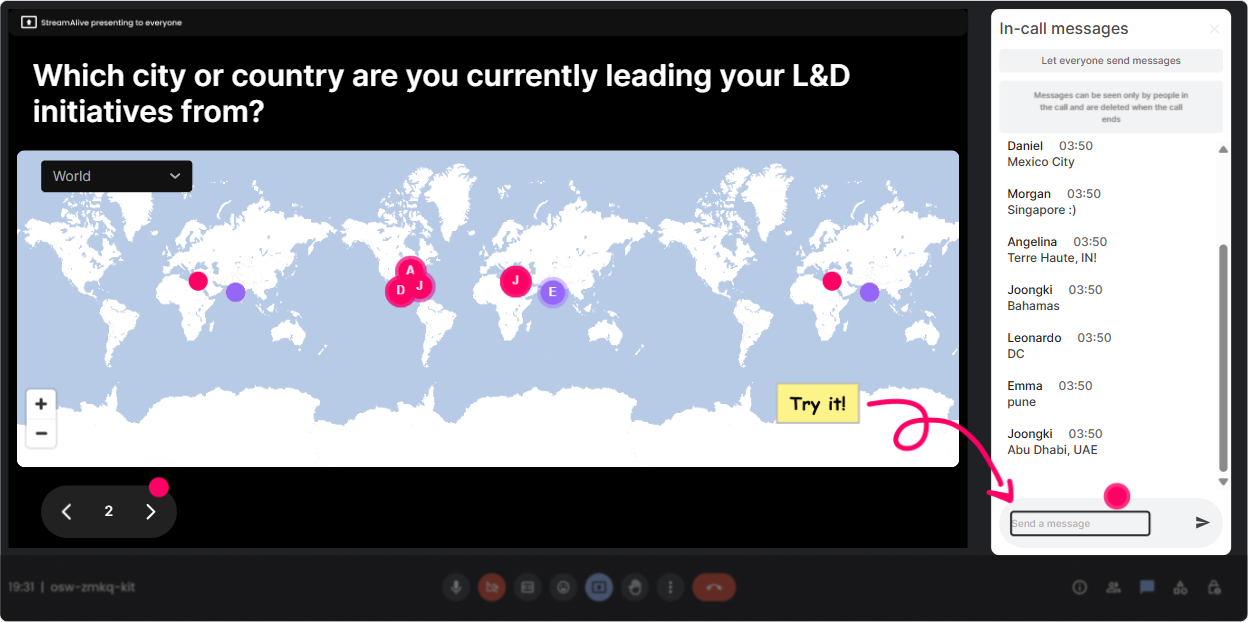
1) Magic Maps: kick off with put yourself on the map (literally)
This is the easiest way to break the ice without forcing awkward intros. You ask one location-based question, people drop answers in chat, and StreamAlive plots them live on a world map. Instantly, your room feels alive. Try these in an AI-Copilots session for L&D Leaders: - Where are you joining from today? (classic, always works) - Where is your L&D team based? (helps you understand distributed vs. central teams) - If AI could take you on a learning trip anywhere-where would you go? (fun, light) - What city best represents how your org feels about AI right now? (great segue into adoption mindset) Trainer tip: If youre doing a global cohort, call out clusters: Wow-big Toronto crew! It creates instant belonging. And if you want clean data, set it so each attendee can enter only one location.
2) Rating Polls: get a fast pulse check on AI-Copilot readiness
Rating Polls are your best friend when you need a quick Where are we at? moment-without turning it into a long discussion. People respond with a number in chat, and you get a live visual of the average and spread. Perfect moments to use it: - Start of session: On a scale of 110, how confident are you with AI-Copilots? - After you explain basics: Rate your clarity right now: 1 = still foggy, 10 = crystal clear. - Midway adoption topic: How ready is your org for AI-assisted work? 110. - End of session: How likely are you to pilot an AI-Copilot workflow in the next 30 days? 110. Trainer tip: Dont just show the bar chart and move on-ask one follow-up: I see a lot of 67s what would move you to an 8? Thats where the good conversation happens.

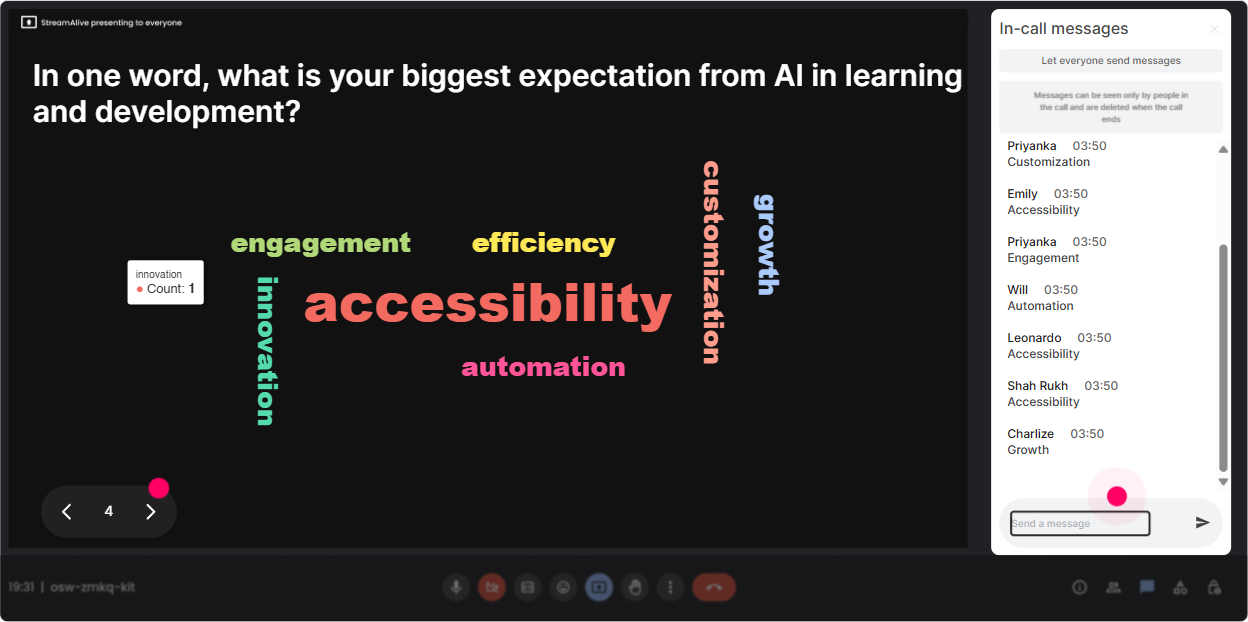
3) Wonder Words (Word Cloud): make feelings and beliefs visible in 10 seconds
Word clouds are perfect for AI topics because people often walk in with strong emotions-excited, skeptical, overwhelmed, curious. Wonder Words lets you ask a 12 word question and instantly displays the vibe of the room. Use it like this: - AI-Copilots in one word: how do you feel? (excited, nervous, curious, etc.) - Whats your biggest concern? (privacy, bias, accuracy, compliance, jobs) - Whats the biggest opportunity for L&D? (personalization, speed, coaching, content) - One skill L&D must build this year because of AI: (prompting, evaluation, governance) Trainer tip: If you see messy variations (privacy vs data privacy), use Combine Similar Answers so the room gets a cleaner, more powerful read.
4) Talking Tiles: turn deeper answers into a high-energy brainstorm
When you want more than one-word replies-use Talking Tiles. Responses fall onto the screen like tiles, so even longer messages feel fun and fast (and people actually read each others input). Great prompts for L&D Leaders: - Where could AI-Copilots remove busywork in your L&D workflow? - Whats one training task youd love to automate (without losing quality)? - Share one use case you want to pilot in the next quarter. - Whats one policy or guardrail you need before rolling AI out? Trainer tip: This is an awesome bridge into group discussion. Pick 23 tiles and say, Lets unpack these-who wrote this one? Tell us more. It feels natural, not like cold-calling.

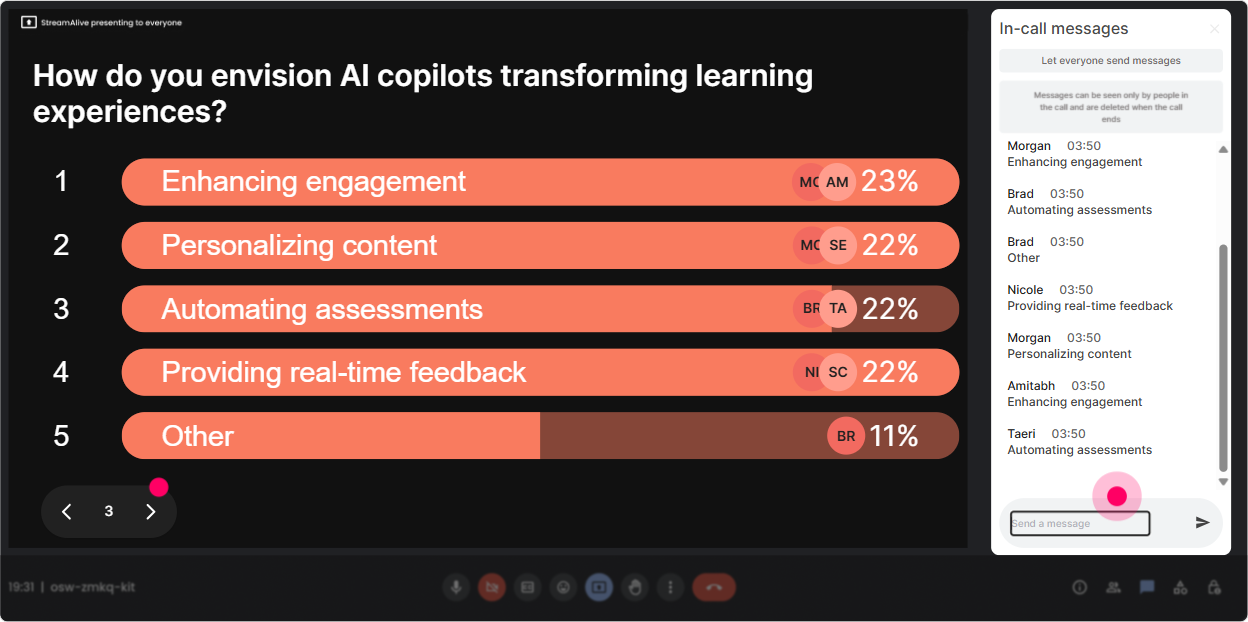
5) Power Polls: let the group vote on what you teach next
Power Polls help you stop guessing what people want. You can give options, have them respond with the option number, and show live results. Its a simple way to co-create the agenda and keep attention high. Poll ideas for an AI-Copilots ILT: - What do you want most from today? 1) Practical use cases for L&D 2) Prompting basics for teams 3) Risk + governance 4) Measuring impact/ROI - Where are you in your AI-Copilot journey? 1) No access yet 2) Testing individually 3) Small pilot team 4) Rolling out more broadly - Which function is pushing AI adoption the most? 1) IT 2) HR/L&D 3) Operations 4) Business leadership Trainer tip: If you want to keep it super interactive, run a poll, teach the top-voted topic first, then say, Alright, well hit the #2 choice next. The room feels heard.
6) Winner Wheel (Spinner Wheel): get volunteers without the awkward silence
Weve all had that moment: you ask a question, and suddenly everyone becomes a statue. The Spinner Wheel fixes that by making participation feel like a game, not pressure. How to use it in AI-Copilots training: - Drop one AI use case youre considering. Im going to spin the wheel and ask one person to share details. - Type Me if youre willing to do a 30-second prompt share. Lets spin. - Everyone vote in the poll, and Ill spin the wheel from commenters to pick who explains their choice. Trainer tip: Make it feel safe: If you get picked and prefer to pass, totally fine-Ill spin again. That one line keeps trust high.

7) Quiz: quick knowledge checks that dont feel like tests
Quizzes are perfect for busting myths and locking in key concepts. You ask a multiple-choice question, people answer in chat, and StreamAlive visualizes votes live. Then you reveal the correct answer. Quiz questions that work well for L&D Leaders: - Whats the BEST first step before rolling out AI-Copilots broadly? A) Buy more licenses B) Define safe-use guidelines + pilot use cases (Correct) C) Let everyone experiment without rules D) Replace your LMS - Which is a strong prompt characteristic? A) Vague and short B) Clear context + desired format + constraints (Correct) C) Only keywords D) Only questions - Whats a realistic risk to plan for? A) AI never makes mistakes B) Hallucinations/incorrect output (Correct) C) AI cant summarize D) AI cannot help with writing Trainer tip: Use quizzes as conversation starters: Interesting-half of you picked A. Let me show why B wins in the real world.

2) Rating Polls: get a fast pulse check on AI-Copilot readiness
Rating Polls are your best friend when you need a quick Where are we at? moment-without turning it into a long discussion. People respond with a number in chat, and you get a live visual of the average and spread. Perfect moments to use it: - Start of session: On a scale of 110, how confident are you with AI-Copilots? - After you explain basics: Rate your clarity right now: 1 = still foggy, 10 = crystal clear. - Midway adoption topic: How ready is your org for AI-assisted work? 110. - End of session: How likely are you to pilot an AI-Copilot workflow in the next 30 days? 110. Trainer tip: Dont just show the bar chart and move on-ask one follow-up: I see a lot of 67s what would move you to an 8? Thats where the good conversation happens.
8) Q&A (Quick Questions): catch every question without hunting through chat
In AI sessions, questions fly fast-and normal chat can get messy. StreamAlive automatically detects and collects questions from chat and displays them neatly, so you dont miss the good ones. Ways to use it during your AI-Copilots ILT: - As I go, drop questions anytime-StreamAlive will capture them and well do a Q&A sprint every 15 minutes. - Type your toughest stakeholder objection as a question-lets tackle the top ones. - Ask anything about governance, privacy, or rollout. No need for a separate Q&A box. Trainer tip: Do parking lot + priorities live: answer a few, then say, The rest go in our follow-up doc. People feel supported-even if you cant cover everything.

9) Analytics: prove engagement (and improve your next session)
After the session, Analytics is where you get the real story of what landed. You can see minute-by-minute engagement, replay chat moments, review interaction results, and identify your most engaged attendees. How L&D Leaders and trainers can use this right away: - Spot where attention dipped: We lost people during the policy slide-next time Ill break that into an activity. - See what sparked conversation: Use cases got the most chat-lets expand that section. - Identify champions: Find your most engaged folks (Fantastic Fans) and invite them to pilot, co-facilitate, or share testimonials. - Share outcomes internally: Email the interaction reports to your team or stakeholders to show participation and sentiment. Trainer tip: If youre trying to justify AI enablement programs, these analytics help you walk into stakeholder meetings with evidence-not vibes.

Use StreamAlive in all your training sessions
StreamAlive isn’t just for
AI-Copilots
training,
it can also be used for any instructor-led training session directly inside your PowerPoint presentation.
Explore similar traingin ideas: unlocking the potential of StreamAlive
See how StreamAlive transforms live training with engaging events and interactive sessions across industries, directly inside your PowerPoint presentation.

Interactions in action
(it's free)

.svg.png)


