Install StreamAlive for your PowerPoint slides
Learn more

Inclusive & Accessible Design Training for Corporate Trainers
StreamAlive helps 9x the audience engagement in your Virtual Instructor-led Trainings (VILT) directly inside your powerpoint presentation.
Make your instructor-led Inclusive & Accessible Design training more fun with polls, word clouds, spinner wheels and more
Works inside your existing PowerPoint presentation
Install the StreamAlive app for PowerPoint and see your slides come to life as people participate in your interactions
AI generates audience interactions for you
Let our AI scan your presentation and automatically come up with relevant questions based on the content. Or spend two hours coming up with your own questions, your choice!
Built to work with MS Teams and Zoom
Native apps for Teams and Zoom so you never have to leave your existing workflows
No QR Codes
Chat-powered interactions means your audience doesn’t need to scan QR codes or look at another screen to participate. They just type in the chat!

Quickly approved by your IT team
StreamAlive’s apps for Teams and Zoom means that they have been through rigorous quality assurance and client safety reviews. You’ll find everything an IT team needs to approve the app within the organization within your StreamAlive account.

Youve been asked to run an Inclusive & Accessible Design session for corporate trainers-and you already know the risk: it can turn into a lots of theory, not much energy kind of workshop. Lets make it practical, interactive, and genuinely inclusive in how its delivered. Here are easy ways to use StreamAlive to keep everyone participating (not just the loudest few).
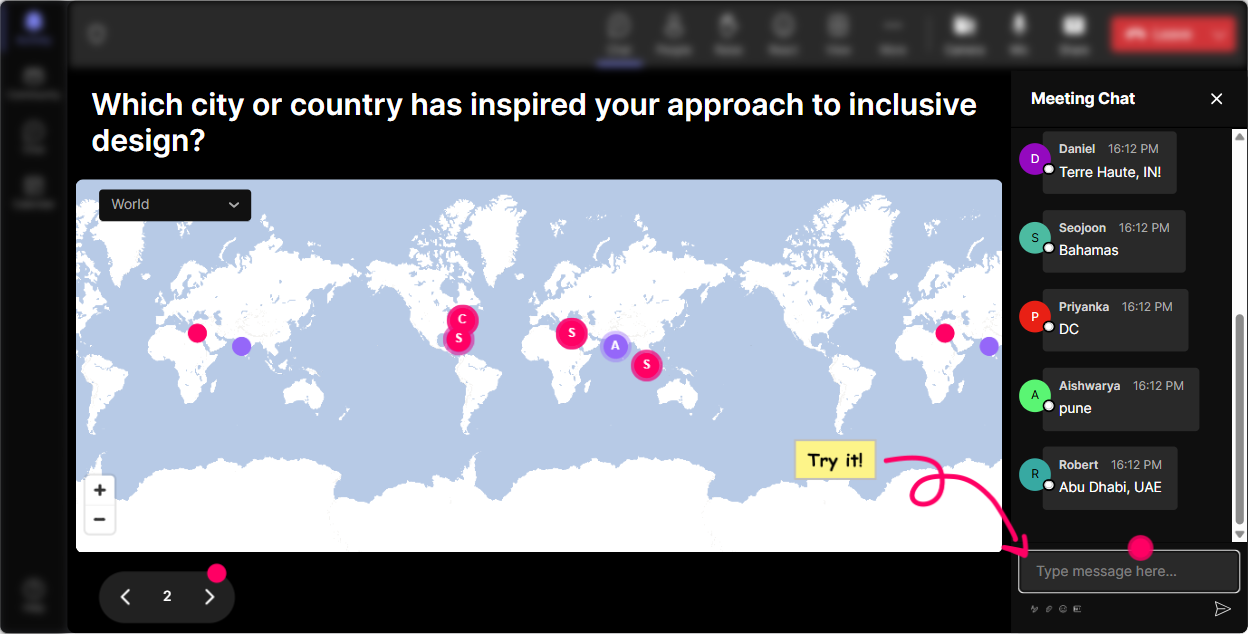
Magic Maps: start inclusive by making everyone feel seen
The fastest way to build belonging is to get people contributing within the first 60 seconds. Magic Maps does that beautifully-without putting anyone on the spot. **How to use it in your Inclusive & Accessible Design training:** - **Warm welcome (low-pressure participation):** Where are you joining from today? People type a location, and you instantly get a live map. Its simple, visual, and everyone can join-even if they dont want to speak. - **Accessibility perspective builder:** Pick a place youve traveled where accessibility was either amazing or a total fail. Then ask 23 people to share what made it good/bad. - **Global lens on inclusion:** If your learners were joining from anywhere in the world, whats one design assumption youd need to stop making? (Use the map as your segue into cultural + language accessibility.) **Trainer tip:** If your group is large, turn on the one location per attendee setting so the map stays clean and easy to read.
Rating Polls: find the confidence level (and adjust your pace in real time)
Inclusive & Accessible Design groups are usually mixed-some people are brand new, others have been doing this for years but didnt call it that. Rating Polls help you see where everyone is at instantly. **Ways to use it during ILT:** - **Opening pulse check:** Rate your confidence in designing accessible learning content (1 = Im guessing, 10 = I could teach it). Now you know how fast to go and how much jargon to avoid. - **After a key concept:** Right after you cover things like WCAG basics, alt text, color contrast, or accessible slide design: How clear was that section? (110). If the average dips, you re-teach before you build on shaky ground. - **Before practice time:** How ready do you feel to audit one of your own slides for accessibility? (110) This tells you whether you need a demo first. **Why it helps inclusion:** Rating Polls give quieter participants a voice without forcing them to speak up.

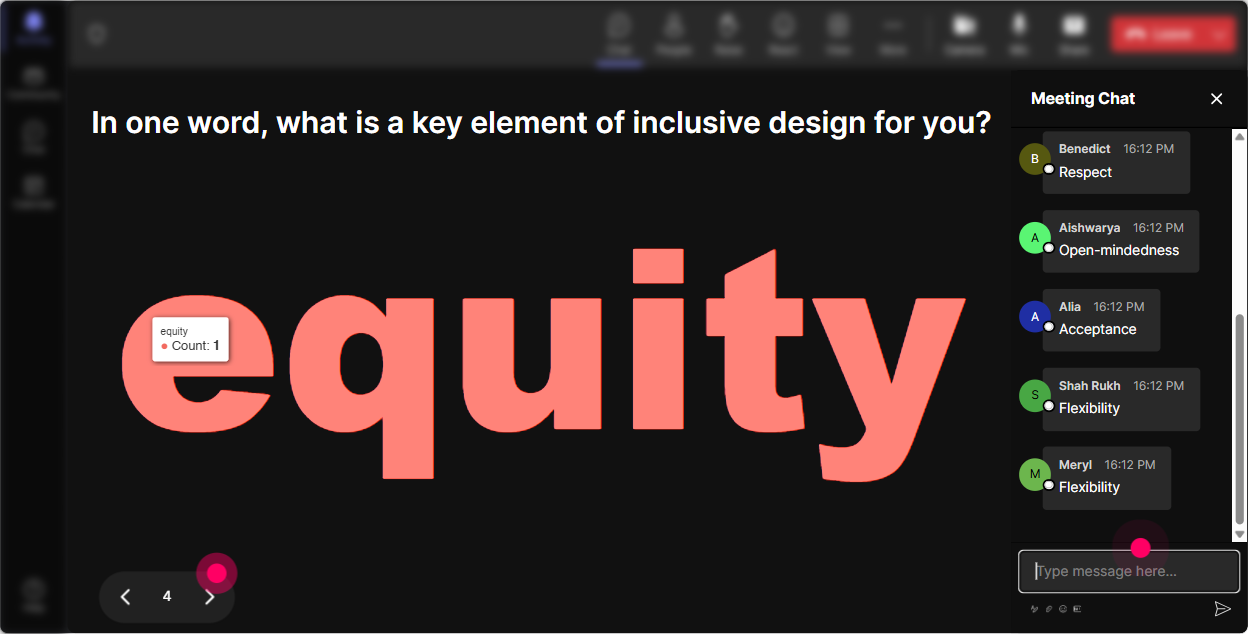
Wonder Words (Word Cloud): get honest reactions without calling anyone out
If you ask, How do you feel about accessibility? youll usually get polite answers out loud. Word Cloud gets the real vibe-fast-and shows the group theyre not alone. **Great prompts for this topic (12 words works best):** - When you hear *accessible design*, whats the first word that pops up? - Whats the biggest barrier to designing inclusively at work? (12 words) (Examples youll see: time, tools, buy-in, budget, awareness) - Whats one thing you want to improve in your training design? (12 words) **Trainer move:** When a big word appears (like time or overwhelming), pause and say, Okay, thats our real problem to solve today. Suddenly your session feels tailored, not generic. **Bonus:** Use Combine Similar Answers so time and no time dont split into separate bubbles.
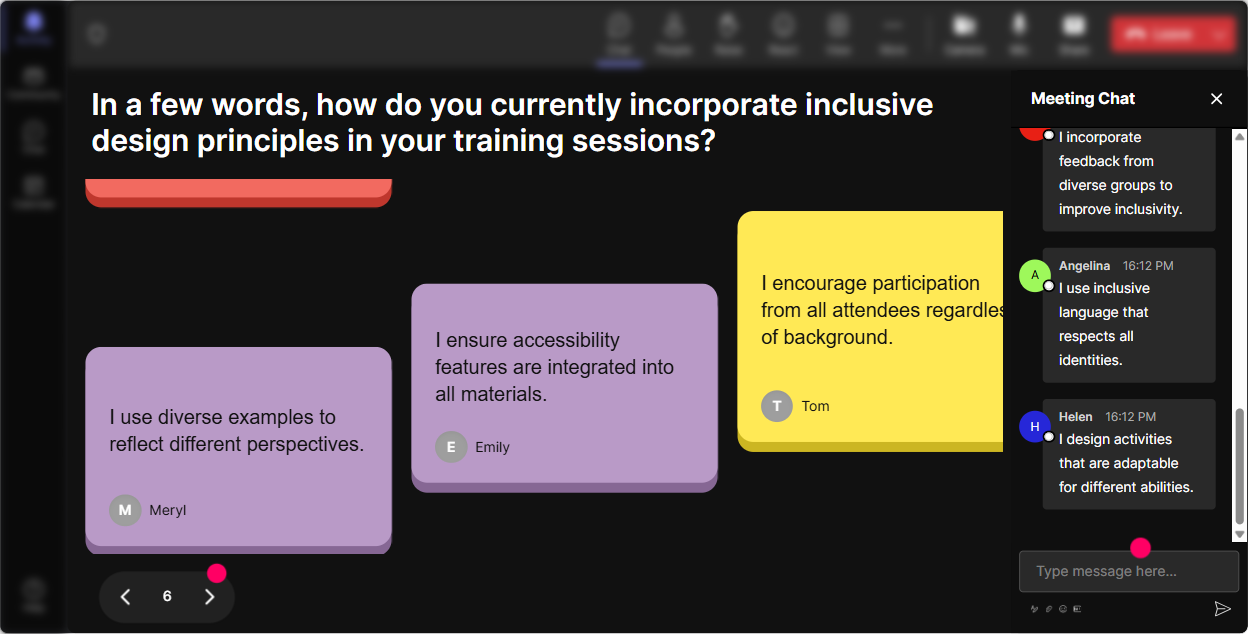
Talking Tiles: turn inclusion into real workplace stories (not just rules)
Inclusive & Accessible Design clicks when people connect it to their actual learners-especially learners who get left out when we design on autopilot. Talking Tiles is perfect for richer answers without awkward silence. **Use it for reflective or story-based questions like:** - Think of a learner you support. Whats one thing that could make training easier for them? - Where do you think your current training might accidentally exclude someone? - Share one small change you can make this week to improve accessibility in your sessions. As responses fall onto the screen, youll see patterns (and youll get *way* more participation than asking for volunteers). **Inclusive facilitation tip:** Read out a mix of responses-short, long, different perspectives-so it doesnt feel like only the perfect answers count.
Power Polls: let learners choose what matters most (thats inclusive design, right there)
One of the most inclusive things you can do as a trainer is give people choice. Power Polls make it easy to co-create the agenda while still keeping control of timing. **Poll ideas for this training:** - Which topic would help you most today? 1) Accessible slide design 2) Inclusive language & examples 3) Facilitating accessible discussions 4) Captions, transcripts, and media accessibility 5) Designing for neurodiversity - Whats your biggest challenge right now? 1) Getting stakeholder buy-in 2) Not enough time 3) Not sure what good looks like 4) Tools/process are unclear **How to use the results:** - If option #2 wins, you emphasize inclusive scenarios and language. - If #1 wins, you do a live slide makeover. - If challenges cluster around buy-in, you add a how to influence segment. This is how you keep engagement high-people lean in when the content matches their needs.

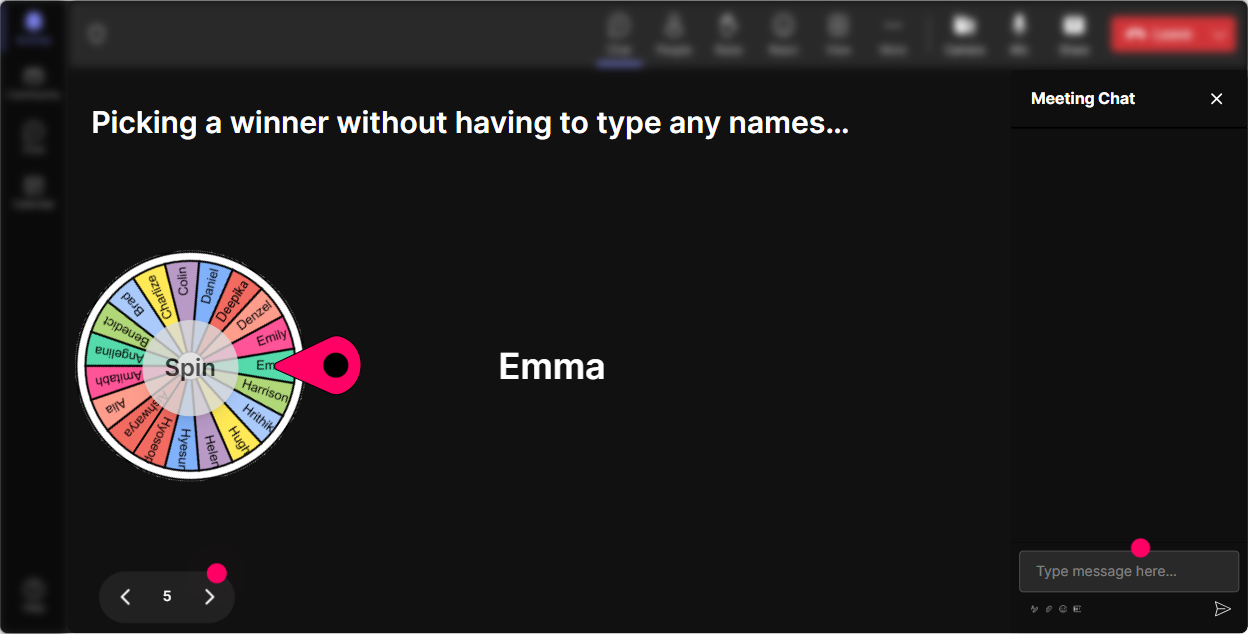
Winner Wheel: make participation fair (and a little fun) without pressure
In accessibility training, you dont want participation to become the same three confident people talk all session. Winner Wheel helps you spread airtime fairly-based on chat participation-so it still feels safe. **Good ways to use it:** - **Volunteer picker without awkwardness:** Im going to spin the wheel to pick someone who dropped an answer in chat-want to share yours out loud? (Key word: *want*. Always give an opt-out.) - **Scenario discussion:** Ask a question like, What would you change on this slide to make it accessible? Have people type ideas, then spin to choose 12 to explain their thinking. - **Reward engagement:** Ill spin at the end of this activity and one person wins a coffee gift card / a resource bundle / bragging rights. It nudges participation without forcing anyone. **Inclusive facilitator note:** Make it clear that being selected is an invitation, not a trap. Psychological safety = more engagement.
Quiz: quick knowledge checks that feel like a game (and catch misunderstandings early)
Quiz is perfect for Inclusive & Accessible Design because there are a lot of I thought that was fine? moments. A quick quiz turns those into learning wins without shaming anyone. **Multiple-choice questions you can use:** - Which is the best practice for hyperlinks in slides? 1) Click here 2) Full raw URL 3) Descriptive link text (Correct) 4) No links at all - Whats the safest approach for color in charts? 1) Color alone is enough 2) Use color + labels/patterns (Correct) 3) Use red/green only 4) Avoid charts - Alt text should primarily 1) Describe the purpose/meaning of the image (Correct) 2) Describe every pixel detail 3) Be a caption copy-paste 4) Always be 23 paragraphs **Trainer tip:** After revealing the correct answer, ask one follow-up in chat: Whats one place this shows up in your trainings? Thats where behavior change starts.

Rating Polls: find the confidence level (and adjust your pace in real time)
Inclusive & Accessible Design groups are usually mixed-some people are brand new, others have been doing this for years but didnt call it that. Rating Polls help you see where everyone is at instantly. **Ways to use it during ILT:** - **Opening pulse check:** Rate your confidence in designing accessible learning content (1 = Im guessing, 10 = I could teach it). Now you know how fast to go and how much jargon to avoid. - **After a key concept:** Right after you cover things like WCAG basics, alt text, color contrast, or accessible slide design: How clear was that section? (110). If the average dips, you re-teach before you build on shaky ground. - **Before practice time:** How ready do you feel to audit one of your own slides for accessibility? (110) This tells you whether you need a demo first. **Why it helps inclusion:** Rating Polls give quieter participants a voice without forcing them to speak up.
Q&A (Quick Questions): capture every question-especially from quieter voices
In inclusive training, the best questions often come from people who dont want to interrupt, who process slower, or who prefer typing. StreamAlives Q&A pulls questions right out of chat and organizes them so you dont miss them. **How it helps your session flow:** - People ask questions naturally in chat-no separate Q&A tool, no raise hand and wait. - You can say: Drop questions anytime. Ill pause every 10 minutes and clear the queue. - Its especially useful for accessibility topics where learners may ask sensitive questions (like accommodations or disability etiquette) and feel safer typing. **Pro move:** Run a dedicated Ask me anything segment near the end and work through the captured list-participants feel heard, and you look super organized.

Analytics: prove engagement, spot drop-offs, and improve your next session
If youre training corporate trainers, youll eventually get asked: Did this land? Did people actually engage? StreamAlive Analytics gives you receipts-in a helpful way. **Ways to use Analytics after Inclusive & Accessible Design ILT:** - **Minute-by-minute engagement:** See where chat spikes (your best moments) and where it dips (content that needs tightening, more examples, or a different activity). - **Replay Results for interactions:** Check which poll questions got the most participation-then reuse those formats next time. - **Identify your Fantastic Fans:** Find your most engaged participants (great for follow-up, champions, pilot groups, or internal accessibility advocates). - **Share results easily:** Email reports to yourself or your team, or use the insights to tweak your run-of-show for the next cohort. **Bottom line:** Youre not guessing what worked-youre improving with data, while keeping the session human and high-energy.

Use StreamAlive in all your training sessions
StreamAlive isn’t just for
Inclusive & Accessible Design
training,
it can also be used for any instructor-led training session directly inside your PowerPoint presentation.
Explore similar traingin ideas: unlocking the potential of StreamAlive
See how StreamAlive transforms live training with engaging events and interactive sessions across industries, directly inside your PowerPoint presentation.

Interactions in action
(it's free)

.svg.png)


