Install StreamAlive for your PowerPoint slides
Learn more

Learning in the flow of work Training for Corporate Trainers
StreamAlive helps 9x the audience engagement in your Virtual Instructor-led Trainings (VILT) directly inside your powerpoint presentation.
Make your instructor-led Learning in the flow of work training more fun with polls, word clouds, spinner wheels and more
Works inside your existing PowerPoint presentation
Install the StreamAlive app for PowerPoint and see your slides come to life as people participate in your interactions
AI generates audience interactions for you
Let our AI scan your presentation and automatically come up with relevant questions based on the content. Or spend two hours coming up with your own questions, your choice!
Built to work with MS Teams and Zoom
Native apps for Teams and Zoom so you never have to leave your existing workflows
No QR Codes
Chat-powered interactions means your audience doesn’t need to scan QR codes or look at another screen to participate. They just type in the chat!

Quickly approved by your IT team
StreamAlive’s apps for Teams and Zoom means that they have been through rigorous quality assurance and client safety reviews. You’ll find everything an IT team needs to approve the app within the organization within your StreamAlive account.

Youve been asked to run a session on Learning in the Flow of Work (LIFOW) for corporate trainers-and you already know the risk: it can sound concept-y fast. The fix is simple: pull people into the conversation every few minutes so theyre learning while theyre working the room. Here are practical ways to do that using StreamAlive to keep engagement high (like, noticeably high).
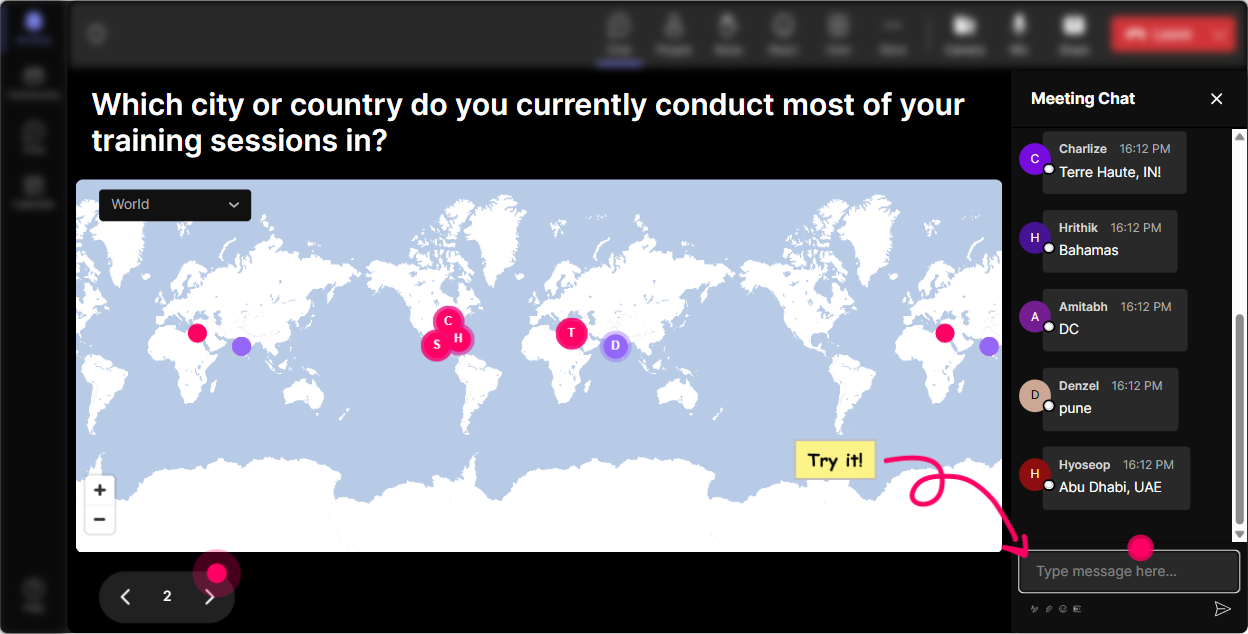
1) Magic Maps: Put flow of work on the map right away
Start with something easy that gets everyone typing in chat within the first 60 seconds. Magic Maps is perfect because its visual, instant, and it feels personal. How to use it in a LIFOW trainer session: - Icebreaker that still connects to the topic: Where are you joining from-and whats one tool you use daily at work (Teams, Slack, Salesforce, etc.)? (Use the map for the location, then let them add the tool after.) - Make it relevant to workflow realities: Drop the city you work from. Are you mostly remote, hybrid, or on-site? (You can quickly call out patterns: Wow, hybrid crowd today.) - Bring in the moment of need idea: Type a city youve delivered training in where learners had zero time. Lets see how common that is. Trainer tip: If youve got a global group, the map instantly creates that were all in this together vibe-and youve earned attention before you even define LIFOW.
2) Rating Polls: Get a fast read on LIFOW readiness (without awkward silence)
Before you teach anything, find out where people are starting from. Rating Polls are the quickest way to do that-no forms, no links, just chat. Ways to use Rating Polls in your LIFOW session: - Confidence check: On a scale of 110, how confident are you that your current training actually shows up in the flow of work? - Reality check: 110: How supported do your learners feel after training ends? - Stakeholder temperature: 110: How open do you think your organization is to performance support vs. more courses? What this unlocks for you as the facilitator: - If the average is low, you slow down and give more examples. - If its high, you can move faster and do more show-me activities. - Either way, your audience feels seen because youre reacting to them in real time.

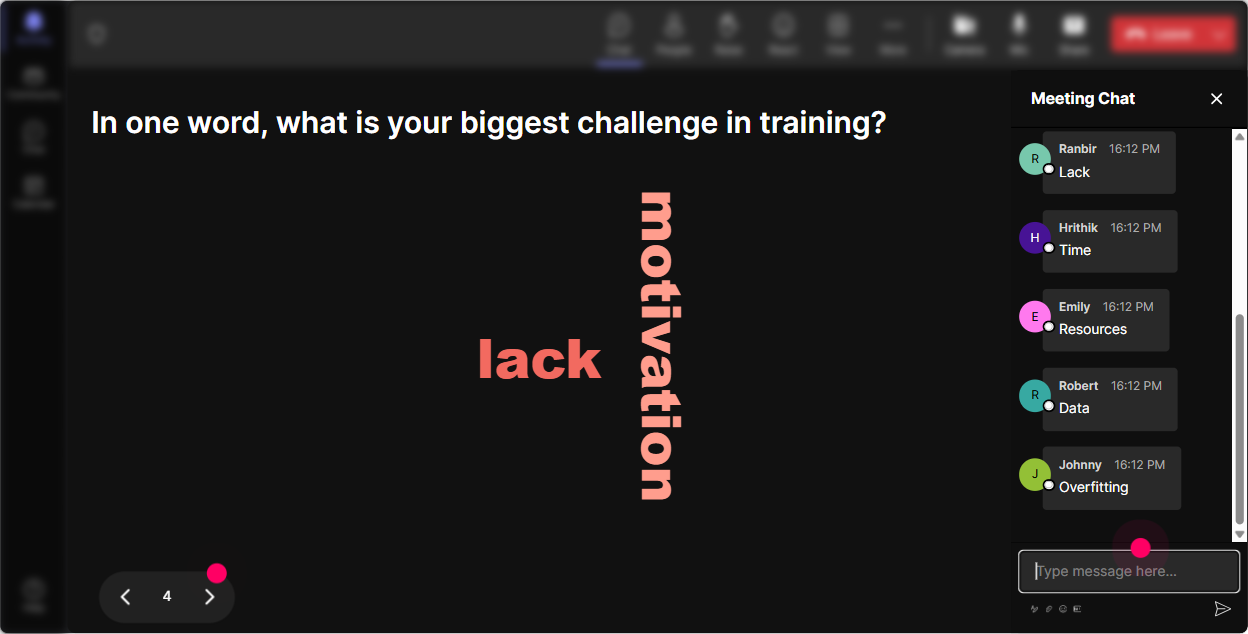
3) Wonder Words (Word Cloud): Capture the mood in one question
LIFOW can trigger strong reactions in trainers-some people love it, others hear less training and get defensive. A word cloud lets you surface that honestly, without putting anyone on the spot. Great Wonder Words prompts for this topic: - When you hear Learning in the Flow of Work, whats the first word that comes to mind? - One word: what stops LIFOW from happening in your organization? (Examples youll likely see: time, culture, tools, managers, bandwidth.) - One word: what would make LIFOW easier for your learners? Why it works: you get instant themes to work with. If the cloud screams time and overload, you can pivot and say, Cool, then today were designing for speed, not perfection. Thats how you keep people locked in.
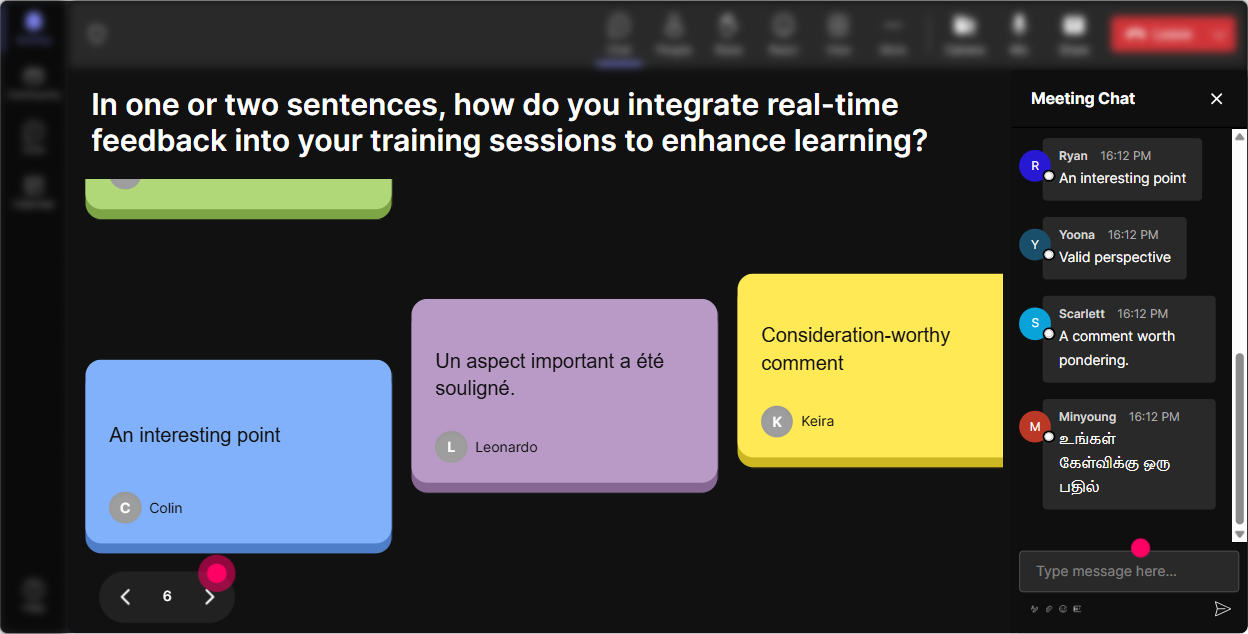
4) Talking Tiles: Turn real work stories into the content (instead of you lecturing)
Talking Tiles is your best friend when you want more than one-word answers. It makes longer responses fun to watch and easier to react to-like a live brainstorm wall. Prompts that work really well for LIFOW trainers: - Tell me about a moment when a learner needed help *right now* (not in a class). What were they trying to do? - Whats one task in your org where mistakes are expensive (time, money, compliance, safety)? - Where do people actually go for answers today-Google, a coworker, SOPs, Teams chat, YouTube? How you use the output: - Spot patterns and label them: Okay, Im seeing handoffs, systems, and approvals a lot-those are perfect LIFOW moments. - Turn responses into examples on the fly: pick 23 tiles and say, Lets design a flow-of-work support idea for this one. This is the moment your session stops being theory and starts feeling like real work.
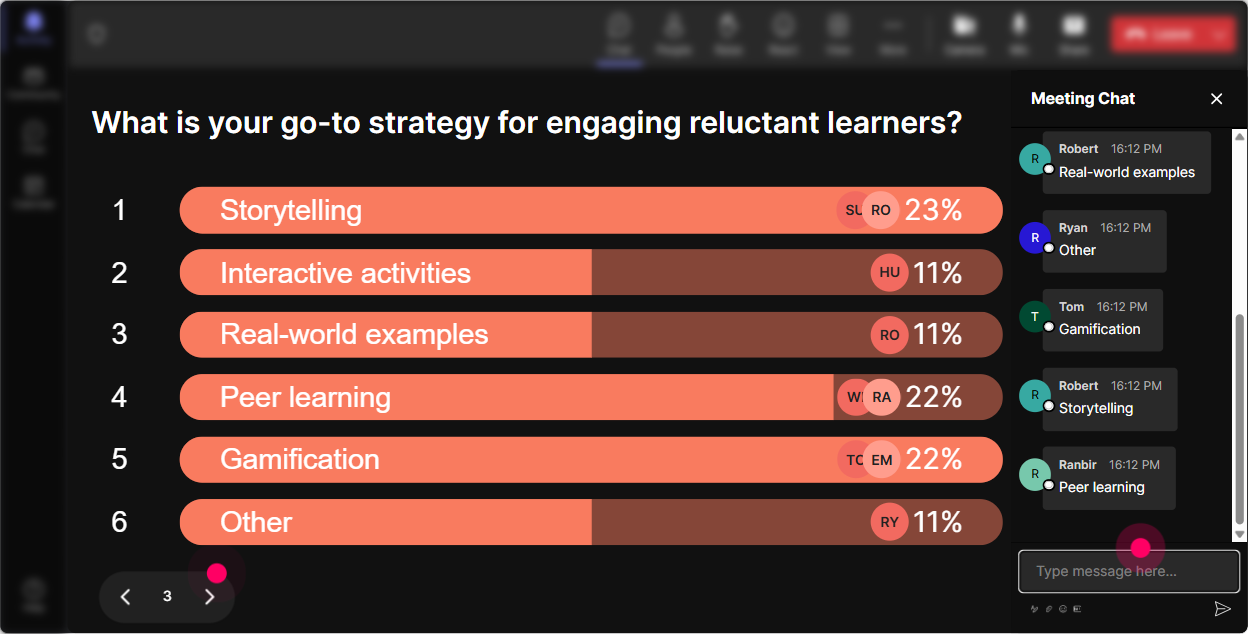
5) Power Polls: Let the audience choose what you go deeper on
Instead of guessing what corporate trainers want from LIFOW, let them vote. Power Polls makes this quick and super visible, which builds buy-in. Poll ideas for your session: - Where do you want to apply LIFOW first? 1) Onboarding 2) Systems/process training 3) Sales enablement 4) Compliance 5) Leadership/soft skills - Which LIFOW format fits your world best right now? 1) Checklists/job aids 2) Manager toolkits 3) Short video/how-to clips 4) In-tool guidance (pop-ups, walkthroughs) 5) Teams/Slack bot tips - Whats the biggest blocker? 1) Time 2) Tools 3) SME access 4) Stakeholder buy-in 5) Measurement Trainer move: After the poll, say, Alright, the room picked this-so were going there. That one sentence increases attention because people feel ownership.
6) Winner Wheel: Get volunteers without begging for volunteers
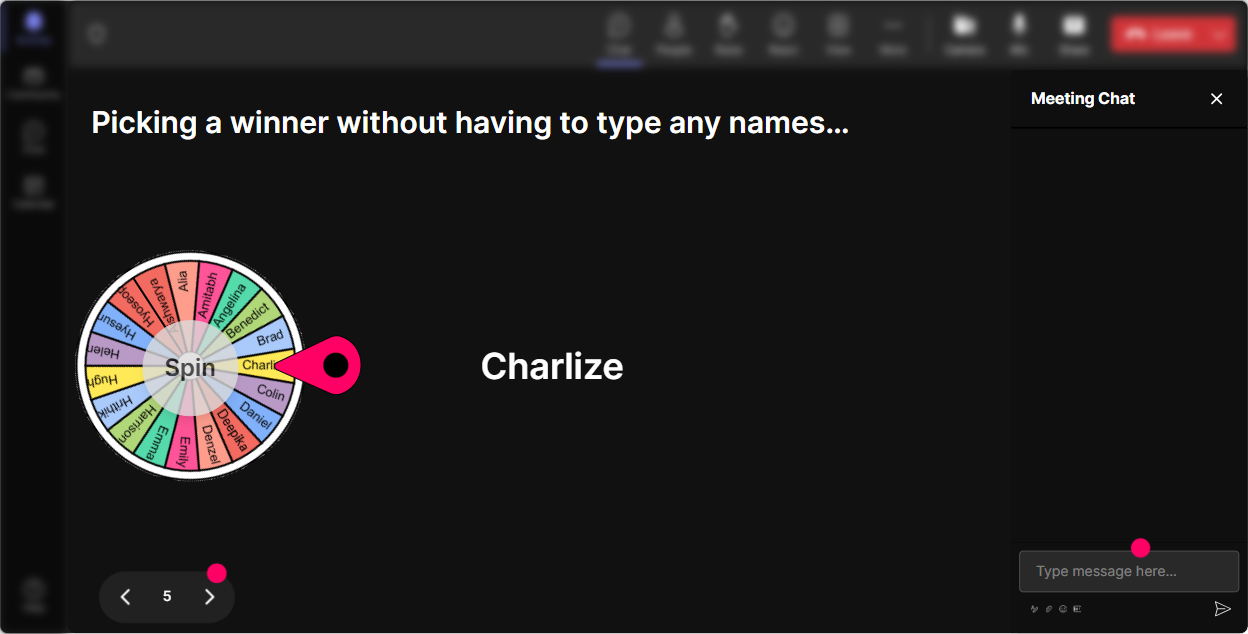
You know that moment: you ask a question and everyone suddenly becomes a statue. Winner Wheel fixes that in a playful way-people participate in chat because they know they might get picked. Ways to use it during LIFOW training: - After a brainstorm: Im going to spin the wheel and whoever it lands on-share your example and well workshop it into a flow-of-work solution. - For quick practice: Spin to pick someone to explain LIFOW in 20 seconds like theyre talking to a busy manager. - For accountability (in a fun way): Spin to pick someone to share one thing theyll stop doing (or start doing) in their training design. Bonus: You can base the wheel on people who commented during a specific interaction-so quiet attendees have a reason to jump in.
7) Quiz: Do quick knowledge checks that dont kill the momentum
LIFOW has a few concepts that people *think* they understand until you test them. A Quiz keeps it light while still being a real checkpoint. Multiple-choice questions you can use: - Which is the best example of Learning in the Flow of Work? A) A 2-hour webinar on product knowledge B) A checklist inside the CRM that guides the next step during a live customer call (Correct) C) A yearly compliance course D) A long PDF manual emailed after training - Whats the main goal of LIFOW? A) More content B) Faster course completion C) Help people perform at the moment of need (Correct) D) Replace trainers - Which moment of need is this: Im doing the task and Im stuck? A) Learn New B) Learn More C) Apply (Correct) D) Solve Trainer tip: After you reveal the correct answer, ask one follow-up in chat: What made you choose your option? Thats where the learning gets sticky.

2) Rating Polls: Get a fast read on LIFOW readiness (without awkward silence)
Before you teach anything, find out where people are starting from. Rating Polls are the quickest way to do that-no forms, no links, just chat. Ways to use Rating Polls in your LIFOW session: - Confidence check: On a scale of 110, how confident are you that your current training actually shows up in the flow of work? - Reality check: 110: How supported do your learners feel after training ends? - Stakeholder temperature: 110: How open do you think your organization is to performance support vs. more courses? What this unlocks for you as the facilitator: - If the average is low, you slow down and give more examples. - If its high, you can move faster and do more show-me activities. - Either way, your audience feels seen because youre reacting to them in real time.
8) Q&A: Catch every question without losing your place
When youre teaching LIFOW, questions pop up constantly-especially the practical ones like, Yeah but how do I do this with no budget? StreamAlives Q&A (Quick Questions) pulls questions from the chat and organizes them so you dont have to scroll like crazy. How to use it in a trainer-friendly way: - Set expectations early: Drop your questions anytime-StreamAlive will collect them and Ill hit them at the end of each section. - Do mini question sprints: every 1015 minutes, open the Q&A view and answer the top 23. - Use it for objections (the real stuff): Whats your biggest this wont work here concern about LIFOW? (Then you address it directly.) Result: people feel heard, and you stay in control of the session flow.

9) Analytics: Prove what worked, fix what didnt, and get better every session
If youre running corporate training, youre usually expected to show impact-not just vibes. StreamAlive Analytics helps you see what actually kept people engaged. How youll use Analytics after a LIFOW session: - Minute-by-minute engagement: find the exact moment attention dipped (maybe during your definition slide) and where it spiked (maybe during Talking Tiles). Then adjust your next run. - Interaction reports: see which polls/questions got the most participation so you can reuse what works. - Identify your top engaged participants (Fantastic Fans): these are your champions-great people to invite into a pilot group for LIFOW resources. - Email/share reports: send a clean summary to stakeholders or your L&D team to show participation and sentiment, not just attendance. The big win: the more you measure engagement, the easier it gets to engineer it. And thats how you keep improving-and keep people actually learning in the flow of work.

Use StreamAlive in all your training sessions
StreamAlive isn’t just for
Learning in the flow of work
training,
it can also be used for any instructor-led training session directly inside your PowerPoint presentation.
Explore similar traingin ideas: unlocking the potential of StreamAlive
See how StreamAlive transforms live training with engaging events and interactive sessions across industries, directly inside your PowerPoint presentation.

Interactions in action
(it's free)

.svg.png)


