Install StreamAlive for your PowerPoint slides
Learn more

Digital Fatigue Training for Training Agencies
StreamAlive helps 9x the audience engagement in your Virtual Instructor-led Trainings (VILT) directly inside your powerpoint presentation.
Make your instructor-led Digital Fatigue training more fun with polls, word clouds, spinner wheels and more
Works inside your existing PowerPoint presentation
Install the StreamAlive app for PowerPoint and see your slides come to life as people participate in your interactions
AI generates audience interactions for you
Let our AI scan your presentation and automatically come up with relevant questions based on the content. Or spend two hours coming up with your own questions, your choice!
Built to work with MS Teams and Zoom
Native apps for Teams and Zoom so you never have to leave your existing workflows
No QR Codes
Chat-powered interactions means your audience doesn’t need to scan QR codes or look at another screen to participate. They just type in the chat!

Quickly approved by your IT team
StreamAlive’s apps for Teams and Zoom means that they have been through rigorous quality assurance and client safety reviews. You’ll find everything an IT team needs to approve the app within the organization within your StreamAlive account.

Youve been asked to run a Digital Fatigue instructor-led training for a Training Agency-and you already know the irony: people are tired of screens and youre about to put them in front of one. The win here is simple: make it feel alive, fast-moving, and interactive. Here are practical ways to do that using StreamAlive so your session stays engaging (not draining).
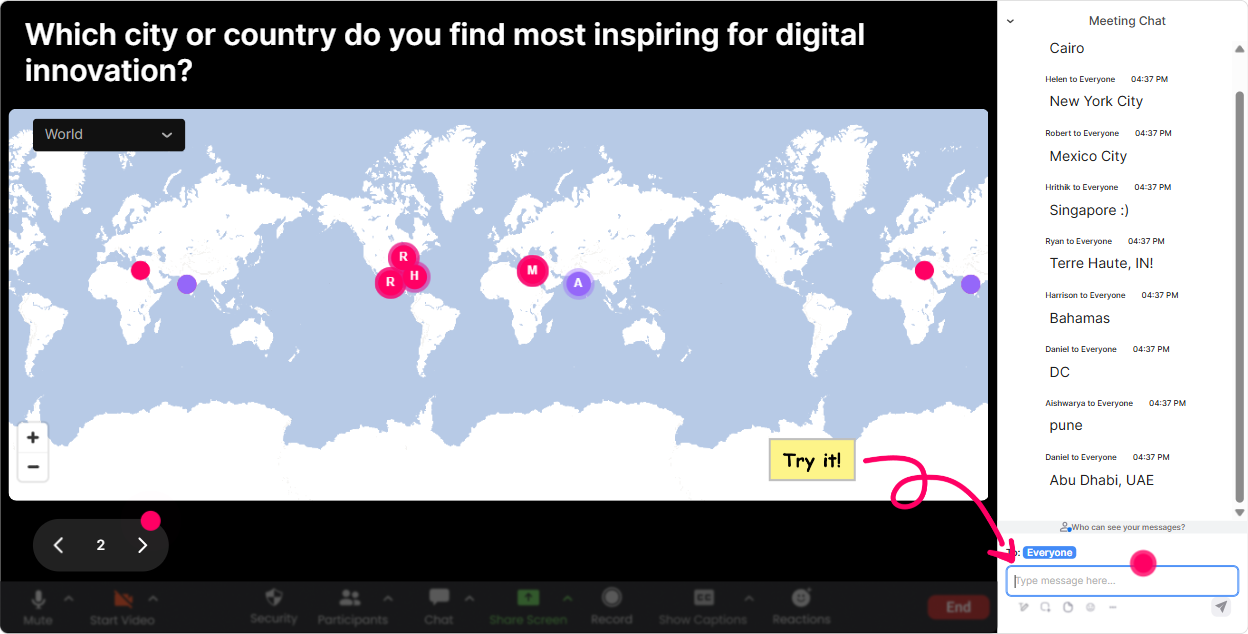
1) Magic Maps: Start warm, make it human (not another webinar)
Digital fatigue training can feel heavy if you jump straight into symptoms and research. Instead, kick off with something light that gets everyone typing within the first 60 seconds. How to use it in your Digital Fatigue ILT: - Icebreaker that doesnt feel like an icebreaker: Where are you joining from today? - Make it relevant to the topic: If you could teleport anywhere on earth right now for a real break, where would you go? - Make it agency-specific: Which city are your learners usually in (the ones you train most)? Why it works: - It gets everyone participating instantly. - Seeing names pop up on a live map makes the room feel real-which is a big antidote to digital fatigue. Trainer tip: If your question needs one clean answer, set it to one location per attendee so the map doesnt get messy. Then reset the map later if you want to reuse it for a second question.
2) Rating Polls: Quick pulse-checks to keep attention from drifting
A major cause of digital fatigue is people zoning out and silently struggling. Rating Polls let you do fast temperature checks without stopping the session for awkward discussion. Ways to use Rating Polls during your training: - Opener: On a scale of 110, how digitally drained do you feel this week? - Confidence check mid-way: Rate your confidence in spotting digital fatigue signs in learners (110). - Behavior change readiness: How realistic is it for you to add micro-breaks into training design? (110) Why it works: - Its fast. Its visual. And it gives you instant direction. - Youll know whether to slow down, speed up, or add a break. Trainer tip: Do this right after a dense segment (like science, stats, or policy). It pulls people back to the room.

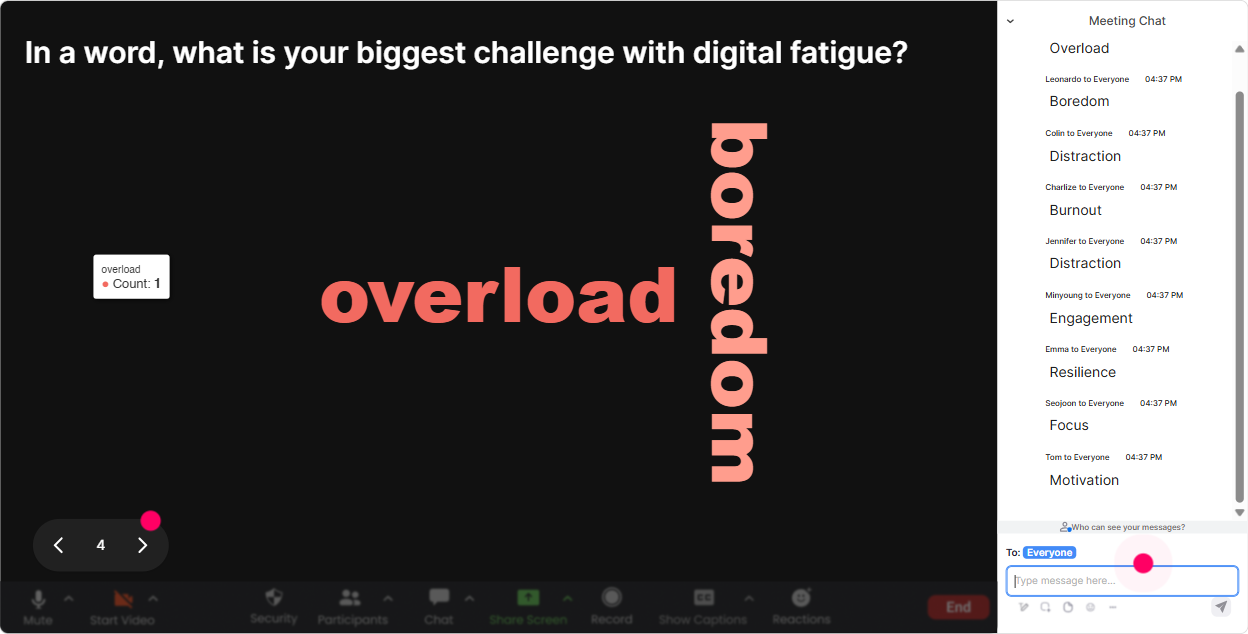
3) Wonder Words (Word Cloud): Get real feelings on screen (and normalize them)
Digital fatigue is emotional and personal-people often dont want to say it out loud. A word cloud is a gentle way to let everyone share how they feel without the pressure of a long explanation. Great word cloud prompts for this topic: - What word describes how your brain feels after back-to-back video calls? - In 12 words, what causes the most fatigue in your virtual trainings? - Whats the hardest part of staying engaged as a participant? Why it works: - Your audience sees theyre not alone (exhausted, distracted, overloaded shows up big). - It creates an instant bridge into your content: Cool-lets tackle the top 3 words were seeing. Trainer tip: Turn on Combine Similar Answers so tired/exhausted/fatigued dont get split into tiny buckets.
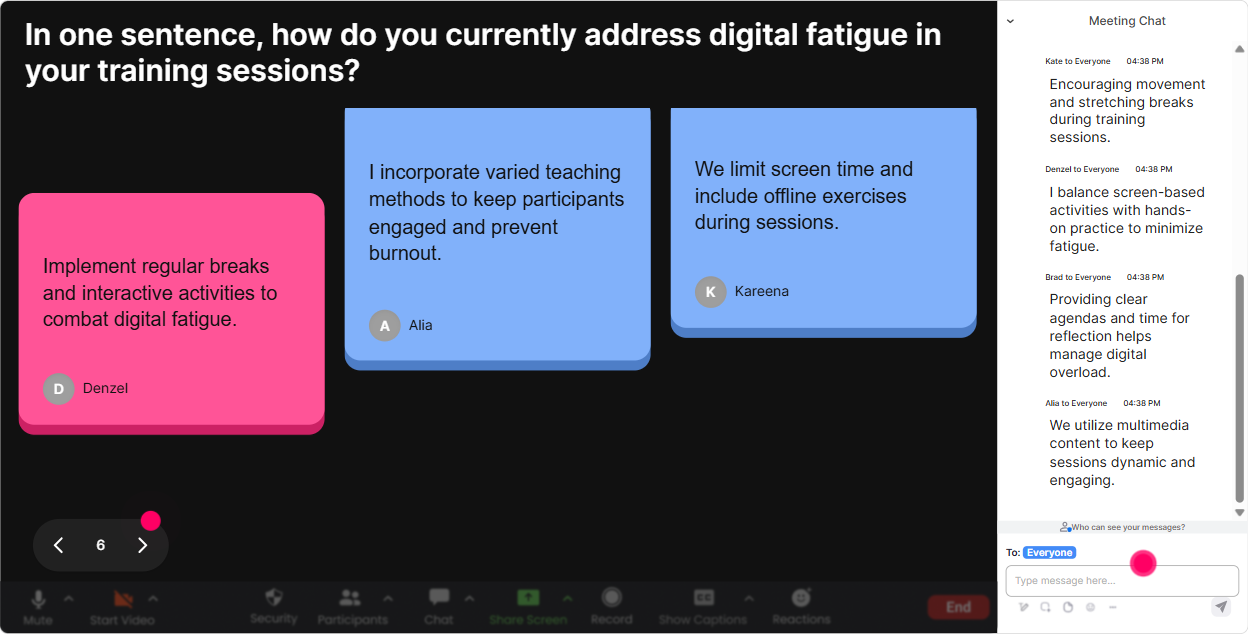
4) Talking Tiles: Let people vent + brainstorm in full sentences (without chaos)
Sometimes one-word answers arent enough-especially when youre training other trainers and agencies. Talking Tiles is perfect when you want real examples, stories, or practical ideas, but you still want it to feel fun and visual. Use it like this in a Digital Fatigue ILT: - Whats one moment in a virtual session where you notice learners checking out? - Share one habit that secretly makes your digital fatigue worse. - Whats one small change you could make to reduce fatigue in your training delivery? Why it works: - People get to say more than yes/no, but youre not stuck reading a messy scrolling chat. - It turns the audience into co-creators of the session, which boosts engagement big time. Trainer tip: After 6090 seconds, pause and read 35 tiles out loud. Then ask: Who else relates to this? and keep the energy going.
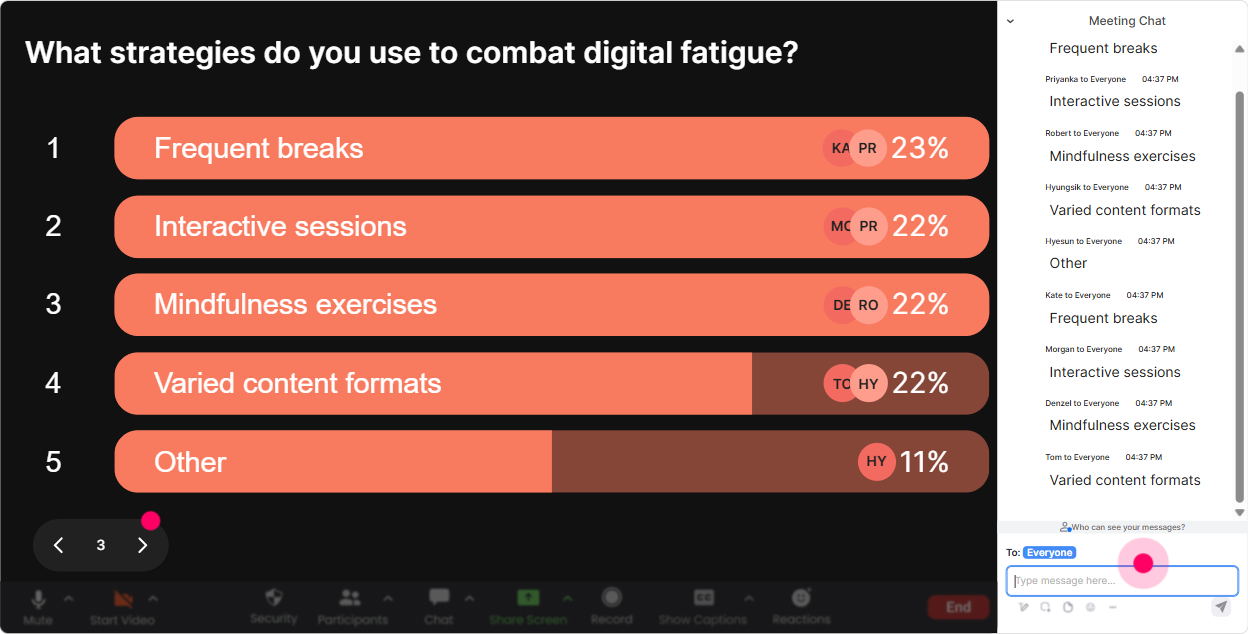
5) Power Polls: Let the audience choose the agenda (reduces resistance fast)
Digital fatigue training lands best when it feels immediately useful. Power Polls help you quickly learn what your Training Agency audience actually wants, then steer the session toward it. Poll ideas that work really well: - Whats your biggest digital fatigue challenge right now? 1) Keeping learners engaged 2) Trainers feeling burned out 3) Too much content, not enough time 4) Camera fatigue / Zoom exhaustion 5) Multitasking and distractions - Where do you want more practical tactics? 1) Session design 2) Facilitation skills 3) Breaks & pacing 4) Tools/tech stack 5) Measurement & feedback Why it works: - People pay attention when they feel like they helped shape the session. - You can literally say: Looks like #2 is winning-lets go there next. Thats instant buy-in. Trainer tip: Run one poll early (to steer), and one later (to confirm what theyll implement).
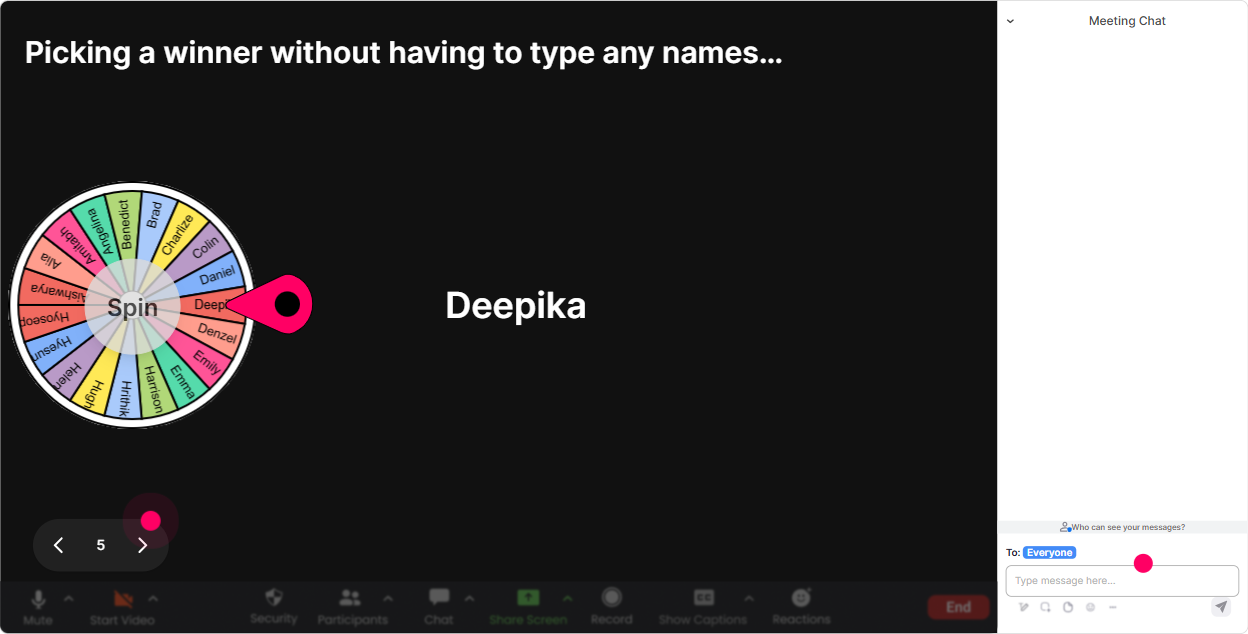
6) Winner Wheel (Spinner Wheel): Get participation without putting people on the spot
In digital fatigue sessions, the last thing you want is awkward silence when you ask for volunteers. Winner Wheel fixes that because the selection feels random and playful-not like youre calling someone out. How trainers use it smoothly: - Drop a quick tip in chat: whats your best anti-fatigue habit? Im going to spin the wheel and ask one person to share more. - Type ready in chat if youre willing to unmute for 20 seconds. Ill spin and pick one. - Share one thing youll change in your next training. Wheel decides who inspires the group. Why it works: - More people type in chat because they know they might get picked. - You get voices in the room, which breaks the watching a screen alone feeling. Trainer tip: Set expectations kindly: If you get picked and youd rather pass, just say pass-no worries. People relax and engage more.
7) Quiz: Quick knowledge checks that feel like a game (not an exam)
Digital fatigue content can get theory-heavy. A Quiz turns your knowledge checks into a mini game and gives people a reason to stay locked in. Quiz questions you can use: - Which is MOST likely to reduce cognitive load in virtual training? A) More slides B) Shorter segments + micro-activities C) Longer lectures D) More homework - True or False: Multitasking during training improves retention. - Whats a good micro-break length? A) 1020 seconds B) 25 minutes C) 15 minutes D) Skip breaks to maintain flow Why it works: - People refocus instantly when theres a pick an answer moment. - You can reveal the correct answer and explain it in 30 seconds-super clean teaching. Trainer tip: Do a quiz right after explaining a concept like cognitive load, Zoom fatigue triggers, or attention cycles. Thats when retention usually drops.

2) Rating Polls: Quick pulse-checks to keep attention from drifting
A major cause of digital fatigue is people zoning out and silently struggling. Rating Polls let you do fast temperature checks without stopping the session for awkward discussion. Ways to use Rating Polls during your training: - Opener: On a scale of 110, how digitally drained do you feel this week? - Confidence check mid-way: Rate your confidence in spotting digital fatigue signs in learners (110). - Behavior change readiness: How realistic is it for you to add micro-breaks into training design? (110) Why it works: - Its fast. Its visual. And it gives you instant direction. - Youll know whether to slow down, speed up, or add a break. Trainer tip: Do this right after a dense segment (like science, stats, or policy). It pulls people back to the room.
8) Q&A (Quick Questions): Capture questions without losing your flow
In fatigue-related sessions, chat can get busy fast. Questions get buried, you miss the good ones, and then your Q&A feels rushed. StreamAlives Q&A pulls questions out of chat and organizes them so you can handle them cleanly. How to use it in this training: - Tell them: Ask questions anytime-just drop them in chat. Ill grab them in the Q&A list. - Run a dedicated segment: Okay, lets do 5 minutes: top questions on learner fatigue, trainer fatigue, and session design. - Use it for sensitive topics: If youre dealing with burnout or overload, ask it-someone else is thinking it too. Why it works: - You stop scanning chat like a maniac. - Your audience trusts theyll be heard, which increases participation. Trainer tip: When you answer a question, tie it back to a tactic: Heres the idea-and heres how you can apply it in your next cohort.

9) Analytics: Improve every cohort, prove impact to clients, and spot your super-engaged people
Training Agencies often need to show outcomes-not just we delivered a session. StreamAlive analytics helps you see what actually kept people engaged, when energy dipped, and which interactions worked best. How to use Analytics after a Digital Fatigue ILT: - Check minute-by-minute engagement: Identify where attention dropped (usually long explanations) and where it spiked (polls, quizzes, story prompts). - Interaction reports: See which questions got the most responses, so you can reuse the winners next time. - Identify your top fans (most engaged attendees): These are often your champions-great for follow-up, testimonials, or advanced sessions. - Email reports to yourself or share with your team on Teams: Useful for internal debriefs and client reporting. Why it works: - You stop guessing what worked. You know. - Over time, you design sessions that feel lighter, more interactive, and way less draining-exactly what Digital Fatigue training should model.

Use StreamAlive in all your training sessions
StreamAlive isn’t just for
Digital Fatigue
training,
it can also be used for any instructor-led training session directly inside your PowerPoint presentation.
Explore similar traingin ideas: unlocking the potential of StreamAlive
See how StreamAlive transforms live training with engaging events and interactive sessions across industries, directly inside your PowerPoint presentation.

Interactions in action
(it's free)

.svg.png)


